> ## Documentation Index
> Fetch the complete documentation index at: https://kb.hosting.com/llms.txt
> Use this file to discover all available pages before exploring further.
# Accessing webmail in Plesk
> Learn to access Plesk email via webmail with step-by-step instructions and a helpful video.
This article describes how to access Plesk e-mail accounts using webmail.
Plesk is no longer included with new hosting.com plans, but it is still available on legacy Managed WordPress accounts. You can install Plesk manually on unmanaged VPS and Dedicated servers.
Webmail enables you to check your e-mail accounts by using your web browser. You can compose and read e-mail messages, maintain an address book, and perform other common tasks. Third-party e-mail client applications, such as Thunderbird and Microsoft Outlook Express, generally provide more features than webmail applications, but also require more initial configuration.
## Accessing webmail
You can access webmail through Plesk, or you can access webmail directly by visiting a specific URL.
To watch a video that demonstrates the first method, please click below:
### Method #1: Accessing webmail through Plesk
To access webmail using Plesk, follow these steps:
1. Log in to Plesk.
> 📘 Note
>
> If you do not know how to log in to your Plesk account, please see [this article](/docs/logging-in-and-out-of-plesk).
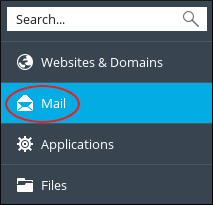
2. In the left sidebar, click **Mail**:\
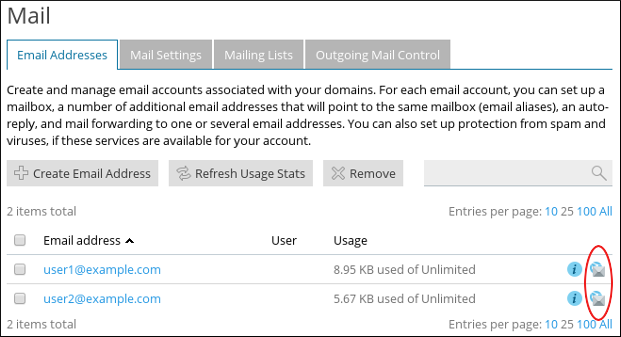
3. On the **Mail** page, locate the account for which you want to access webmail, and then click the webmail icon:\
4. On the webmail login page, type the username and password for the e-mail account you want to access.
**Important**
For the username, you must type the complete e-mail address (for example, [user@example.com](mailto:_user@example.com_) ). You cannot type just *user*.
5. Click **Login**. Webmail loads the mailbox for the account.
### Method #2: Accessing webmail directly
To access webmail directly, follow these steps:
1. Use your web browser to go to *[https://webmail.example.com](https://webmail.example.com)*, where ***example.com*** represents your domain name.
2. On the webmail login page, type the username and password for the e-mail account you want to access.
> 🚧 Important
>
> For the username, you must type the complete e-mail address (for example, [user@example.com](mailto:_user@example.com_) ). You cannot type just *user*.
3. Click **Login**. Webmail loads the mailbox for the account.
## More information
For more information about Plesk, please visit [https://www.plesk.com](https://www.plesk.com).
## Related articles
* [Configuring an e-mail alias in Plesk](/docs/configuring-an-e-mail-alias-in-plesk)
* [Getting started with Plesk](/docs/getting-started-with-plesk)
* [Managing e-mail accounts in Plesk](/docs/managing-e-mail-accounts-in-plesk)
* [Managing e-mail deliverability settings in Plesk](/docs/managing-e-mail-deliverability-settings-in-plesk)