> ## Documentation Index
> Fetch the complete documentation index at: https://kb.hosting.com/llms.txt
> Use this file to discover all available pages before exploring further.
# Adding a language pack in OpenCart
> Enhance your OpenCart store by letting global customers choose their language. Discover how to install a language pack today!
You may be serving a diverse range of customers from various countries through your [OpenCart](https://hosting.com/hosting/platforms/opencart-hosting/) store. It is best to provide your users with the option of selecting a language in order to provide them with the best shopping experience possible. This article explains how to install a language pack in [OpenCart](https://hosting.com/hosting/platforms/opencart-hosting/).
## Downloading the language pack from OpenCart Marketplace
To download a language pack from OpenCart Marketplace, follow these steps:
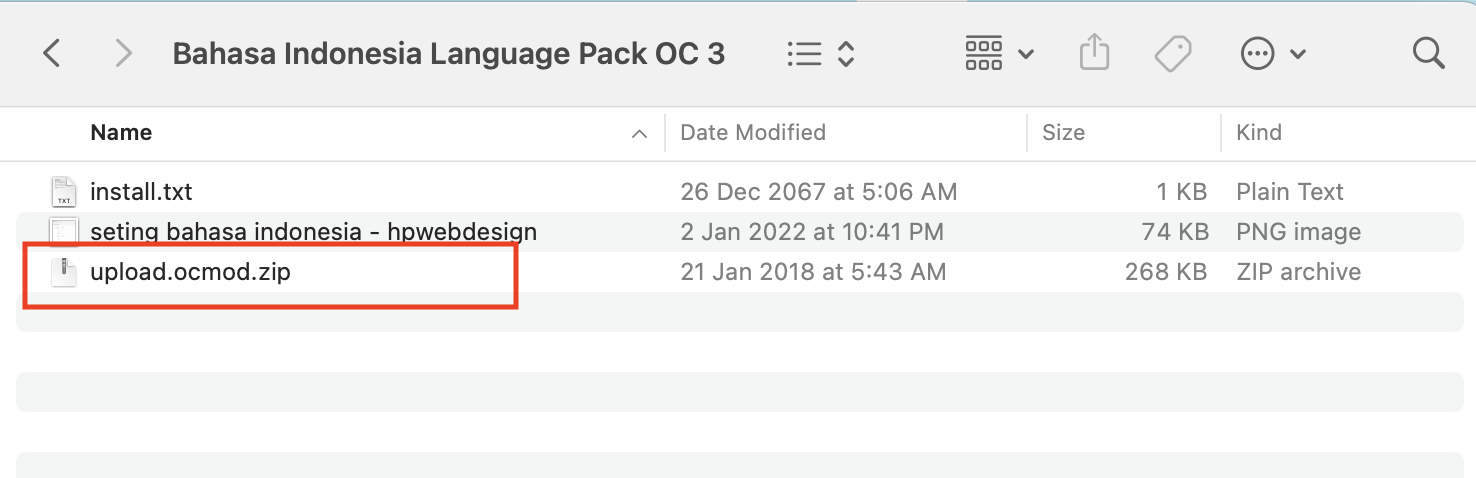
1. Create an account at [opencart.com](https://www.opencart.com/index.php?route=account/login), access the [OpenCart MarketPlace](https://www.opencart.com/index.php?route=marketplace/extension), and then download the language pack extension:\ 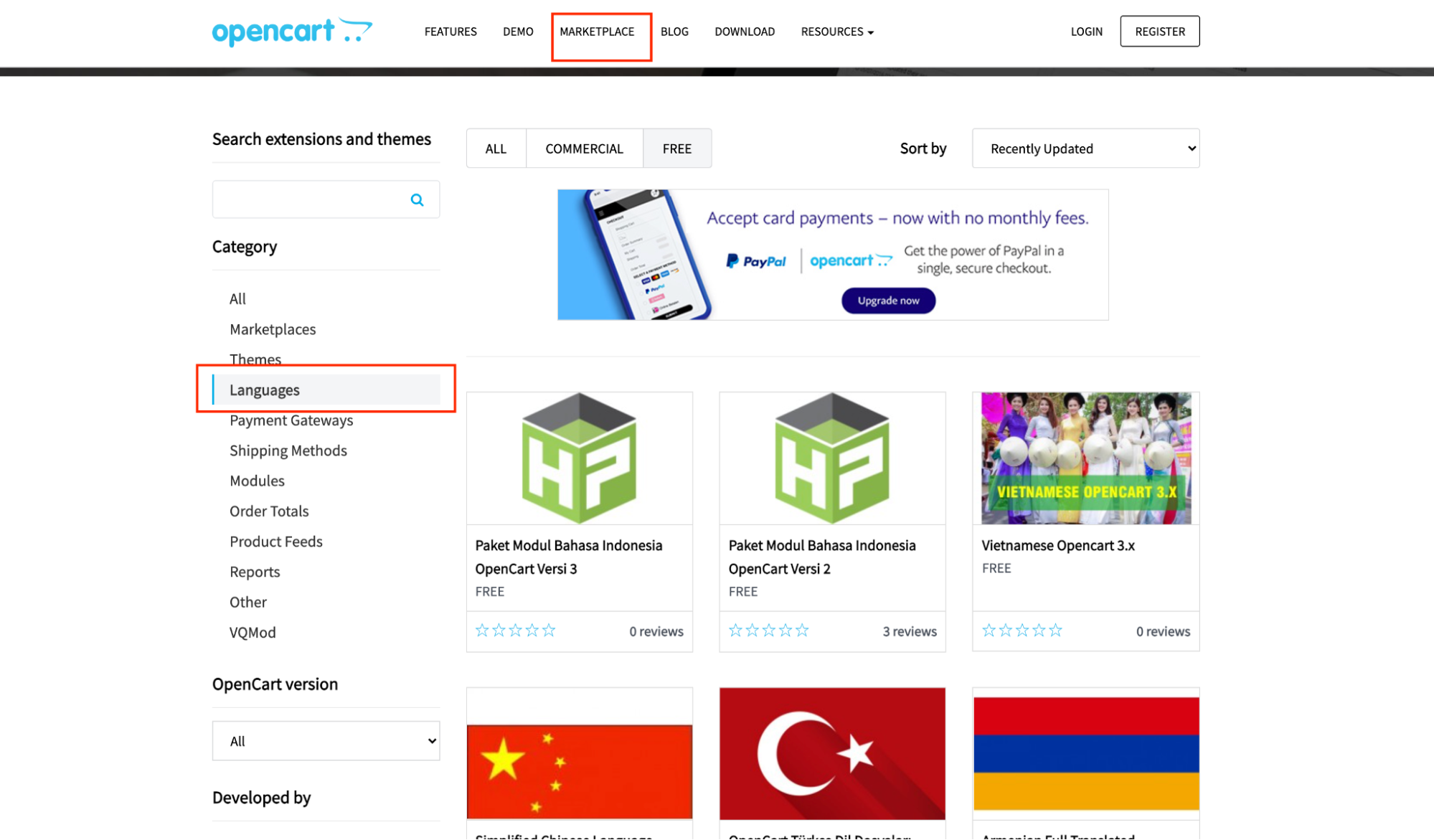 2. Unzip the folder, you will only need the **\*.ocmod.zip** to install the language extension:\
  ## Installing language pack in OpenCart
To install a language pack in OpenCart, follow these steps:
1. Log into OpenCart as an administrator.
2. On the **Dashboard** in the left sidebar, click **Extensions**, and then click **Installer**:\
## Installing language pack in OpenCart
To install a language pack in OpenCart, follow these steps:
1. Log into OpenCart as an administrator.
2. On the **Dashboard** in the left sidebar, click **Extensions**, and then click **Installer**:\ 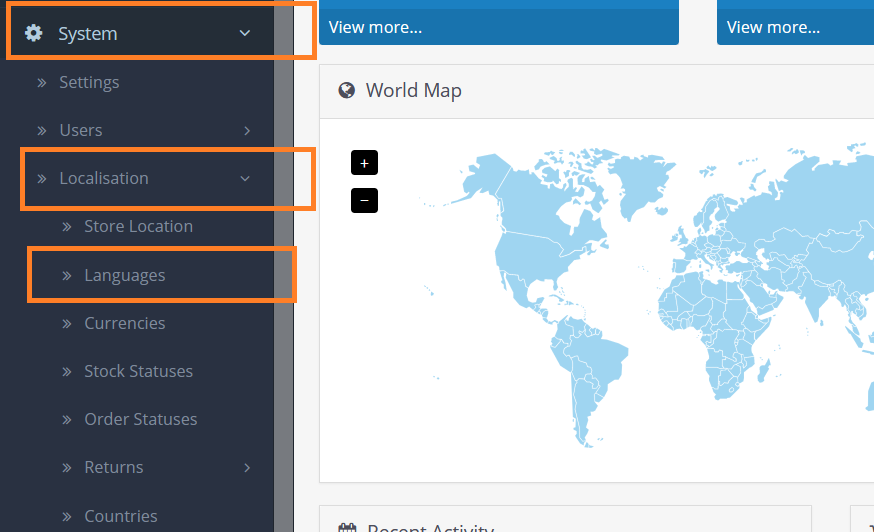 3. Select and upload **\*.ocmod.zip** language extension pack from **Downloading the language pack from OpenCart Marketplace:Step 2**, and wait for the process to finish:\
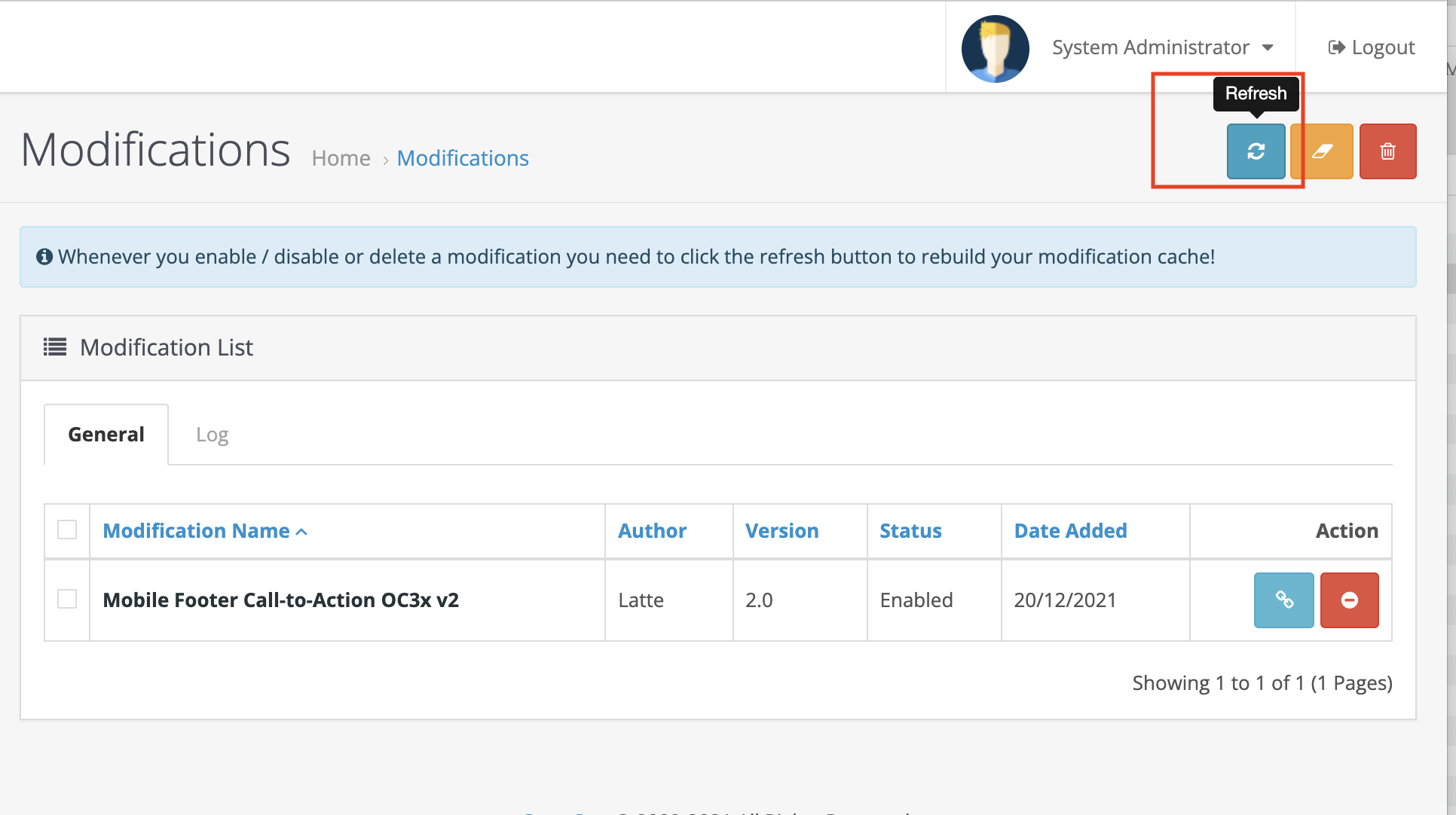
 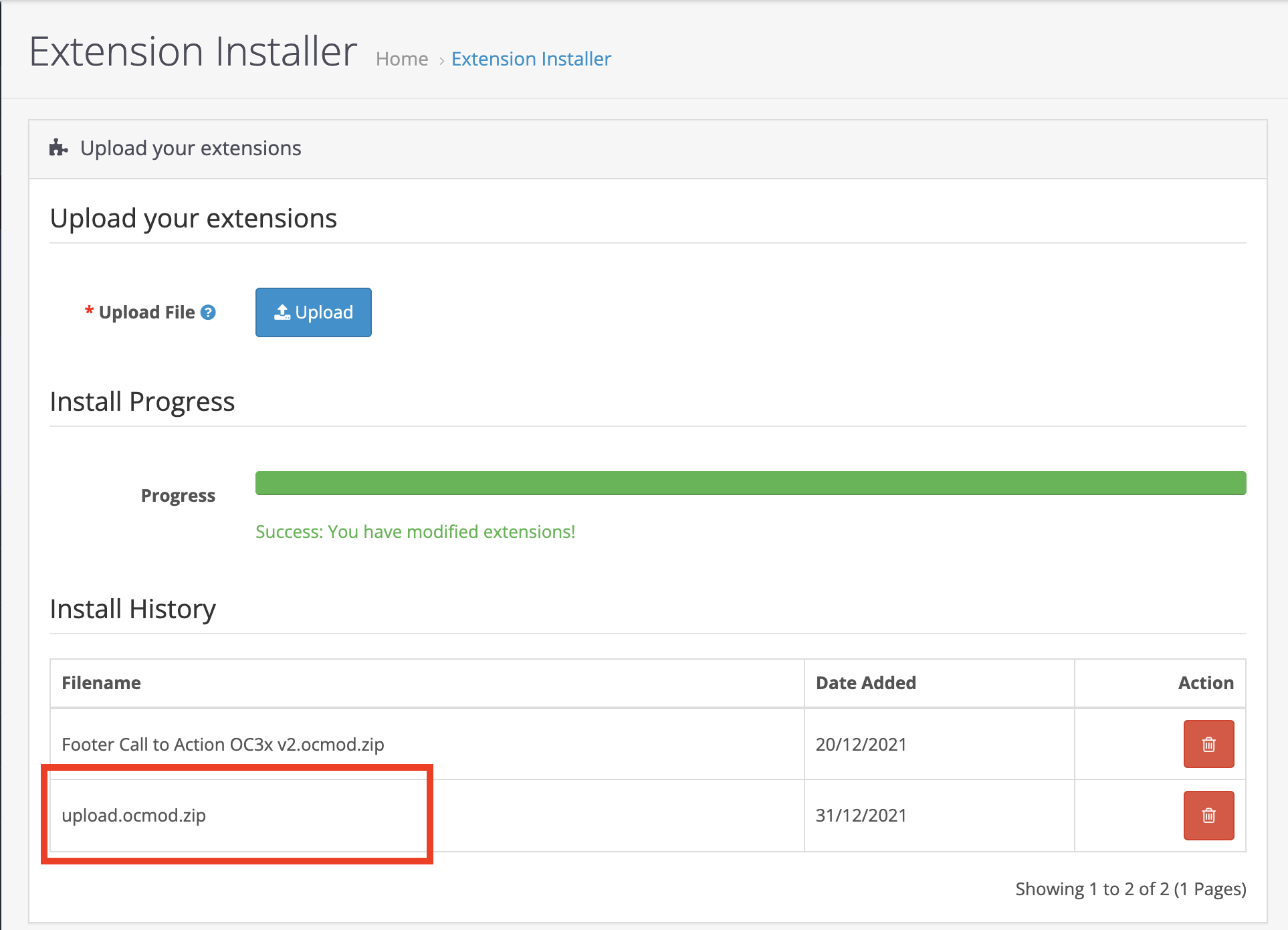 4. Click on **refresh** to rebuild the modification cache:\
  ## Configuring language pack in OpenCart
To configure the downloaded language pack, follow these steps:
1. On the **Dashboard** in the left sidebar, click **Localisation**, and then click **Languages**:\
2. To add the installed language, click on the **Add New** button:\
## Configuring language pack in OpenCart
To configure the downloaded language pack, follow these steps:
1. On the **Dashboard** in the left sidebar, click **Localisation**, and then click **Languages**:\
2. To add the installed language, click on the **Add New** button:\ 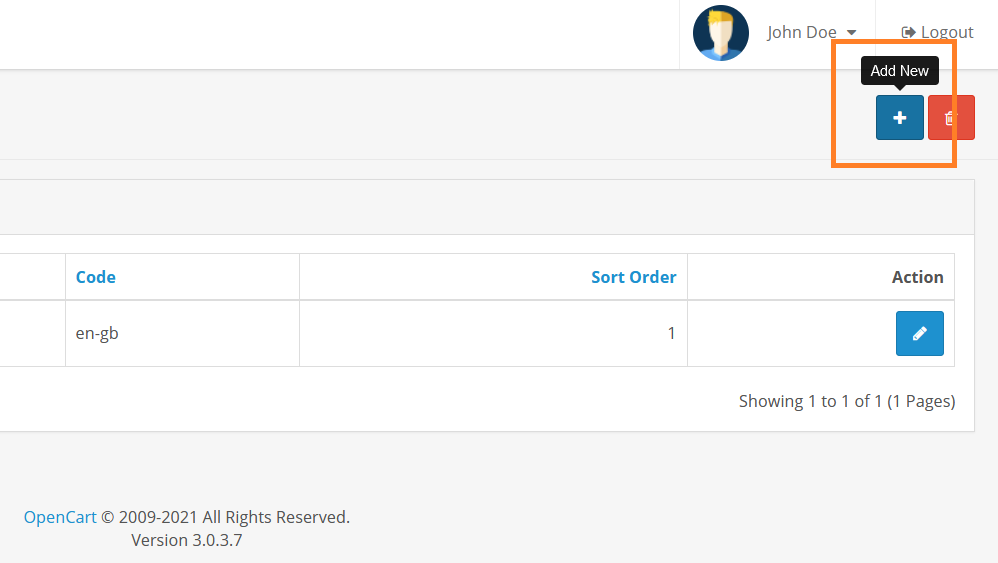 3. Fill in the language name, code, locale, set its status, and save the changes:\
 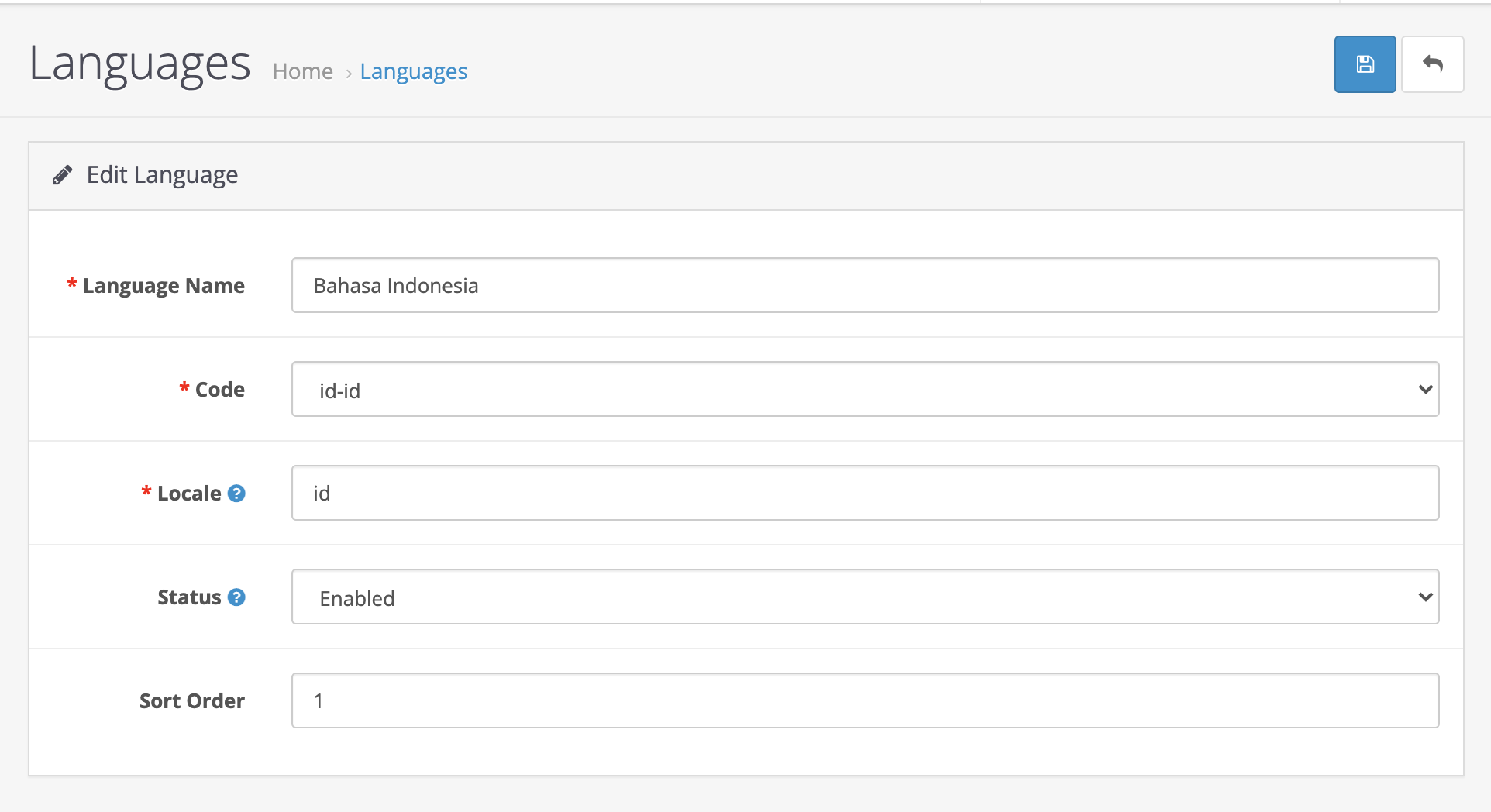 Note: If you need help with the Locale, please visit [https://developer.chrome.com/docs/extensions/reference/api/i18n](https://developer.chrome.com/docs/extensions/reference/api/i18n)
4. Your store will display a select language dropdown that will let your customers set their preferred language:\
Note: If you need help with the Locale, please visit [https://developer.chrome.com/docs/extensions/reference/api/i18n](https://developer.chrome.com/docs/extensions/reference/api/i18n)
4. Your store will display a select language dropdown that will let your customers set their preferred language:\ 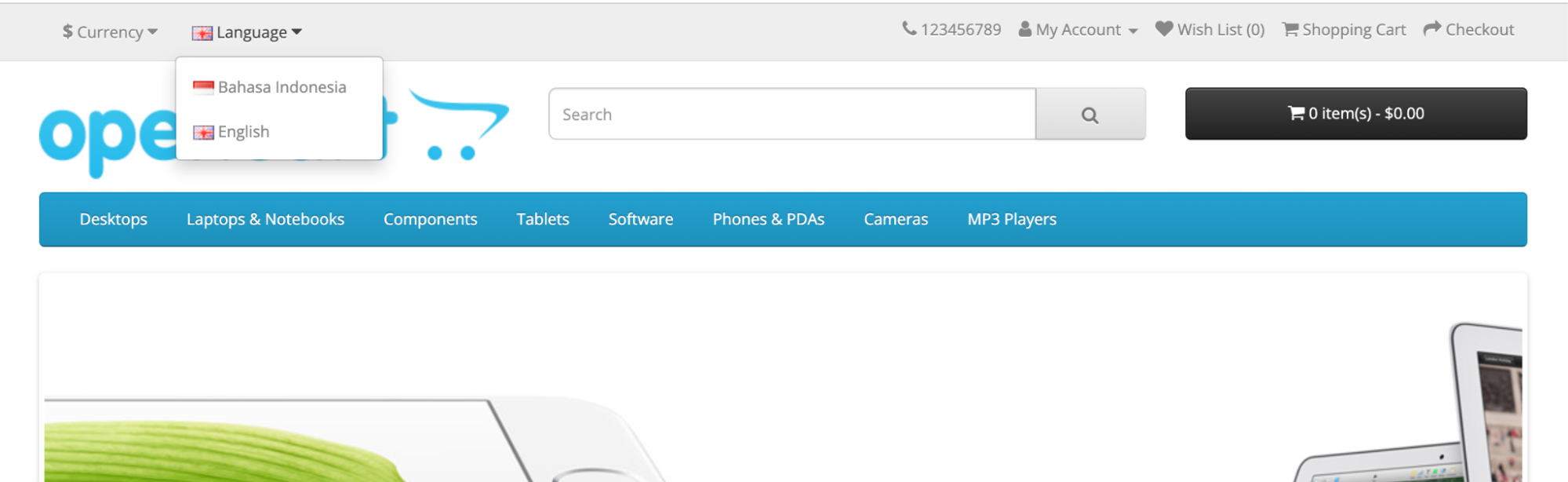 ## More information
For more information about language packs, please visit: [https://docs.opencart.com/](https://docs.opencart.com/)
## Related articles
* [Display store hours in OpenCart](/docs/display-store-hours-in-opencart)
* [Installing an OpenCart theme](/docs/installing-an-opencart-theme)
* [OpenCart](/docs/opencart1)
## More information
For more information about language packs, please visit: [https://docs.opencart.com/](https://docs.opencart.com/)
## Related articles
* [Display store hours in OpenCart](/docs/display-store-hours-in-opencart)
* [Installing an OpenCart theme](/docs/installing-an-opencart-theme)
* [OpenCart](/docs/opencart1)