> ## Documentation Index
> Fetch the complete documentation index at: https://kb.hosting.com/llms.txt
> Use this file to discover all available pages before exploring further.
# Adding CAPTCHA protection to a PrestaShop site
> Secure your PrestaShop site and reduce spam with CAPTCHA protection. Learn how to add CAPTCHAs here.
This article describes how to add CAPTCHA protection to a PrestaShop site. CAPTCHAs help protect your site from spamming by bots and other malicious actors.
For general information about what CAPTCHAs are and what they do, please see [this article](/docs/adding-captcha-protection-to-your-web-site).
## Adding CAPTCHA protection
There are several PrestaShop modules available that add CAPTCHA support to a site. Some plugins require a fee, while others require registration. One CAPTCHA plugin that is free is SlideCaptcha. Unlike most CAPTCHAs, which require users to enter a series of characters, SlideCaptcha simply requires a user to drag a slider, which unlocks the page:\
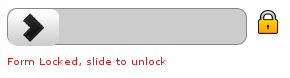
To add CAPTCHA protection to a PrestaShop site using the SlideCaptcha plugin, follow these steps:
1. Use your web browser to visit the SlideCaptcha page at [http://catalogo-onlinersi.net/en/add-ons-prestashop-modules/264-slide-captcha-prestashop-module.html](http://catalogo-onlinersi.net/en/add-ons-prestashop-modules/264-slide-captcha-prestashop-module.html):
* Add SlideCaptcha to your cart and complete the checkout process.
* After you complete checkout, you can download the *slidecaptcha.zip* file to your local computer.
2. Log in to your PrestaShop site as the administrator.
3. On the **MODULES** menu, click **Modules**.
4. Click **Add a new module**.
5. Click **Choose a file**, select the *slidecaptcha.zip* file on your local computer, and then click **Open**.
6. Click **Upload this module**. PrestaShop uploads the file.
7. Under **MODULES LIST**, in the **Filter by** list box, select **Installed & Not Installed**, and then click **Front Office Features**.
8. In the module list, locate **SlideCaptcha**, and then click **Install**. PrestaShop installs the module and then displays the SlideCaptcha configuration page.
9. On the SlideCaptcha configuration page is the following line of code:
```
{include file="$tpl_dir./../../modules/slidecaptcha/slidecaptcha.tpl"}
```
You must add this line of code to any forms that you want to protect. For example, to protect the default theme's contact page form:
* Open the *themes/default-bootstrap/contact-form.tpl* in a text editor.
* Add the line of code to where you want SlideCaptcha to appear. For example, you can insert the code just before the **\** line.
* Save the changes to the *contact-form.tpl* file.
* Use your browser to go to the site's contact page. You should only be able to submit a message after you move the slider and unlock the form.
* Repeat these steps for any other forms that you want to protect with SlideCaptcha.
## More information
For more information about SlideCaptcha, please visit [http://catalogo-onlinersi.net/en/add-ons-prestashop-modules/264-slide-captcha-prestashop-module.html](http://catalogo-onlinersi.net/en/add-ons-prestashop-modules/264-slide-captcha-prestashop-module.html).
## Related articles
* [PrestaShop](/docs/prestashop1)