> ## Documentation Index
> Fetch the complete documentation index at: https://kb.hosting.com/llms.txt
> Use this file to discover all available pages before exploring further.
# Adding custom fields in OpenCart registration form
> Customize OpenCart registration forms easily by adding fields without coding. Capture customer info effortlessly.
To capture customer and purchase information, [OpenCart](https://hosting.com/hosting/platforms/opencart-hosting/) registration forms include predefined fields. These fields can be customised to suit your needs. This article will show you how to add a custom field to the registration form without having to write any code
## Adding custom fields in OpenCart registration forms
To create a new customer field, follow these steps:
1. Log into OpenCart as an administrator
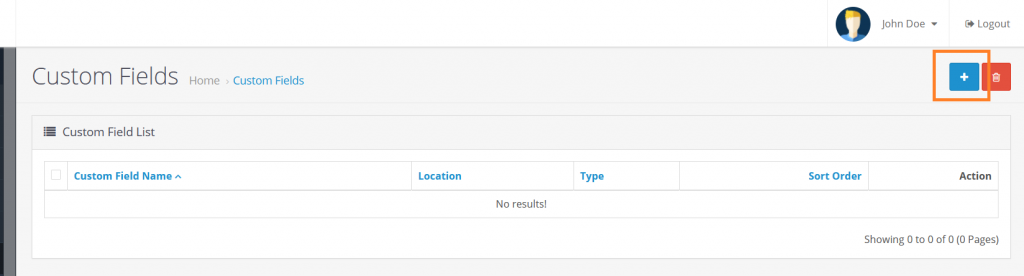
2. On the **Dashboard** in the left sidebar, click **Customers**, and then click **Custom Fields**:\ 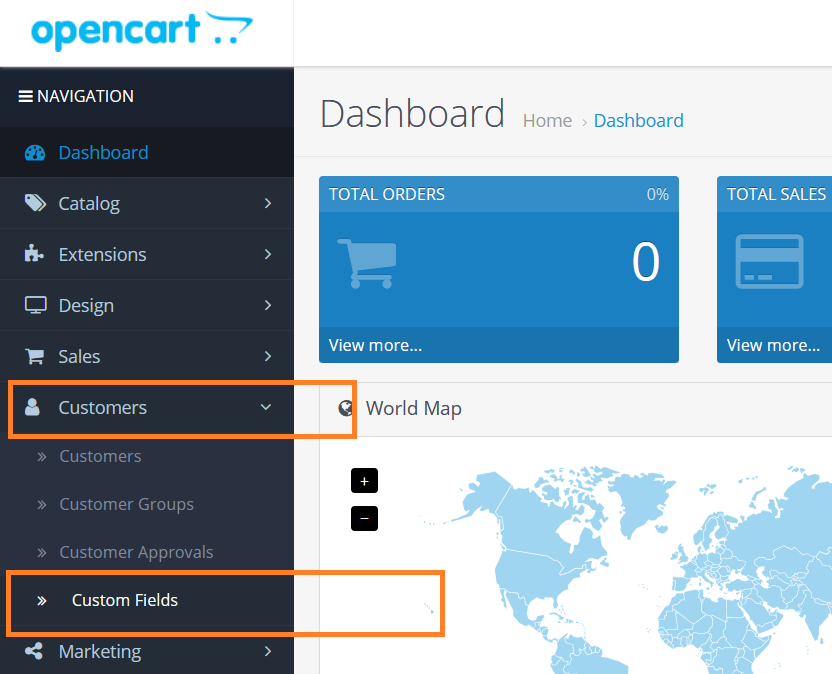 3. Click on **Add New** button to add new fields:\
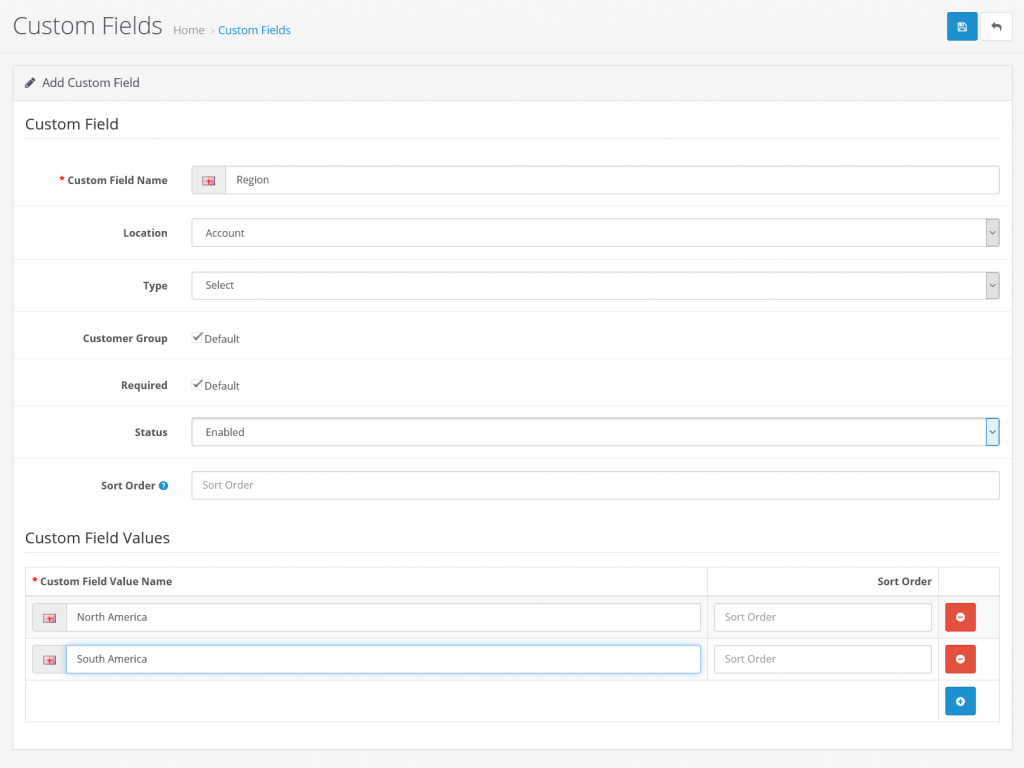
  4. Fill in the name, location to display the field, input type and all other required fields.Check on the **Customer Group** and **Required** field, and then change the **Status** field to enabled.The screenshot below shows a new region field for the user registration page:\
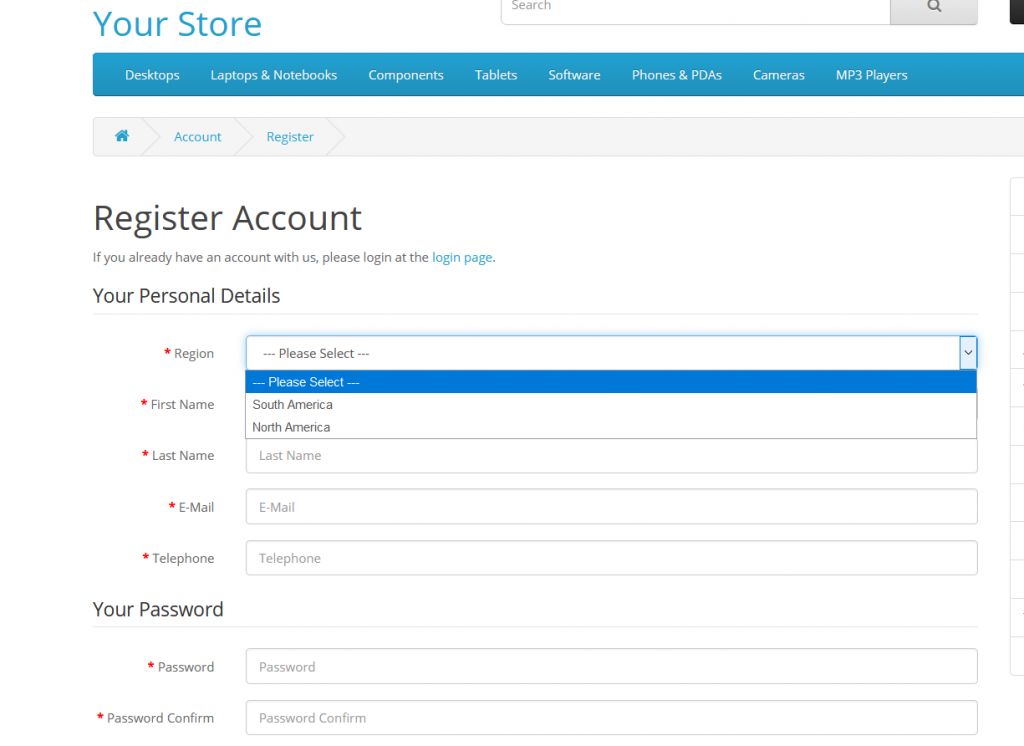
  5. Save the changes to view the new field on the registration page:\
  ## More information
For more information about customer management, please visit: [https://docs.opencart.com/](https://docs.opencart.com/)
## Related articles
* [Cancel orders in OpenCart](/docs/cancel-orders-in-opencart)
* [OpenCart](/docs/opencart1)
## More information
For more information about customer management, please visit: [https://docs.opencart.com/](https://docs.opencart.com/)
## Related articles
* [Cancel orders in OpenCart](/docs/cancel-orders-in-opencart)
* [OpenCart](/docs/opencart1)