> ## Documentation Index
> Fetch the complete documentation index at: https://kb.hosting.com/llms.txt
> Use this file to discover all available pages before exploring further.
# Backing up a Softaculous-installed application to Google Drive
> Learn how to set Softaculous to store site backups on Google Drive. With Google Drive backups, you ensure you have off-site backups of your app's data.
This article describes how to configure Softaculous to store site backups on Google Drive, a third-party file hosting service. By configuring Google Drive backups, you ensure that you have off-site backups of your Softaculous application data.
## Step 1: Add the Google Drive backup location
Before you can configure a Google Drive backup, you must add the Google Drive backup location in Softaculous. To do this, follow these steps:
1. Log in to cPanel.
> 📘 Note
>
> If you do not know how to log in to your cPanel account, please see [this article](/docs/accessing-cpanel).
2. On the **Tools** page, in the **Softaculous Apps Installer** section, click **Softaculous Apps Installer** (or any of the icons under **Scripts** or **Categories**).
3. In the icon list at the top right, click the  icon ( **Edit Settings** icon).
4. On the **User Settings** page, click **Add Backup Location**:\
5. On the **Add Backup Location** page, in the **Location Name** text box, type a descriptive name for the Google Drive backup location:\
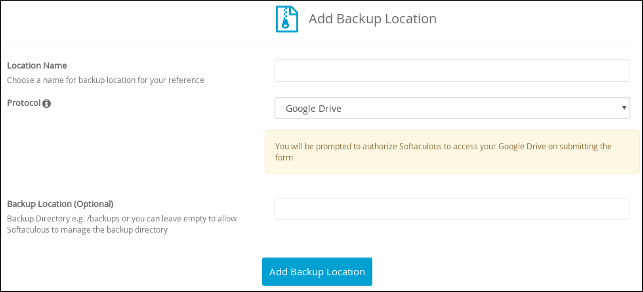
The name can be anything you want, though we recommend including the word "Google" so you can determine the destination at a glance.
6. In the **Protocol** list box, select **Google Drive**.
7. In the **Backup Location (Optional)** text box, you can optionally specify a destination directory for the backup in Google Drive.
By default, Softaculous places backups in the **Softaculous Auto Installer** folder on Google Drive. If you want to store backups in a specific folder inside the **Softaculous Auto Installer** folder, type the name in this text box. For example, you could store WordPress backups in the **/wordpress** folder. Make sure you include the leading forward slash (**/**) in the folder name.
8. Click **Add Backup Location**. The Google login page opens in a separate window.
9. On the Google login page, type your username and password, and then click **Sign in**.
10. At the **softaculous.com wants to access your Google Account** prompt, click **ALLOW**:\
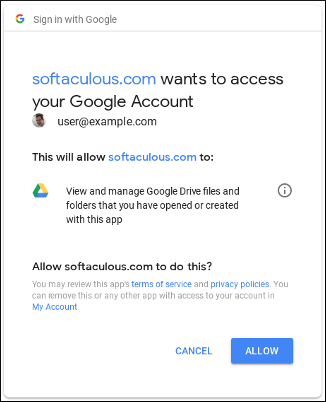
After a few seconds, you should receive the **Backup Location added successfully** message. You are now ready to configure backups.
## Step 2: Configure the backup
You can configure automatic backups that occur at specific intervals, or you can do a one-time, manual backup to Google Drive.
### Configuring automatic backups
To configure automatic backups, follow these steps:
1. Log in to cPanel.
> 📘 Note
>
> If you do not know how to log in to your cPanel account, please see [this article](/docs/accessing-cpanel).
2. On the **Tools** page, in the **Softaculous Apps Installer** section, click **Softaculous Apps Installer** (or any of the icons under **Scripts** or **Categories**).
3. In the icon list at the top right, click the  icon ( **All Installations** icon). The list of installed applications appears.
4. Locate the application that you want to back up, and then click the  icon ( **Edit Details** icon).
5. On the **Edit Installation Details** page, in the **Backup Location** list box, select the Google Drive location name.
6. In the **Automated backups** list box, select the backup frequency that you want.
> 👍 Tip
>
> If your web site's content changes frequently, then you probably want to do more frequent backups as well. Alternatively, if your web site content does not change often, you can decrease the backup frequency.
7. In the **Backup Rotation** list box, select how many backups you want to store.
> 📘 Note
>
> For example, if you select **2** , after two days the oldest backup is automatically deleted.
8. Click **Save Installation Details**. Softaculous configures the automatic backup.
### Doing a one-time backup
To do a one-time backup, follow these steps:
1. Log in to cPanel.
> 📘 Note
>
> If you do not know how to log in to your cPanel account, please see [this article](/docs/accessing-cpanel).
2. On the **Tools** page, in the **Softaculous Apps Installer** section, click **Softaculous Apps Installer** (or any of the icons under **Scripts** or **Categories**).
3. In the icon list at the top right, click the  icon ( **All Installations** icon). The list of installed applications appears.
4. Locate the application that you want to back up, and then click the  icon ( **Backup** icon).
5. To back up your site's files, select the **Backup Directory** check box.
6. To back up your site's database, select the **Backup Database** check box.
> 📘 Note
>
> If your application does not use a database, this option is not available.
7. In the **Backup Note** text box, you can type an optional descriptive note for the backup.
8. In the **Backup Location** list box, select the Google Drive location name.
9. Click **Backup Installation**. Softaculous completes the backup to Google Drive.
## More information
For more information about Google Drive, please visit [https://www.google.com/drive](https://www.google.com/drive).
## Related articles
* [How to manage your applications in Softaculous](/docs/manage-your-applications)
* [Importing an application into Softaculous](/docs/importing-an-application-into-softaculous)
* [Backing up a Softaculous application to Dropbox](/docs/backing-up-a-softaculous-application-to-dropbox)