> ## Documentation Index
> Fetch the complete documentation index at: https://kb.hosting.com/llms.txt
> Use this file to discover all available pages before exploring further.
# Backing up and restoring databases in Plesk
> Refer to these step-by-step instructions and learn how to back up Plesk as an SQL file and how to restore databases in Plesk with just a few simple Clicks.
This article describes how to back up and restore your databases using Plesk.
Plesk is no longer included with new hosting.com plans, but it is still available on legacy Managed WordPress accounts. You can install Plesk manually on unmanaged VPS and Dedicated servers.
## Backing up a database
You can quickly and easily create a database backup using Plesk. When you do this, Plesk exports the database as an SQL file.
To back up a database using Plesk, follow these steps:
1. Log in to Plesk.
> 📘 Note
>
> If you do not know how to log in to your Plesk account, please see [this article](/docs/logging-in-and-out-of-plesk).
2. In the left sidebar, click **Databases**.
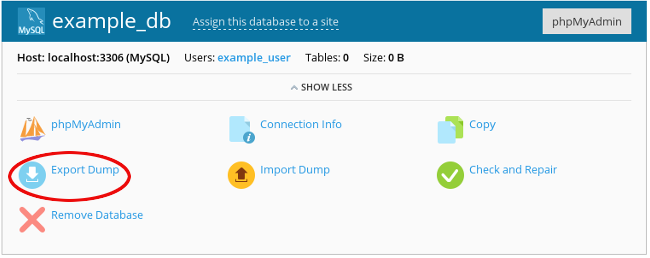
3. Locate the database you want to back up, and then click **Export Dump**:\
4. Select a destination directory for the backup file, specify a filename, and then click **OK**. Plesk creates the backup file.
To download the backup file to your local computer automatically, select the **Automatically download dump after creation** check box.
## Restoring a database
You can quickly and easily restore a database using Plesk.
**️ Warning**
To avoid potential data loss, you should always back up the existing database to a different filename before you try to restore from a previous backup.
To do this, follow these steps:
1. Log in to Plesk.
> 📘 Note
>
> If you do not know how to log in to your Plesk account, please see [this article](/docs/logging-in-and-out-of-plesk).
2. In the left sidebar, click **Databases**.
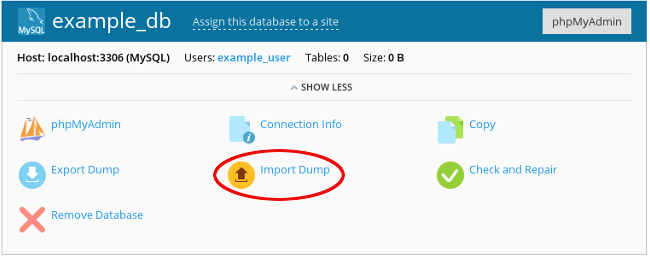
3. Locate the database you want to restore, and then click **Import Dump**:\
4. Browse to the backup file location, select the file, and then click **OK**.
## More information
For more information about Plesk, please visit [https://www.plesk.com](https://www.plesk.com).