> ## Documentation Index
> Fetch the complete documentation index at: https://kb.hosting.com/llms.txt
> Use this file to discover all available pages before exploring further.
# Changing font using WordPress Classic Editor
> Discover how to change font type and size in WordPress Classic Editor using the Advanced Editor Tools plugin.
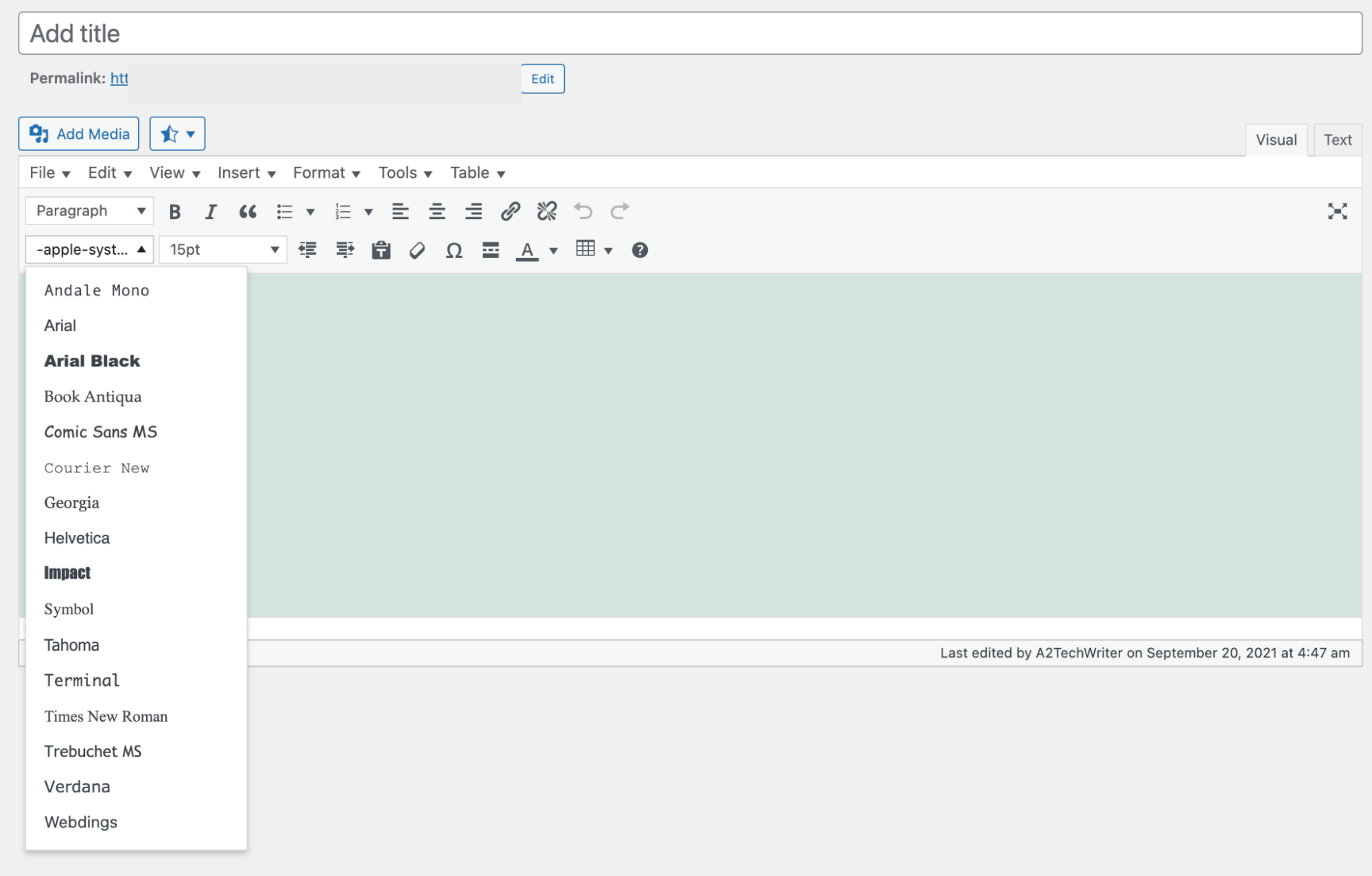
[WordPress](https://hosting.com/hosting/platforms/wordpress-hosting/managed-wordpress-hosting/) Classic Editors, by default, does not offer text formatting options like font styles and size. This article shows you how to install the **Advanced Editor Tools** toolbar, which allows font sizes and text formatting options on the [WordPress](https://hosting.com/hosting/platforms/wordpress-hosting/managed-wordpress-hosting/) classic editor.
## Installing and Configuring Advanced Editor Tools plugin
To install and configure **Advanced Editor Tools Plugin**, follow these steps:
1. Log in to your WordPress site with an administrator account.
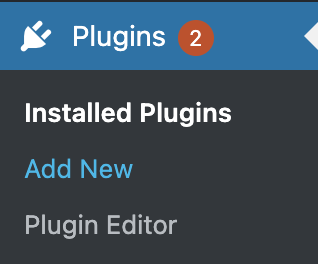
2. On the **Dashboard** in the left sidebar, click **Plugins**, and then click **Add New**:\\
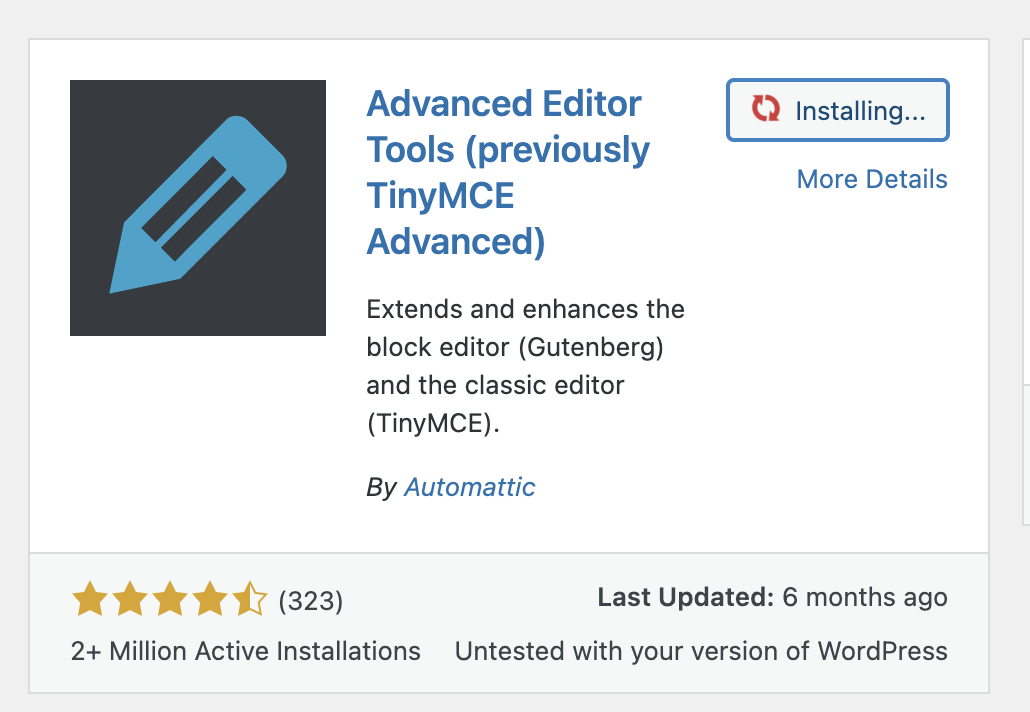
3. Search for "*Advanced Editor Tools*" click **Install,** and then click **Activate** the plugin:\\
4. View the **Advanced Editor Tools** text formatting toolbar on the **Classic Editor** toolbar:
**Before**: 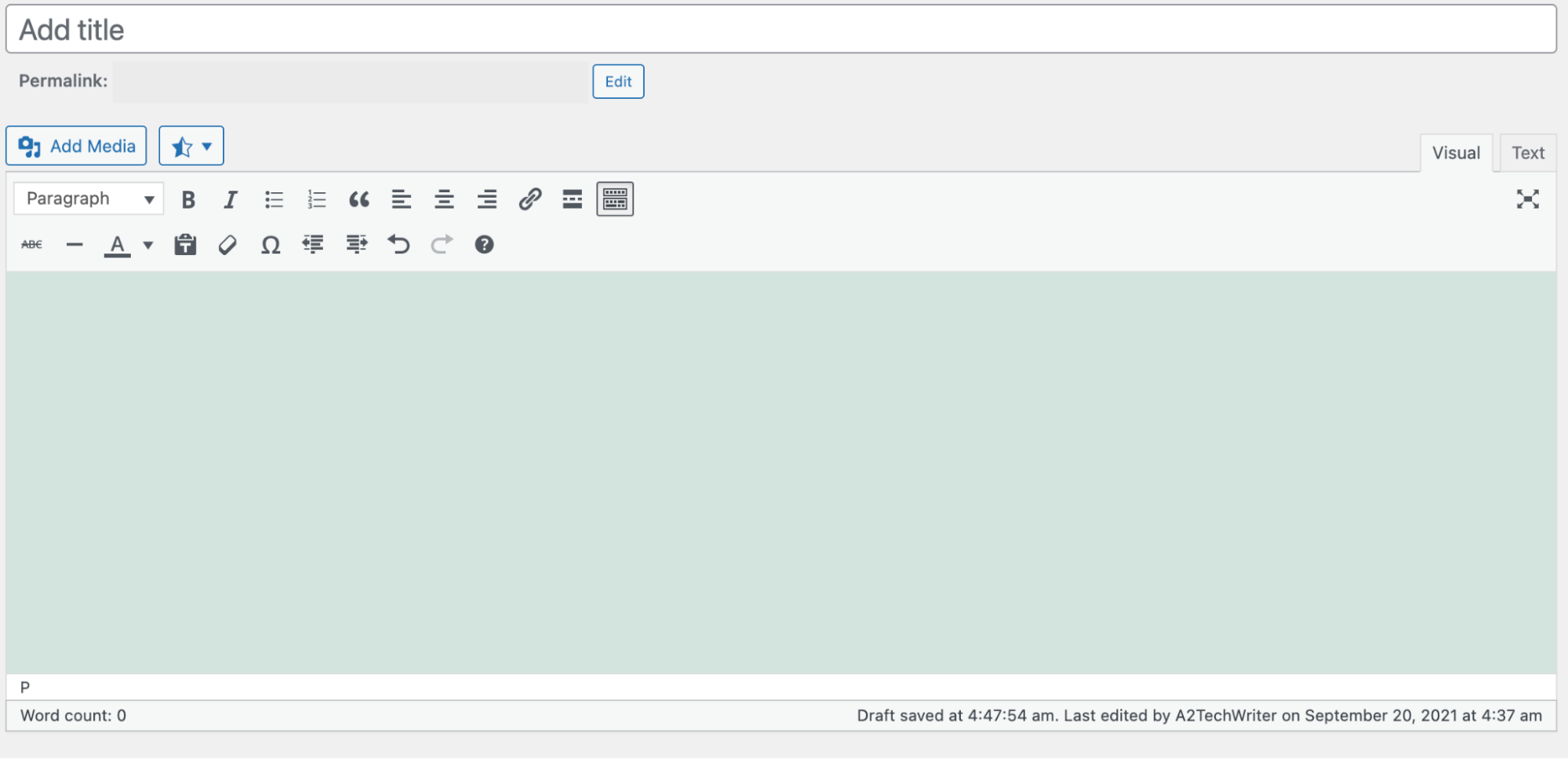 **After**:
  ## More information
## Related articles
* [Adding a custom logo to WordPress](/docs/adding-a-custom-logo-to-wordpress)
* [Changing Fonts in WordPress](/docs/change-the-font-in-wordpress)
* [Clearing the cache in WordPress](/docs/clearing-the-cache-in-wordpress)
## More information
## Related articles
* [Adding a custom logo to WordPress](/docs/adding-a-custom-logo-to-wordpress)
* [Changing Fonts in WordPress](/docs/change-the-font-in-wordpress)
* [Clearing the cache in WordPress](/docs/clearing-the-cache-in-wordpress)