> ## Documentation Index
> Fetch the complete documentation index at: https://kb.hosting.com/llms.txt
> Use this file to discover all available pages before exploring further.
# Changing the domain in WordPress
> Learn how to change your WordPress domain using the admin interface, WP-CLI, or phpMyAdmin with this step-by-step guide.
This article describes how to change the domain name for an existing [WordPress](https://hosting.com/hosting/platforms/wordpress-hosting/managed-wordpress-hosting/) installation. You may need to do this, for example, if:
* You want to use a new domain name for your site.
* You are migrating your WordPress site.
## Step #1: Back up the site
Before changing the domain (or making any other major changes, for that matter), it is a good idea to do a site backup. Then if anything goes wrong, you can restore the site to its previous state.
For information about how to back up WordPress, please see [this article](/docs/backing-up-your-wordpress-site).
## Step #2: Change the WordPress domain settings
After you do a site backup, you are ready to change the site's domain settings in WordPress. There are several ways to do this; use whichever method is available or easiest for you.
Make sure the new domain is pointing to your site\
**before** you change the domain settings in WordPress. Remember that\
[DNS propagation](/docs/accessing-your-web-site-before-dns-propagation-is-complete) can take 24 hours to complete.
### Method #1: Use the WordPress administration interface
The easiest way to change the domain name is to use the administration interface in WordPress. To do this, follow these steps:
1. Log in to WordPress.
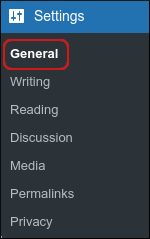
2. In the left sidebar, click **Settings**, and then click **General**:\
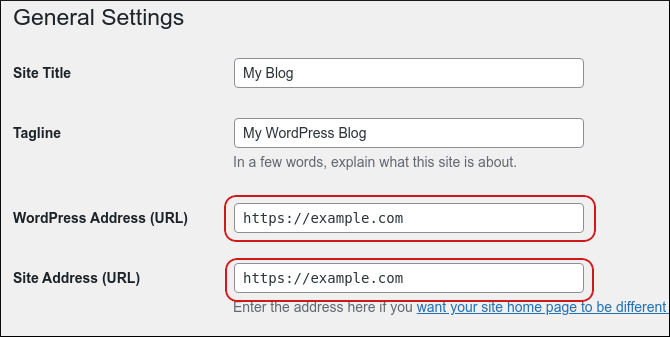
3. Under **General Settings**, in the **WordPress Address (URL)** text box, type the new domain name:\
If your site has an SSL certificate, remember to type *https\://* instead of *http\://*.
4. In the **Site Address (URL)** text box, type the new domain name.
If your site has an SSL certificate, remember to type *https\://* instead of *http\://*.
5. Click **Save Changes**.
### Method #2: Use the WP-CLI tool
If the administration interface is inaccessible, or if you prefer working from the command line, you can use the WP-CLI tool to change the domain name. To do this, follow these steps:
1. Log in to your account [using SSH](/docs/using-ssh-secure-shell).
2. At the command prompt, change to the directory where you installed WordPress.
3. Type the following command. Replace ***old.example.com*** with the old domain name, and replace ***new\.example.com*** with the new domain name:
```bash theme={null}
wp search-replace 'old.example.com' 'new.example.com'
```
WP-CLI replaces all instances of ***old.example.com*** in the database with ***new\.example.com***.
### Method #3: Use phpMyAdmin
If you are unable to access the WordPress administration dashboard, or if you don't want to use the command line, you can use [phpMyAdmin](https://www.phpmyadmin.net/) to change the domain name settings in the database manually. For information about how to do this, please see [this article](/docs/changing-the-website-url-in-wordpress).
## Step #3: Test the site
Lastly, you should test the site to make sure everything works correctly. Be sure to look for any hard-coded URLs that may no longer function with the domain name change.
Additionally, you may want to set up redirects to ensure your visitors go to the correct location. For information about how to configure redirects in cPanel, please see [this article](/docs/redirects).
## Related articles
* [Introduction to domains](/docs/introduction-to-domains)
* [Changing the WordPress site URLs](/docs/changing-the-website-url-in-wordpress)
* [Choosing an effective domain name](/docs/choosing-an-effective-domain-name)
* [Changing your account’s primary domain name](/docs/changing-your-accounts-primary-domain-name)
* [Installing WordPress on a subdomain](/docs/installing-wordpress-on-a-subdomain)
* [Administering WordPress from the command line](/docs/administering-wordpress-from-the-command-line)
* [Installing WP-CLI manually](/docs/installing-wp-cli-manually)