> ## Documentation Index
> Fetch the complete documentation index at: https://kb.hosting.com/llms.txt
> Use this file to discover all available pages before exploring further.
# Changing the time zone on a managed hosting account
> Discover how to change the time zone on shared, reseller, managed VPS, and dedicated server hosting accounts.
This article discusses changing the time zone on a managed hosting account.
If you have an unmanaged hosting account, you have complete control over the server and can change the server's time zone whenever you want.
## Managed VPS and Dedicated servers
If you have a managed VPS or managed Dedicated server, our Support team can change the server time zone for you. To do this, please open a support ticket at [https://my.hosting.com](https://my.hosting.com). In your request, please include which time zone you want to use on the server.
* For a complete list of time zones, please visit [https://en.wikipedia.org/wiki/List\_of\_tz\_database\_time\_zones](https://en.wikipedia.org/wiki/List_of_tz_database_time_zones).
* After the time zone changes, a server reboot is required.
## Shared and reseller hosting accounts
If you have a shared or reseller hosting account, we cannot change the server's timezone for individual customers, as this would affect all of the other accounts on the server. However, there are several places where you **can** change the time zone:
* **Webmail:** You can change the time zone for webmail clients. For information about how to do this, please see [this article](/docs/changing-the-time-zone-in-webmail).
* **Linux shell:** You can use the **TZ** environment variable to change the time zone in the Linux shell. For information about how to do this, please see [this article](/docs/changing-the-time-zone-in-the-linux-shell).
* **MySQL:** You can use the **CONVERT\_TZ** function in MySQL to change the time zone. For information about how to do this, please see [this article](/docs/convert-the-mysql-time-zone).
* **PHP:** You can change the time zone in PHP by using the PHP Selector in cPanel. To do this, follow these steps:
1. Log in to cPanel.
> 📘 Note
>
> If you do not know how to log in to your cPanel account, please see [this article](/docs/accessing-cpanel).
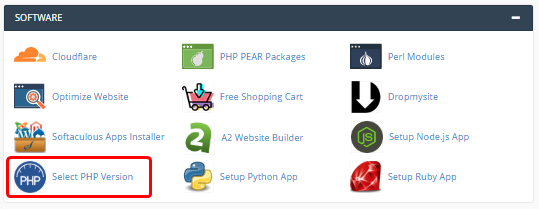
2. In the **SOFTWARE** section of the cPanel home screen, click **Select PHP Version**:\
3. Near the top of the page, click the **Options** tab.
4. Locate the **date.timezone** text box, and then type the name of the time zone you want to use.
> 📘 Note
>
> For a complete list of time zones, please visit [https://en.wikipedia.org/wiki/List\_of\_tz\_database\_time\_zones](https://en.wikipedia.org/wiki/List_of_tz_database_time_zones).
5. Click anywhere on the page to save your changes. The new time zone takes effect immediately.
> 👍 Tip
>
> For more information about how to use the PHP Selector in cPanel, please see [this article](/docs/changing-php-versions-and-settings-in-cpanel).
## Related articles
* [Changing the time zone in the Linux shell](/docs/changing-the-time-zone-in-the-linux-shell)
* [Changing the time zone in webmail](/docs/changing-the-time-zone-in-webmail)
* [Converting the MySQL time zone](/docs/convert-the-mysql-time-zone)
* [Changing PHP versions and settings using PHP Selector](/docs/changing-php-versions-and-settings-in-cpanel)