> ## Documentation Index
> Fetch the complete documentation index at: https://kb.hosting.com/llms.txt
> Use this file to discover all available pages before exploring further.
# Changing the website URL in WordPress
> There are certain scenarios where you may want to change the URL for a WordPress site. Follow our step-by-step instructions to update your URL.
There are many reasons which warrant a change of [WordPress](https://hosting.com/hosting/platforms/wordpress-hosting) site URL. Top reasons include:
* Moving [WordPress](https://hosting.com/hosting/platforms/wordpress-hosting/managed-wordpress-hosting/) site from HTTP to HTTPS
* Migrating [WordPress](https://hosting.com/hosting/platforms/wordpress-hosting) site to a new domain
* Moving WordPress site from local site to a live site
* Moving WordPress site to a different directory.
There are three ways to change or update WordPress URLs; this article describes how to change [WordPress](https://hosting.com/hosting/platforms/wordpress-hosting) site URLs using phpMyAdmin.
## Changing the WordPress site URL
To change the website URL in WordPress, follow these steps:
1. Log in to cPanel.
> 📘 Note
>
> If you do not know how to log in to your cPanel account, please see [this article](/docs/accessing-cpanel).
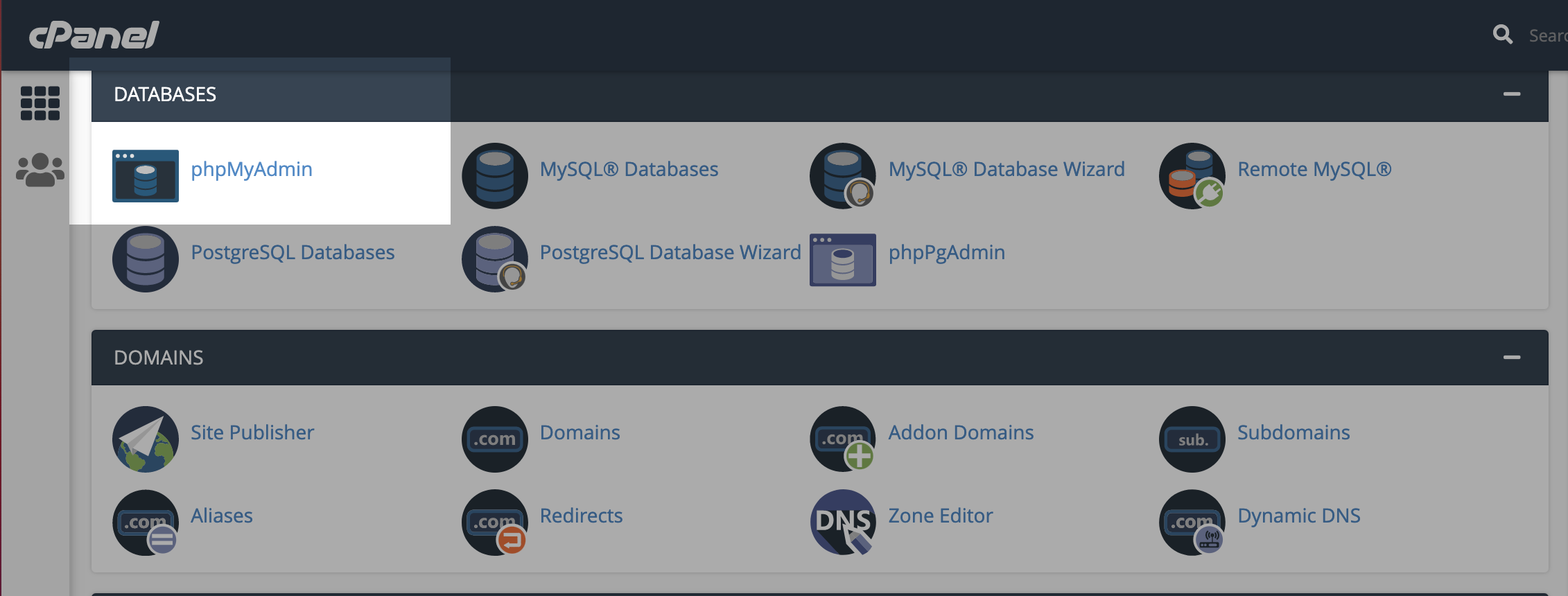
2. In the **Databases** section of the cPanel home screen, click **phpMyAdmin**:\\
 3. In the left-hand pane of phpMyAdmin, click the [WordPress](https://hosting.com/hosting/platforms/wordpress-hosting/managed-wordpress-hosting/) database. A list of tables in the database appears:\\
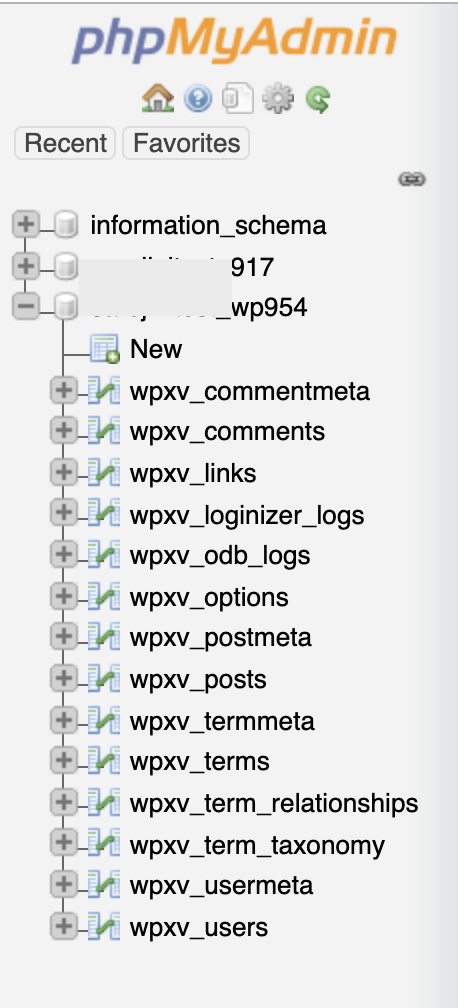 Typically, the WordPress database is\
**username\_wpXXX** or\
**username\_a2wpXXX** , where *username* represents your cPanel username, and *XXX* is a three-digit number.
4. Under the **Table** heading, click the **wp\_options** table. A list of data rows appears:\\
Typically, the WordPress database is\
**username\_wpXXX** or\
**username\_a2wpXXX** , where *username* represents your cPanel username, and *XXX* is a three-digit number.
4. Under the **Table** heading, click the **wp\_options** table. A list of data rows appears:\\
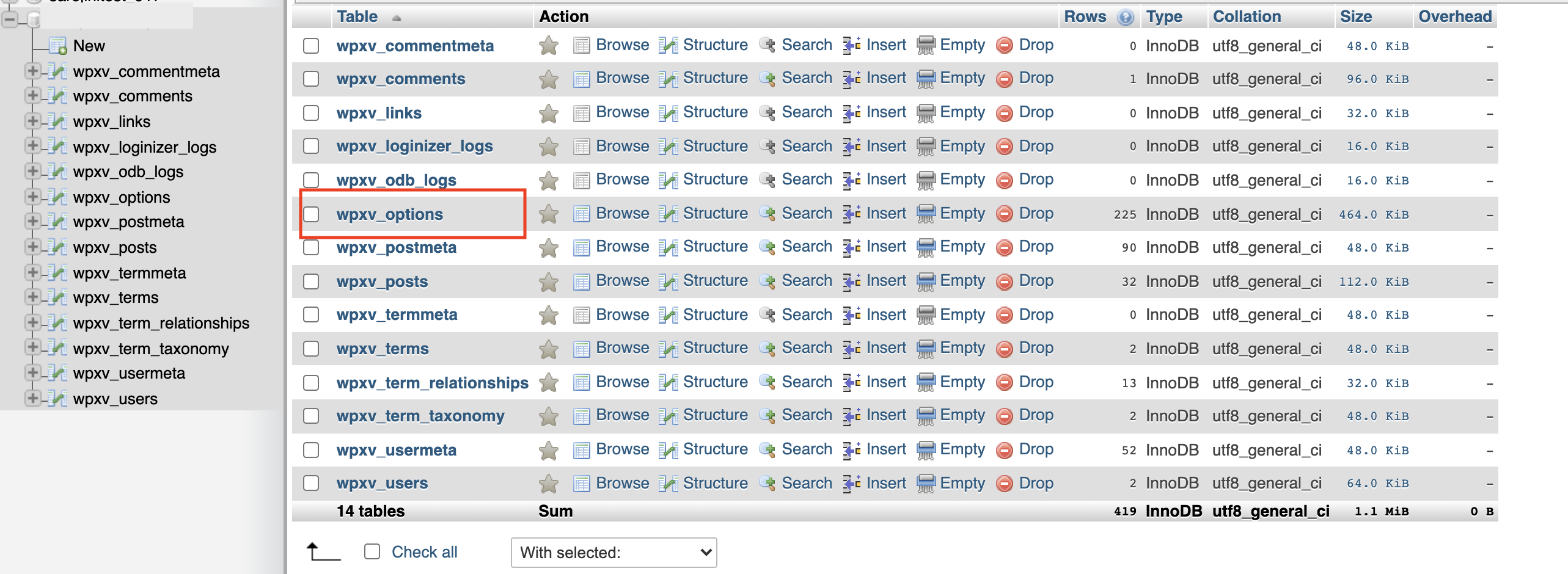 5. Under the **option\_name** heading, locate **siteurl and home**, and then click the pencil icon next to **Edit** the option value for each row:
6. Update the **option\_value** field to the new site URL:
**Important**
* Make sure you type the correct URL, or your WordPress installation will be inaccessible.
* Make sure the URL begins with *http\://*.
* Make sure the URL does not end with a forward slash ( **/** ).
7. Under the **option\_name** heading, locate **home**, and then click **Edit**:
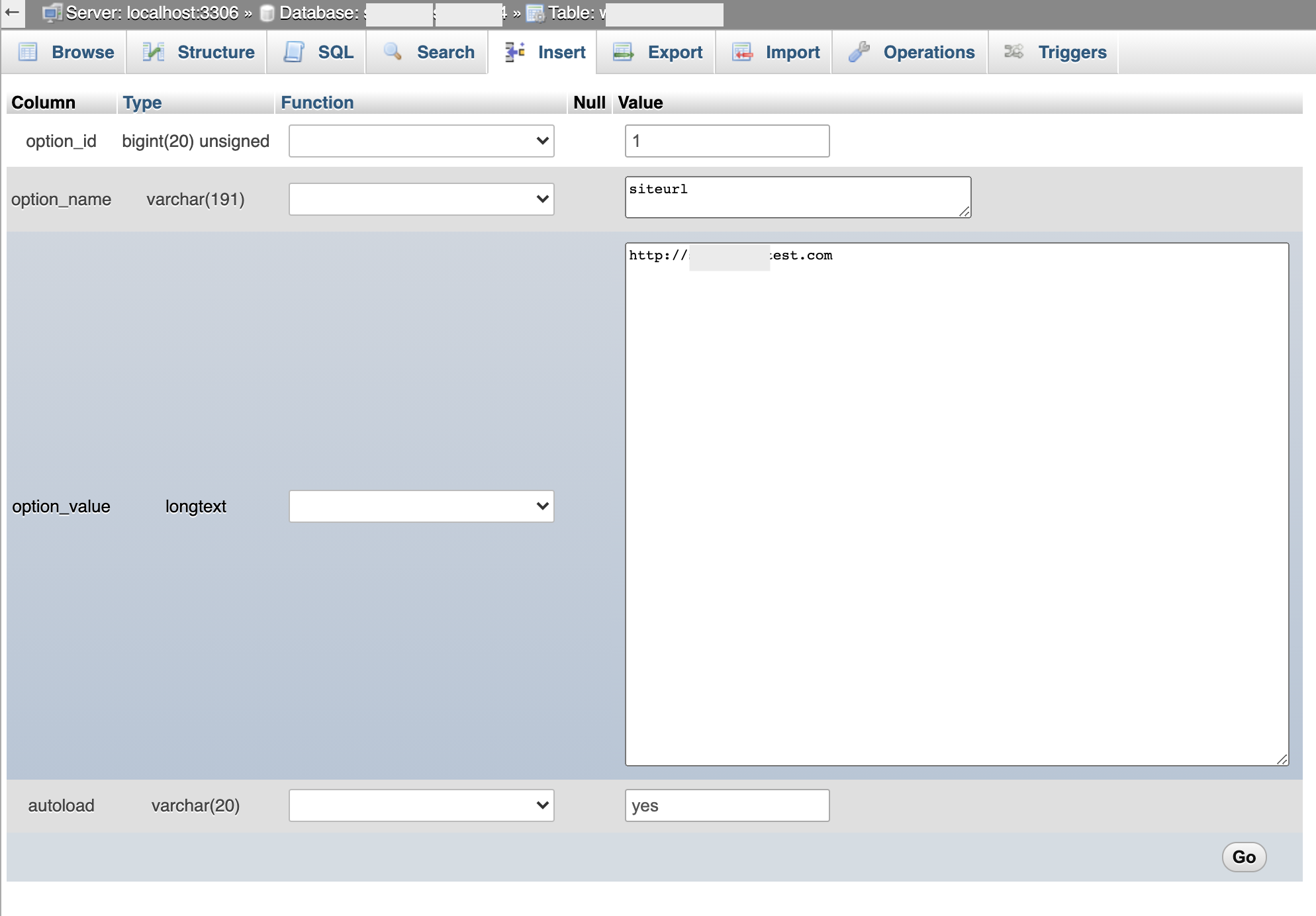
7. Click **Go**. phpMyAdmin saves the changes in the table. WordPress should now function correctly using the new URL.
## Related articles
* [Accessing your web site before DNS propagation is complete](/docs/accessing-your-web-site-before-dns-propagation-is-complete)
5. Under the **option\_name** heading, locate **siteurl and home**, and then click the pencil icon next to **Edit** the option value for each row:
6. Update the **option\_value** field to the new site URL:
**Important**
* Make sure you type the correct URL, or your WordPress installation will be inaccessible.
* Make sure the URL begins with *http\://*.
* Make sure the URL does not end with a forward slash ( **/** ).
7. Under the **option\_name** heading, locate **home**, and then click **Edit**:

7. Click **Go**. phpMyAdmin saves the changes in the table. WordPress should now function correctly using the new URL.
## Related articles
* [Accessing your web site before DNS propagation is complete](/docs/accessing-your-web-site-before-dns-propagation-is-complete)