> ## Documentation Index
> Fetch the complete documentation index at: https://kb.hosting.com/llms.txt
> Use this file to discover all available pages before exploring further.
# Changing the WordPress theme manually
> Learn how to change the WordPress theme manually. You may need to do this if the administration dashboard is inaccessible. Follow our easy guide here!
This article describes how to change the WordPress theme manually.
Normally, you can change themes in WordPress quickly and easily by using the administration dashboard. However, there may be occasions when the administration dashboard is inaccessible (due to a misbehaving theme, for example). In such a scenario, you can manually change the WordPress theme to regain access to the administration dashboard.
## Changing the WordPress theme manually
Use either of the following methods to change the WordPress theme.
These procedures assume that you have at least two themes installed on your WordPress site. If you only have one theme installed, you can manually upload a .zip file containing a theme, and then extract the .zip file in the *wp-content/themes* directory of your WordPress installation. Then follow one of the procedures below.
### Method #1: Rename and copy theme folders
You can rename the existing theme folder and copy a new theme folder in its place. To do this, follow these steps:
1. Log in to cPanel.
> 📘 Note
>
> If you do not know how to log in to your cPanel account, please see [this article](/docs/accessing-cpanel).
2. In the **FILES** section of the cPanel home screen, click **File Manager**:\

3. In the left sidebar, click the name of the folder where WordPress is installed. The folder's contents appear in the right pane.
4. Navigate to the *wp-content/themes* folder.
5. Right-click the folder of the currently installed theme, and then click **Rename**.
6. Add a suffix to the new name so you can remember which folder contains the original theme. For example, if the theme name is *twentytwenty*, you could type *twentytwenty.original*, and then click **Rename File**.
7. Right-click the folder of the new theme that you want to use, and then click **Copy**.
8. Type the name of the original theme. For example, if the theme in step 5 is named *twentytwenty*, type *twentytwenty*, and then click **Copy File(s)**. The new theme takes effect immediately.
### Method #2: Modify the WordPress database
You can use phpMyAdmin to modify the WordPress database directly and change the active theme. To do this, follow these steps:
1. Log in to cPanel.
> 📘 Note
>
> If you do not know how to log in to your cPanel account, please see [this article](/docs/accessing-cpanel).
2. In the **DATABASES** section of the cPanel home screen, click **phpMyAdmin**:\

3. In the left-hand pane of phpMyAdmin, click the WordPress database. A list of tables in the database appears:\
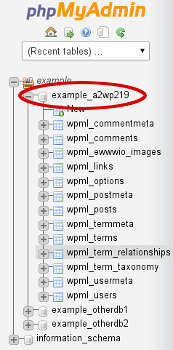
Typically, the WordPress database is **username\_wpXXX** or **username\_a2wpXXX**, where *username* represents your cPanel username, and *XXX* is a three-digit number.
4. Under the **Table** heading, click the **wp\_options** table:\
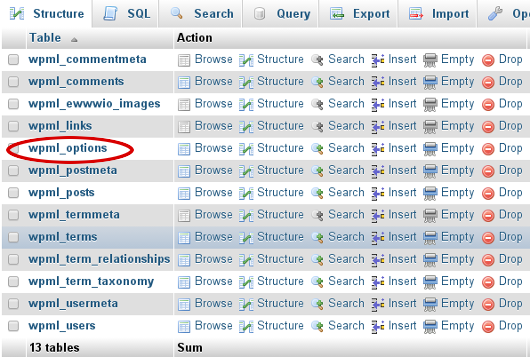
A list of data rows appears.
5. Under the **option\_name** heading, locate **template**, and then click **Edit**:\
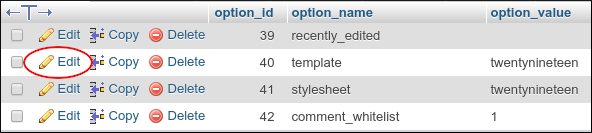
You may have to scroll through more than one page of data in the **wp\_options** table to locate the **template** row. To do this, click the **>** icon, or you can click **Show all** to view all of the table's rows at once.
6. In the **option\_value** text box, replace the current theme with the name of the new theme that you want to use.
7. Click **Go**. phpMyAdmin saves the changes in the table.
8. Under the **option\_name** heading, locate **stylesheet**, and then click **Edit**:\
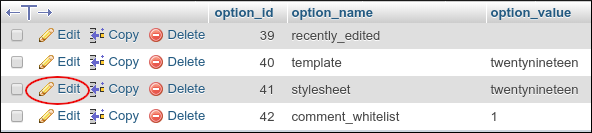
You may have to scroll through more than one page of data in the **wp\_options** table to locate the **stylesheet** row. To do this, click the **>** icon, or you can click **Show all** to view all of the table's rows at once.
9. In the **option\_value** text box, replace the current theme with the name of the new theme that you want to use.
10. Click **Go**. phpMyAdmin saves the changes in the table. The WordPress user interface should now function correctly using the new theme.
## Related articles
* [Installing WordPress themes](/docs/installing-wordpress-themes)
* [Troubleshooting blank pages in WordPress](/docs/troubleshooting-blank-pages-in-wordpress)
* [Troubleshooting WordPress](/docs/troubleshooting-wordpress)