> ## Documentation Index
> Fetch the complete documentation index at: https://kb.hosting.com/llms.txt
> Use this file to discover all available pages before exploring further.
# Configuring an e-mail forwarder in Plesk
> Learn to configure, enable, and disable email forwarders in Plesk to automatically redirect emails between accounts.
This article describes how to configure an e-mail forwarder. E-mail forwarders enable you to send messages automatically from one account to another account.
Plesk is no longer included with new hosting.com plans, but it is still available on legacy Managed WordPress accounts. You can install Plesk manually on unmanaged VPS and Dedicated servers.
## Enabling an e-mail forwarder
To watch a video that demonstrates the following procedure, please click below:
To enable an e-mail forwarder for an e-mail account, follow these steps:
1. Log in to Plesk.
> 📘 Note
>
> If you do not know how to log in to your Plesk account, please see [this article](/docs/logging-in-and-out-of-plesk).
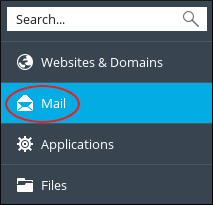
2. In the left sidebar, click **Mail**:\
3. On the **Mail** page, click the e-mail address for which you want to create a forwarder.
4. Click the **Forwarding** tab.
5. Select the **Switch on mail forwarding** check box.
6. In the **Forward incoming messages to the following email address** text box, type the e-mail address to which you want to forward messages.
If you want to forward messages to multiple accounts, you can specify multiple e-mail addresses.
7. Click **OK**. Plesk activates the forwarder for the e-mail account.
## Disabling an e-mail forwarder
If you no longer want to use an e-mail forwarder for an account, you can disable it. To do this, follow these steps:
1. Log in to Plesk.
> 📘 Note
>
> If you do not know how to log in to your Plesk account, please see [this article](/docs/logging-in-and-out-of-plesk).
2. In the left sidebar, click **Mail**:\

3. On the **Mail** page, click the e-mail address for which you want to disable the forwarder.
4. Click the **Forwarding** tab.
5. Clear the **Switch on mail forwarding** check box.
6. Click **OK**. Plesk disables the forwarder for the e-mail account.
## More information
For more information about Plesk, please visit [https://www.plesk.com](https://www.plesk.com).
## Related articles
* [Enabling auto-reply messages for an e-mail account in Plesk](/docs/enabling-auto-reply-messages-for-an-e-mail-account-in-plesk)