> ## Documentation Index
> Fetch the complete documentation index at: https://kb.hosting.com/llms.txt
> Use this file to discover all available pages before exploring further.
# Configuring Joomla to use memcached
> You can configure Joomla to use memcached to help improve your site's performance. Follow our step-by-step instructions to optimize your site.
This article describes how to configure Joomla to use memcached.
Memcached is an open-source memory object caching system that websites can use to help accelerate page load times. Memcached works by caching in RAM frequently accessed data, such as the results of API calls, database calls, and more.
* If you have a managed VPS or managed Dedicated Server, please open a support ticket on the Hosting Panel at [https://my.hosting.com](https://my.hosting.com)and request memcached for your system. We will install it for you.
* If you have an unmanaged VPS, you can install memcached yourself.
* Memcached is not supported on non-Turbo shared hosting accounts at this time.
## Enabling memcached for Joomla
To enable memcached for Joomla, you need to add and modify some settings in the *configuration.php* file. To do this, follow these steps:
1. Use your preferred text editor to open the *configuration.php* file located in the directory where you installed Joomla.
2. Search for the following two lines:
```
public $caching = '0';
public $cache_handler = 'file';
```
3. Modify these two lines as follows:
```
public $caching = '2';
public $cache_handler = 'memcache';
```
**Important**
If you have a Turbo Boost, Turbo Max, or a Reseller hosting account with Turbo, instead modify the two lines as follows:
```
public $caching = '0';
public $cache_handler = 'memcached';
```
4. Add the following two lines just after the lines you modified in step 3:
```
public $memcache_server_host = 'localhost';
public $memcache_server_port = '11211';
```
**Important**
If you have a Turbo Boost, Turbo Max, or a Reseller hosting account with Turbo, instead modify the first line as follows. Replace ***username*** with your account username:
```
public $memcache_server_host = 'unix:///opt/memcached/run/username/memcached-1.sock';
```
5. Save your changes to the *configuration.php* file.
## Configuring memcached for Joomla
After you enable memcached in the *configuration.php* file, additional settings are available in the Joomla administration console. To view and modify these settings, follow these steps:
1. Log in to your Joomla site as the administrator.
2. On the top menu bar, click **System**, and then click **Global Configuration**.
3. Click the **System** tab, and then look under the **Cache Settings** heading to view the memcached settings:\
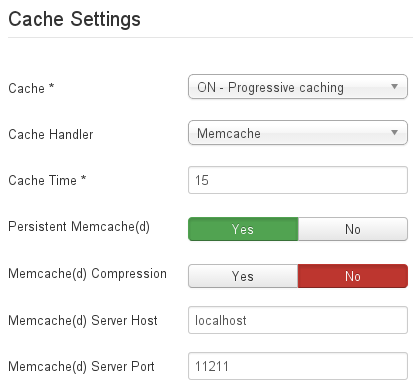
You configured most of these options in the *configuration.php* file to enable memcached for the first time. The two exceptions are:
* **Persistent Memcache(d)**: By default, Joomla uses a persistent connection to memcached. In other words, it uses the same connection for multiple memcached operations.
* **Memcache(d) Compression**: By default, Joomla does not compress data that is stored in memcached.
You can leave these options unchanged from their default values.
## More information
* For more information about memcached, please visit [http://www.memcached.org](http://www.memcached.org).
* To view the official Joomla documentation, please visit [https://docs.joomla.org](https://docs.joomla.org).