> ## Documentation Index
> Fetch the complete documentation index at: https://kb.hosting.com/llms.txt
> Use this file to discover all available pages before exploring further.
# Converting your WordPress site to a static site
> Discover how to convert your WordPress site into a secure, high-performance static site in this article.
This article describes how to create a static site from a traditional, dynamically generated WordPress site.
## Why create a static site?
Creating a site with static content offers several advantages over a dynamically generated WordPress site:
* **Performance**: Dynamically generated WordPress sites must pull information from a database, and parse and run PHP scripts. Static sites, however, only serve pre-generated HTML and CSS to browsers. This can result in significantly improved page load times and SEO rankings.
* **Security**: Security exploits on WordPress (or one of its many plugins) do happen. With a static site, however, no external data sources (like a database) are accessed, and PHP is not run. This greatly reduces a site's attack surface, and the need to constantly keep up-to-date with security patches.
However, there are some site usage scenarios where static content may not be appropriate:
* **Ecommerce and forum sites**: These types of sites rely heavily on dynamically generated content. WooCommerce, for example, does not work in a static environment.
* **Dynamic content**: Any dynamically generated content, such as AJAX-based widgets, may not function properly in a static environment.
## Creating a static site
Before you create the static site content, you should set up a staging site. The staging site runs the original, dynamically generated WordPress site, while the primary site uses the static site content. Usually, you use a subdomain or addon domain for the staging site, and your primary domain name for the static site content.
For detailed information about how to create a staging site using Softaculous, please see [this article](/docs/website-staging-with-softaculous).
For generating static site content from the staging site, there are several plugins available that do this. In this article, we use the [Simply Static](https://wordpress.org/plugins/simply-static/) plugin. With this plugin, you can easily generate static content files from your existing WordPress site. To do this, follow these steps:
1. Log in to your WordPress staging site as the administrator.
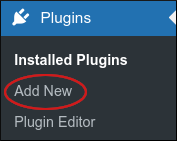
2. On the Dashboard in the left sidebar, click **Plugins**, and then click **Add New**:\\
3. On the **Add Plugins** page, in the **Search plugins** text box, type `simply static` and then press Enter:\\

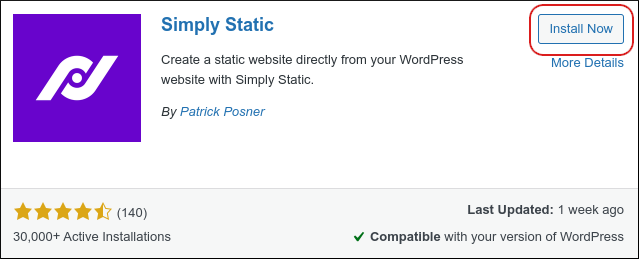
4. Locate the **Simply Static** section, and then click **Install Now**:\\
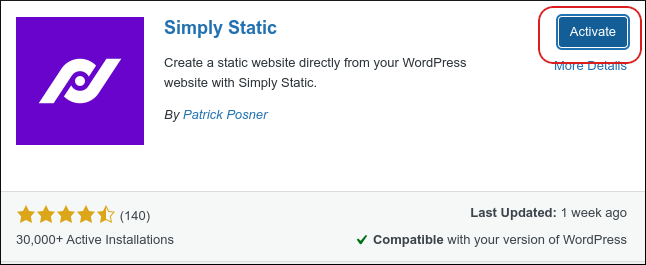
5. When installation is complete, click **Activate**:\\
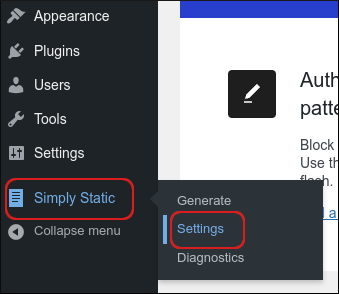
6. In the left sidebar, click **Simply Static**, and then click **Settings**:\\
7. The settings page appears. Configure the settings you want, and then click **SAVE CHANGES**.
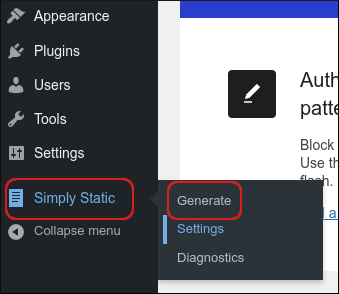
There are many settings available for customizing how the static site is generated. For detailed information about these settings, please see the official Simply Static documentation at [https://docs.simplystatic.com/](https://docs.simplystatic.com/).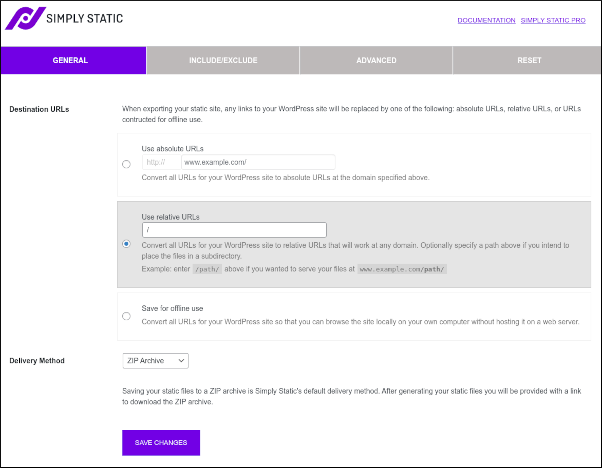 8. To generate the static site, in the left sidebar, click **Simply Static**, and then click **Generate**:\\
9. On the generate page, click **GENERATE STATIC FILES**:\\
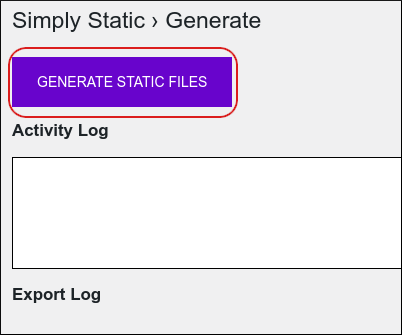
The\
**Activity Log** and\
**Export Log** sections show detailed updates about the site generation process.
10. You are now ready to deploy the static files to your primary website.
## More information
For more information about the Simply Static plugin, please visit [https://wordpress.org/plugins/simply-static](https://wordpress.org/plugins/simply-static).
8. To generate the static site, in the left sidebar, click **Simply Static**, and then click **Generate**:\\

9. On the generate page, click **GENERATE STATIC FILES**:\\

The\
**Activity Log** and\
**Export Log** sections show detailed updates about the site generation process.
10. You are now ready to deploy the static files to your primary website.
## More information
For more information about the Simply Static plugin, please visit [https://wordpress.org/plugins/simply-static](https://wordpress.org/plugins/simply-static).