> ## Documentation Index
> Fetch the complete documentation index at: https://kb.hosting.com/llms.txt
> Use this file to discover all available pages before exploring further.
# Creating custom shortcodes in WordPress
> This article describes how to create and use custom shortcodes in WordPress.
This article describes how to create and use custom shortcodes in [WordPress](https://hosting.com/hosting/platforms/wordpress-hosting).
Shortcodes are useful when you have to add dynamic or repeatable content to multiple areas of a WordPress site. By editing a shortcode, you can quickly change content in multiple areas of your site simultaneously, instead of editing multiple pages individually.
WordPress includes several built-in shortcodes. To view a list of these shortcodes, please visit [https://wordpress.com/support/shortcodes](https://wordpress.com/support/shortcodes).
## Creating and using a shortcode
To create and use a shortcode in WordPress, follow these steps:
1. Log in to WordPress as the administrator.
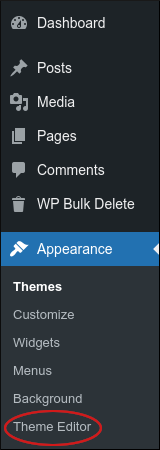
2. On the Dashboard in the left sidebar, click **Appearance**, and then click **Theme Editor**:\
3. In the right sidebar, under **Theme Files**, click **Theme Functions (functions.php)**.
4. Copy the following code snippet and then paste it at the bottom of the *functions.php* file:
```javascript theme={null}
function custom_shortcode() {
// Change $message to the text you want to display:
$message = 'Here is the shortcode text.';
return $message;
}
add_shortcode('my_custom_shortcode', 'custom_shortcode');
```
5. Click **Update File**. WordPress saves the changes to the *functions.php* file.
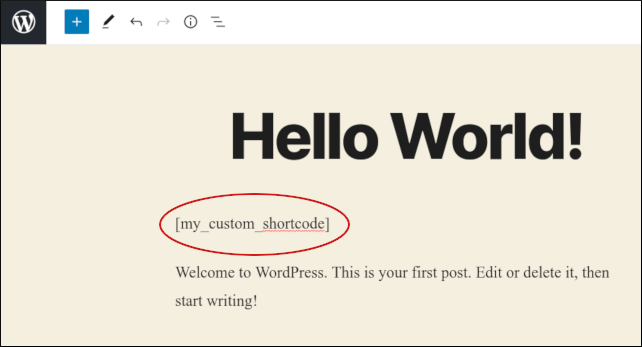
6. The shortcode is now enabled. To use it, open a post or page on the site, and then type `[my_custom_shortcode]` where you want to display the shortcode message text. For example:\
Save your changes, and then view the post:\
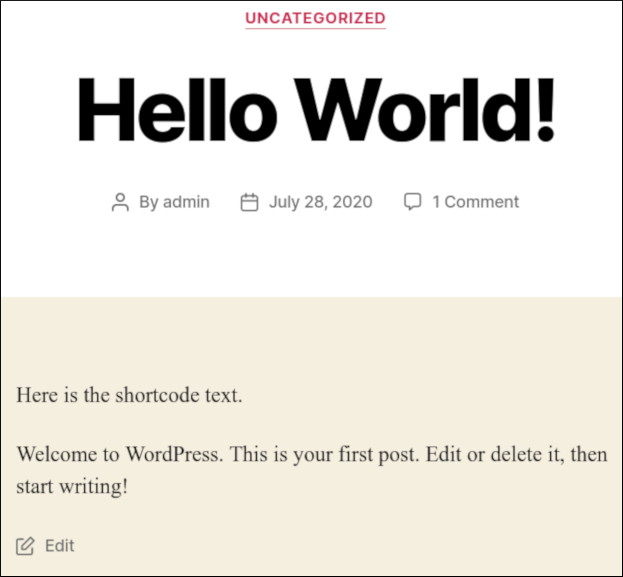
You can create as many shortcodes as you want, as long as they have unique names in the *functions.php* file.
## More information
For more information about shortcodes in WordPress, please visit [https://wordpress.com/support/shortcodes](https://wordpress.com/support/shortcodes).
## Related articles
* [Adding a custom logo to WordPress](/docs/adding-a-custom-logo-to-wordpress)
* [Displaying the user count in WordPress](/docs/displaying-the-user-count-in-wordpress)
* [Using widgets in WordPress](/docs/using-widgets-in-wordpress)
* [Installing WordPress themes](/docs/installing-wordpress-themes)
* [Scheduling post publishing in WordPress](/docs/scheduling-post-publishing-in-wordpress)