> ## Documentation Index
> Fetch the complete documentation index at: https://kb.hosting.com/llms.txt
> Use this file to discover all available pages before exploring further.
# Adding a custom WordPress footer on the admin dashboard
> Discover how to replace the default WordPress admin dashboard footer with custom text using a Theme editor plugin.
A customized footer text instead of the out-of-box [WordPress](https://hosting.com/hosting/platforms/wordpress-hosting) branded text will help users better identify or relate to the site with the brand. This article shows you how to add a custom footer to your WordPress admin dashboard using a Theme Editor plugin.
## Displaying custom footer text on the WordPress dashboard
**Important**
Always perform a backup before making changes to the theme files. If you break any codes, it will be easier to revert your site to its last good known state. Alternatively, you could also create a child theme. Read this link on how to create a child theme: [https://www.hosting.com/blog/wordpress-child-theme/](https://www.hosting.com/blog/wordpress-child-theme/)
To display custom footer text, follow these steps:
1. Log in to your WordPress site with an administrator account.
2. On the **Dashboard** in the left sidebar, click **Appearance**, and then click **Theme Editor**: 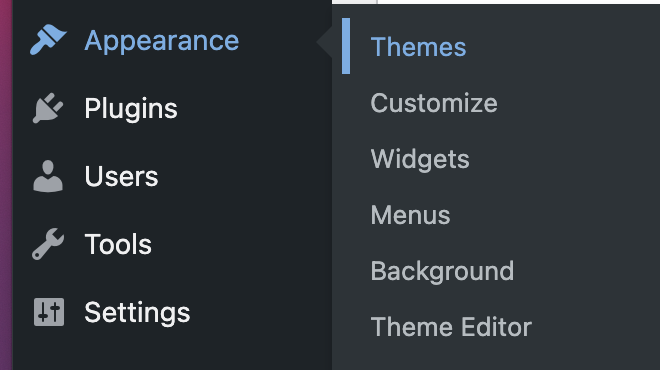
This article shows you how to edit the *functions.php* file using the Theme Editor plugin. You can always edit the *functions.php* file using the default editor under the **Appearance** menu.
3. On the **Theme Editor** page, a list of all the files related to your theme appears on the right column under **Theme Files**:\
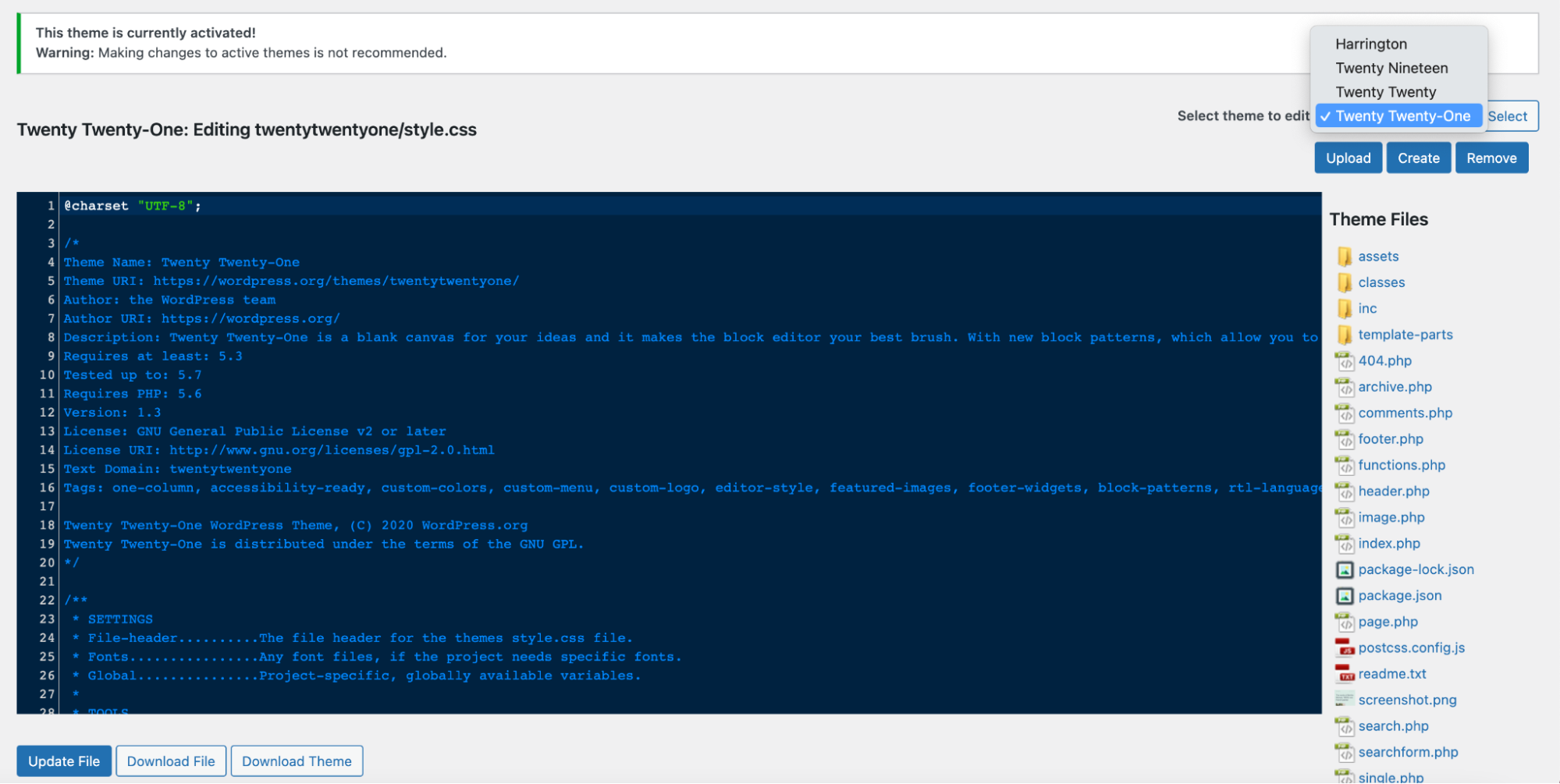
4. Click **functions.php**, and then scroll down to the end of the page. For the purposes of this article we will add a custom tag with custom text about hosting.com on the footer using the following code:
```javascript theme={null}
function custom_admin_footer_text ()
{ echo 'Hosting.com - Low Cost Hosting For WordPress