> ## Documentation Index
> Fetch the complete documentation index at: https://kb.hosting.com/llms.txt
> Use this file to discover all available pages before exploring further.
# Disabling and deleting WordPress themes
> Discover how to disable or delete WordPress themes manually or via the admin interface in this concise guide.
[WordPress](https://hosting.com/hosting/platforms/wordpress-hosting/managed-wordpress-hosting/) includes thousands of themes for customizing a web site's appearance. Sometimes, however, you may want to disable or even delete an installed theme, particularly if it is causing problems. The most common way to do this is by using the WordPress administration interface. However, there may be times when you need to do this manually. This article describes both methods.
For information about how to install and activate WordPress themes, please see [this article](/docs/installing-wordpress-themes).
## Disabling a theme
To disable a theme, all you need to do is enable a different theme. You can do this through the WordPress administration interface, or manually.
### Method #1: Using the administration interface
If you can log in to WordPress as the administrator, you can disable a theme from the administration interface. To do this, follow these steps:
1. Log in to WordPress as the administrator.
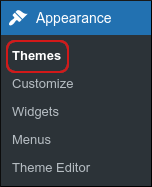
2. Under **Dashboard**, click **Appearance**, and then click **Themes**:\\
3. Click **Add New**, and then do one of the following:
* To search for a new theme by name, type the name or keyword in the **Search themes** text box, and then press Enter. When you find a theme you want to install, click **Install**.
> 📘 Note
>
> * You can also search for themes using the **Feature Filter**. Select the check boxes for the theme features you want, and then click **Apply Filters**. For example, you can search for themes by color, number of columns, layout type, specific features, and more.
> * You can preview a theme's appearance without installing it. To do this, click **Preview**.
* Alternatively, if you already have a theme *.zip* file (for example, you purchased a theme), click **Upload Theme**, select the *.zip* file on your local computer, and then click **Install Now**.
4. To activate the new theme, click **Activate**. The new theme is now active, and the old theme is disabled.
### Method #2: Disabling a theme manually
If you can log in as the administrator, you can disable a theme from the administration interface. However, if you cannot log in to the WordPress dashboard, you can still disable a theme manually. To do this, follow these steps:
1. Log in to cPanel.
2. [Use the File Manager](/docs/cpanel-file-manager) to view the contents of the *public\_html/wp-content/themes* directory.
> 📘 Note
>
> If you installed WordPress in a subdirectory, navigate to the *wp-content/themes* directory in that directory instead.
3. Note the theme names in the directory.
4. Return to the cPanel home screen.
5. In the **Databases** section of the cPanel home screen, click **phpMyAdmin**:\\

6. In the left-hand pane of phpMyAdmin, click the WordPress database. A list of tables in the database appears.
Typically, the WordPress database is\
**username\_wpXXX** , where *username* represents your cPanel username, and *XXX* is a three-digit number.
7. Click the *wp\_options* table.
8. In the **option\_name** column, locate the **template** and **stylesheet** rows. The **option\_value** settings in these rows contain the current theme.
9. For the **template** row, double-click the **option\_value** setting, type a theme name you obtained in step 3, and then press Enter.
10. Repeat step 9 for the **stylesheet** row. The new theme is now active, and the old theme is disabled.
## Deleting a theme
To delete a theme, you can use the WordPress administration interface, or delete it manually.
### Method #1: Using the administration interface
To delete a theme using the administration interface, follow these steps:
1. Log in to WordPress as the administrator.
2. Under **Dashboard**, click **Appearance**, and then click **Themes**:\\

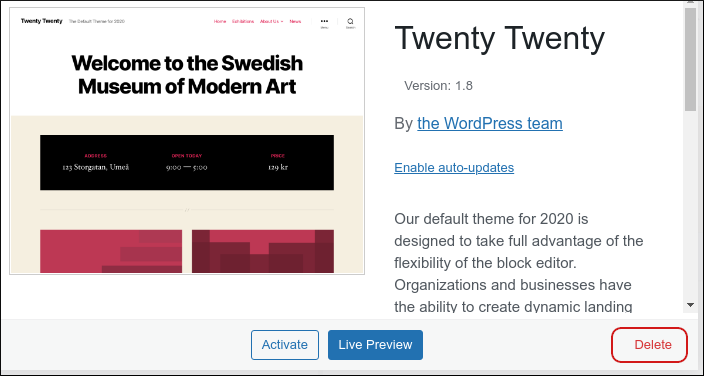
3. Locate the theme you want to delete, and then click **Theme Details**.
You cannot delete the currently active theme.
4. In the lower right area of the page, click **Delete**:\\
5. Click **OK** to confirm the deletion. WordPress deletes the theme.
### Method #2: Deleting a theme manually
To delete a theme manually, follow these steps:
1. Log in to cPanel.
2. [Use the File Manager](/docs/cpanel-file-manager) to view the contents of the *public\_html/wp-content/themes* directory.
> 📘 Note
>
> If you installed WordPress in a subdirectory, navigate to the *wp-content/themes* directory in that directory instead.
3. Right-click the folder that corresponds to the theme you want to delete, and then click **Delete**.
> 🚧 Important
>
> Be careful! If you delete the currently active theme, WordPress tries to use another installed theme as the new default. If there are no other installed themes for WordPress to use, however, you must install a theme manually as described in [this article](/docs/installing-wordpress-themes), and then update the database's *wp\_options* table as described above in\
> **Method #2: Disabling a theme manually** .
4. Click **Confirm** to confirm the deletion. cPanel deletes the theme files.
## More information
For more information about WordPress themes, please visit [http://wordpress.org/themes](http://wordpress.org/themes).
## Related articles
* [Troubleshooting WordPress](/docs/troubleshooting-wordpress)
* [Troubleshooting blank pages in WordPress](/docs/troubleshooting-blank-pages-in-wordpress)
* [Installing WordPress themes](/docs/installing-wordpress-themes)
* [Changing the WordPress theme manually](/docs/changing-the-wordpress-theme-manually)
* [Disabling plugins in WordPress](/docs/disabling-plugins-in-wordpress)