> ## Documentation Index
> Fetch the complete documentation index at: https://kb.hosting.com/llms.txt
> Use this file to discover all available pages before exploring further.
# Editing the WordPress footer
> Discover how to customize your WordPress footer using the Theme Customizer, plugins, or direct code editing.
This article describes how to edit the [WordPress](https://hosting.com/hosting/platforms/wordpress-hosting/managed-wordpress-hosting/) footer. The footer appears at the bottom of every page on your WordPress site. Typically, the footer contains essential information about your site, such as contact information, useful links, and more.
There are several ways you can edit the footer:
* Use the Theme Customizer.
* Use a plugin.
* Edit the theme code directly.
## Method #1: Use the Theme Customizer
If your theme supports it, the easiest way to modify the footer is to use the Theme Customizer in WordPress. However, not every theme supports this, so you may have to use another method.
To edit the footer using the Theme Customizer, follow these steps:
1. Log in to WordPress as the administrator.
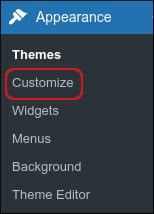
2. In the left sidebar, click **Appearance**, and then click **Customize**:\
3. In the left sidebar, look for an option named **Footer**, **Bottom of Page**, or something similar.
The exact name varies by theme— if you cannot find a suitable option, then the theme does not support editing the footer in the Theme Customizer.
4. Edit the footer, and then click **Save Changes**.
## Method #2: Use a plugin
If your theme does not support editing the footer in the Theme Customizer, you can use a plugin instead. There are several plugins that enable you to change the footer. To view the collection of footer-related plugins in WordPress, please visit [https://wordpress.org/plugins/tags/footer](https://wordpress.org/plugins/tags/footer).
The following procedure demonstrates one way to edit the footer by using the [Insert Headers and Footers](https://wordpress.org/plugins/insert-headers-and-footers) plugin:
1. Log in to WordPress as the administrator.
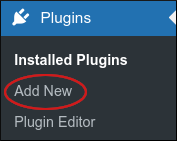
2. On the Dashboard in the left sidebar, click **Plugins**, and then click **Add New**:\
3. On the **Add Plugins** page, in the **Search plugins** text box, type `insert headers` and then press Enter.
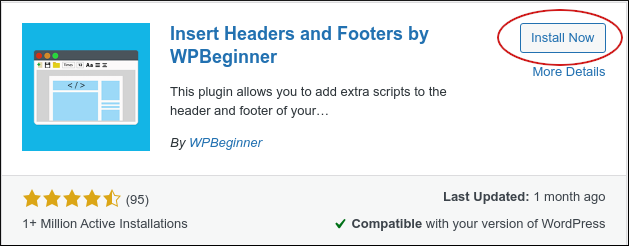
4. Locate the **Insert Headers and Footers** section, and then click **Install Now**:\
5. When installation is complete, click **Activate**.
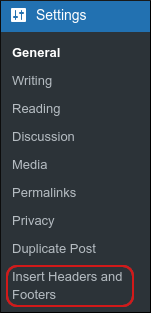
6. On the Dashboard in the left sidebar, click **Settings**, and then click **Insert Headers and Footers**:\
7. Scroll down to the **Scripts in Footer** section:\
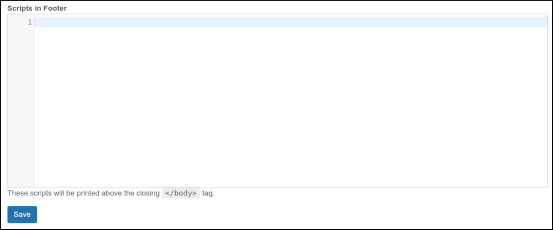
8. Make your changes, and then click **Save**.
You can also use this plugin to edit the site's header.
## Method #3: Edit the theme directly
You can also edit the footer by editing theme files directly. Although this method is more complicated than the two methods described above, it gives you complete control over the footer's appearance.
To edit the footer directly in the theme files, follow these steps:
1. Log in to WordPress as the administrator.
2. In the left sidebar, click **Appearance**, and then click **Theme Editor**:\
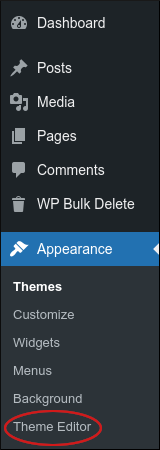
3. In the **Theme Files** sidebar on the right side of the page, click **Theme Footer (footer.php)**.
4. Make your changes to the footer code, and then click **Update File**. The changes take effect immediately.
## Related articles
* [Customizing Wordpress footer for admin dashboard](/docs/customising-wordpress-footer-for-admin-dashboard)
* [Changing the WordPress theme manually](/docs/changing-the-wordpress-theme-manually)
* [Creating custom shortcodes in WordPress](/docs/creating-custom-shortcodes-in-wordpress)
* [Adding a custom logo to WordPress](/docs/adding-a-custom-logo-to-wordpress)