> ## Documentation Index
> Fetch the complete documentation index at: https://kb.hosting.com/llms.txt
> Use this file to discover all available pages before exploring further.
# Enhance Reseller: Managing Customers from the Hosting.com Panel
Resellers using **Enhance Reseller Hosting** can now manage their customers directly from the [Hosting.com](http://Hosting.com) panel. If you have an active Enhance Reseller product, you'll see a new **My Customers** section in the left-hand navigation, allowing you to view your customers and access customer management tools without leaving the [Hosting.com](http://Hosting.com) panel.
**Note:** The **My Customers** section is only available if you have an **active Enhance Reseller** product.
## Accessing My Customers
1. Log in to your [Hosting.com](http://Hosting.com) account at [https://my.hosting.com/](https://my.hosting.com/)
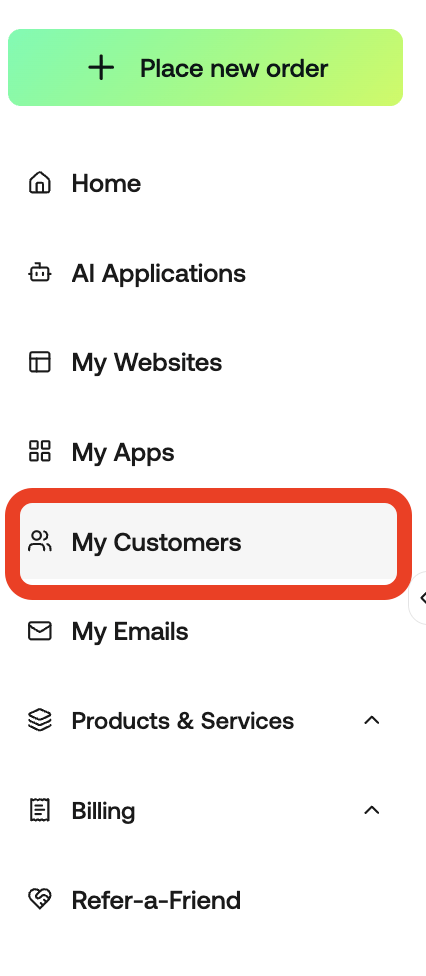
2. From the left-hand navigation, click **My Customers**.
 3. You'll see a list of all customers associated with your Enhance Reseller account.
## Customer Overview
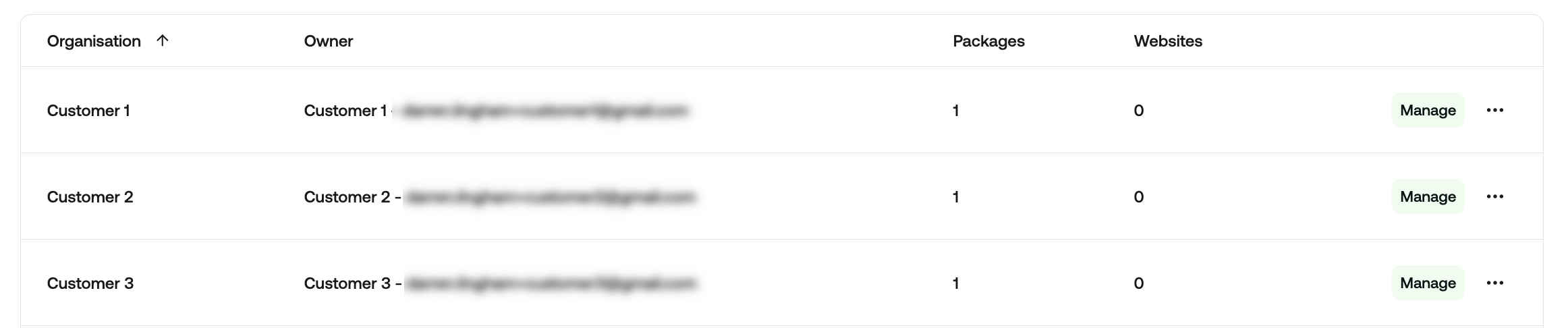
The **My Customers** page displays the following information for each customer:
* **Organisation** – The customer's organisation or account name.
* **Owner** – The primary account owner and email address.
* **Packages** – The number of hosting packages assigned to the customer.
* **Websites** – The number of websites the customer currently hosts.
You can also use the **Search** bar to quickly locate a customer.
3. You'll see a list of all customers associated with your Enhance Reseller account.
## Customer Overview
The **My Customers** page displays the following information for each customer:
* **Organisation** – The customer's organisation or account name.
* **Owner** – The primary account owner and email address.
* **Packages** – The number of hosting packages assigned to the customer.
* **Websites** – The number of websites the customer currently hosts.
You can also use the **Search** bar to quickly locate a customer.
 ## Managing a Customer
Each customer has a **Manage** button.
Selecting **Manage** securely logs you into the customer's Enhance control panel, allowing you to manage their hosting environment without needing their login credentials.
## Customer Actions
Click the **three-dot (⋮) Actions** menu next to any customer to access additional management options.
## Managing a Customer
Each customer has a **Manage** button.
Selecting **Manage** securely logs you into the customer's Enhance control panel, allowing you to manage their hosting environment without needing their login credentials.
## Customer Actions
Click the **three-dot (⋮) Actions** menu next to any customer to access additional management options.
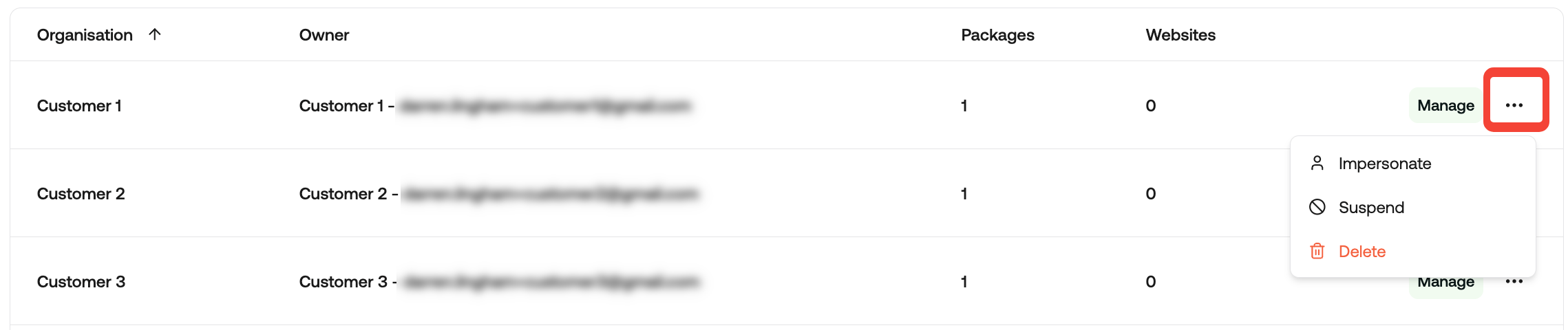 ### Impersonate
Logs you directly into the customer's Enhance control panel as that customer. This allows you to troubleshoot issues or perform administrative tasks on their behalf without requiring their login credentials.
### Suspend
Temporarily suspends the customer's account. Suspended customers will be unable to use their hosting services until the account is reactivated.
**Note:** Suspending a customer does not permanently remove their data.
### Delete
Permanently removes the customer from your reseller account.
## Creating a New Customer
To create a new customer:
1. Open **My Customers**.
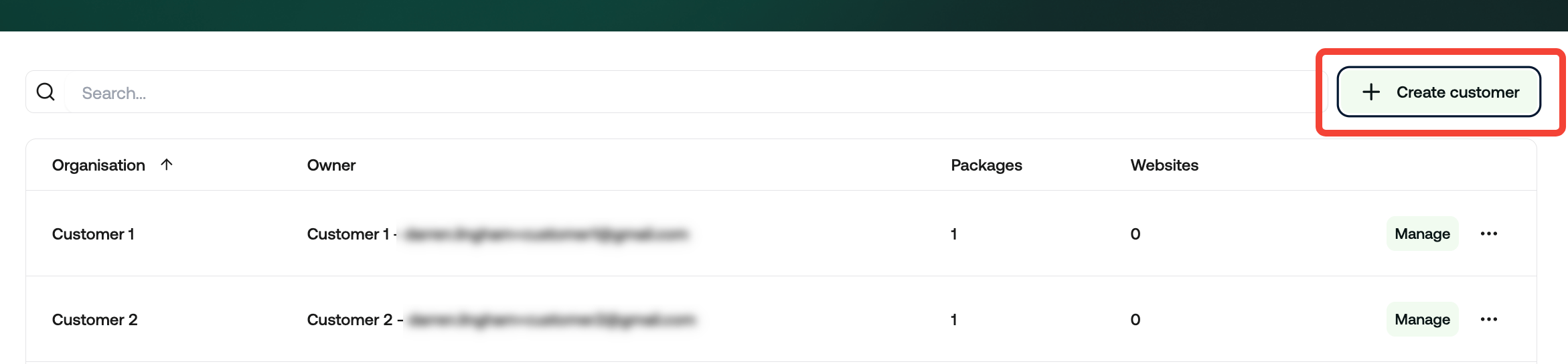
2. Click **Create customer**.
### Impersonate
Logs you directly into the customer's Enhance control panel as that customer. This allows you to troubleshoot issues or perform administrative tasks on their behalf without requiring their login credentials.
### Suspend
Temporarily suspends the customer's account. Suspended customers will be unable to use their hosting services until the account is reactivated.
**Note:** Suspending a customer does not permanently remove their data.
### Delete
Permanently removes the customer from your reseller account.
## Creating a New Customer
To create a new customer:
1. Open **My Customers**.
2. Click **Create customer**.
 3. Enter the required customer details.
4. Click **Add** to create the customer
The customer will be added to your Enhance Reseller account and will appear in the customer list.
3. Enter the required customer details.
4. Click **Add** to create the customer
The customer will be added to your Enhance Reseller account and will appear in the customer list.