> ## Documentation Index
> Fetch the complete documentation index at: https://kb.hosting.com/llms.txt
> Use this file to discover all available pages before exploring further.
# How Can you Change your cPanel Password from the Hosting Panel
> This guide explains how to quickly change your cPanel password through your hosting control panel. By following a few simple steps - logging in, accessing your hosting services, and using the password change option. You can update your credentials and keep your account secure.
1. Log in to your control panel at [my.hosting.com. ](https://my.hosting.com/)
2. Navigate to \*\*Products & Services \*\*→ **Hosting Services.**
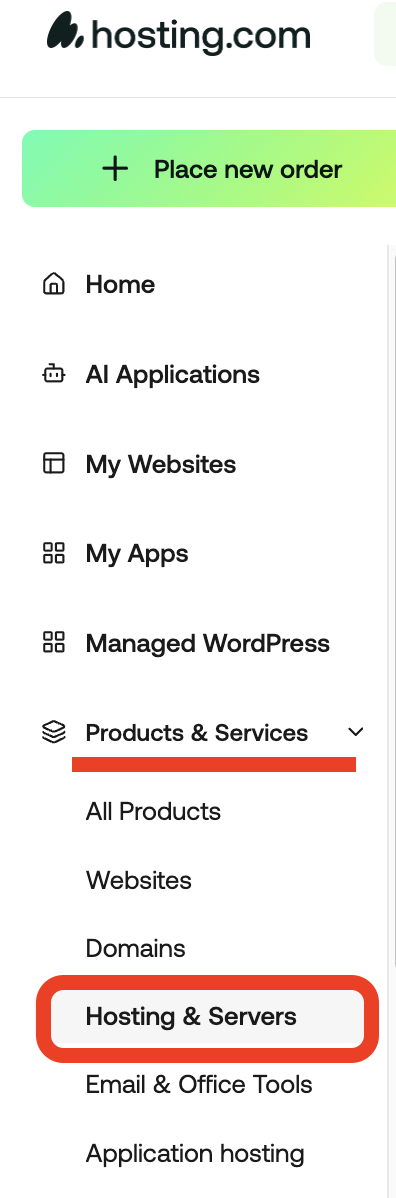
3. Find your hosting account and click **Manage**.

4. Click the Change Password button.

5. Enter your new password and confirm the change.
Your cPanel password will now be updated.