> ## Documentation Index
> Fetch the complete documentation index at: https://kb.hosting.com/llms.txt
> Use this file to discover all available pages before exploring further.
# How to configure DNS settings for hosting.com Managed WordPress at any provider
> Learn how to configure DNS settings for hosting.com Managed WordPress at any DNS provider.
To use your hosting.com Managed WordPress site with any DNS provider not documented in our Knowledge Base (such as Google Domains, Register.com, BlueHost, Hostgator, etc.), you do the following:
* Edit the **A** record for the apex domain (the domain without *www*, such as *example.com*).
* Edit the **CNAME** record for [www.example.com](http://www.example.com).
To do this, follow these steps:
1. Locate your site URL on the hosting.com Dashboard:
1. Log in to the Hosting Panel at [https://my.hosting.com](https://my.hosting.com).
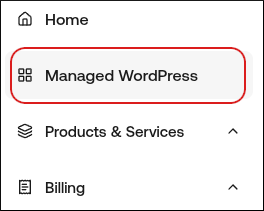
2. In the left sidebar, click **Managed WordPress**:
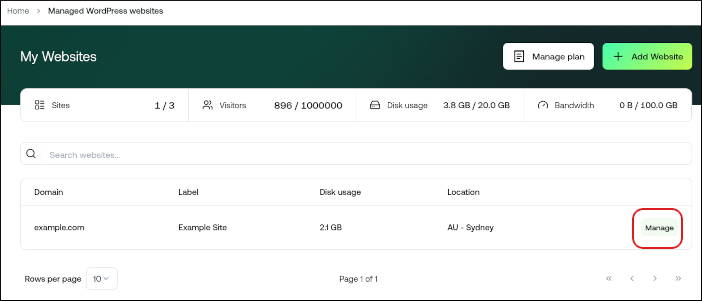
3. On the **My Websites** page, locate the site, and then click **Manage**:
4. The site URL appears at the top of the page (for example, *abc123.wpdns.site*).
2. Log in to your DNS provider account.
3. Update your domain's DNS records:
**A** record for example.com: `104.19.154.92`
**CNAME** record for [www.example.com](http://www.example.com): `___.wpdns.site`
> 📘 Note
>
> It may take up to 24 hours for DNS to fully propagate around the world. However, typically these changes take place in just a few minutes.