> ## Documentation Index
> Fetch the complete documentation index at: https://kb.hosting.com/llms.txt
> Use this file to discover all available pages before exploring further.
# How to create a site on hosting.com Managed WordPress
> Learn how to create your first site on hosting.com Managed WordPress.
Creating a WordPress site on hosting.com Managed WordPress is quick and easy. To get started, follow these steps:
1. Log in to the Hosting Panel at [https://my.hosting.com](https://my.hosting.com).
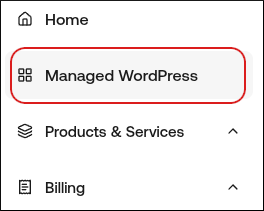
2. In the left sidebar, click **Managed WordPress**:
3. On the **My Websites** page, click **Add Website**:

4. On the **Add a Website** page, in the **Site name/label** text box, type your WordPress site’s name:
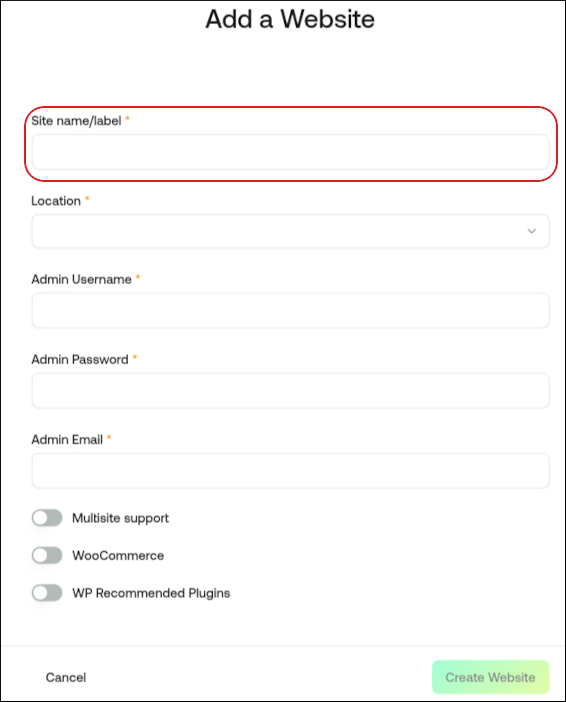
5. In the **Location** list box, select the location for your WordPress site.
> 👍 Tip
>
> This selection doesn't impact your visitors, because they will be using Cloudflare Enterprise. Instead, it should be a location geographically close to you, because your work in the WordPress Dashboard is not cached.
6. In the **Admin Username** text box, type the admin username you want to use.
> 🚧 Important
>
> You will use this username to log in to your WordPress installation. You can add additional users later on. For greater security, we recommend using a name besides `admin`.
7. In the **Admin Password** text box, type a complex password for the admin user.
> 🚧 Important
>
> Never reuse old passwords.
8. In the **Admin Email** text box, type your admin email address to receive important WordPress emails.
9. Enable any additional options for your site, and then click **Create Website**.
**Tip**
The **Multisite Support** option is only required if you plan to create a WordPress Multisite network, which allows multiple websites to run from a single WordPress installation. Most websites do **not** require this feature, so if you're unsure, leave it disabled. It can be enabled later if needed.
For information about how to manage your new site, go to [How to manage your site on hosting.com Managed WordPress](/docs/how-to-manage-your-site-on-hostingcom-managed-wordpress).