> ## Documentation Index
> Fetch the complete documentation index at: https://kb.hosting.com/llms.txt
> Use this file to discover all available pages before exploring further.
# How to Increase Memory Allocation for a Redis Instance on cPanel
> This guide explains how to increase the memory allocation of a Redis instance on a cPanel server. On cPanel servers using CloudLinux, each account is restricted by LVE (Lightweight Virtual Environment) limits.
**Redis memory usage counts toward your account’s total memory limit.**
So if your LVE memory limit is:
* **1GB** total, and you set Redis to **1024MB**, you risk:
* Hitting the limit
* Causing slowdowns
* Getting processes killed (including Redis or PHP)
**Safe Approach**
Keep Redis within **25%–50%** of your LVE memory
Examples:
* LVE = 1GB → Redis: **256MB–512MB** max
* LVE = 2GB → Redis: **512MB–1GB**
* LVE = 4GB → Redis: **1GB–2GB**
**This applies only to servers on the new infrastructure (domains ending in `.mysecurecloudhost.com `or .`stableserver.com`).**
## Step 1: Access Redis in cPanel
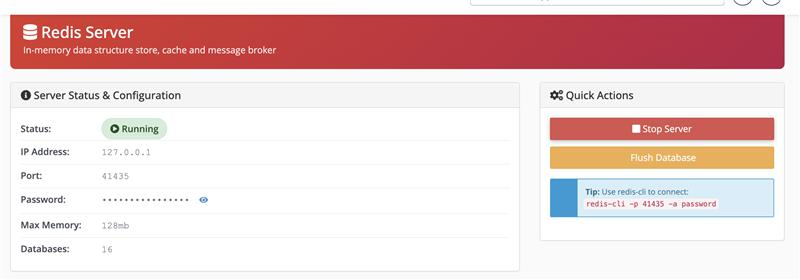
1. Log in to your **cPanel** account.
2. Navigate to **cPanel → Redis**.
3. Ensure your Redis instance is running:
* If it is not running, click **Start Redis Server**.
## Step 2: Connect to the Redis Instance
To modify Redis configuration, you’ll need to access it via the command line.
Use the `redis-cli` tool with your instance’s port and password. For example:
```
redis-cli -p 41435 -a Pass1234
```
Once connected, you will see a prompt similar to:
```
127.0.0.1:41435>
```
## Step 3: Set the Maximum Memory Limit
To increase the memory allocation, run:
```
CONFIG SET maxmemory 1024mb
```
This example sets the limit to **1024 MB** (1 GB). Adjust the value as needed for your use case.
## Step 4: Make the Change Persistent
By default, configuration changes are temporary. To save them permanently, run:
```
CONFIG REWRITE
```
This ensures the new memory limit persists after restarts.
## Step 5: Verify the Configuration
To confirm the new memory allocation, run:
```
CONFIG GET maxmemory
```
You should see output similar to:
```
1) "maxmemory"
2) "1073741824"
```
The value is shown in bytes (in this case, 1024 MB = 1073741824 bytes).
Restart the Redis server and flush its database.