> ## Documentation Index
> Fetch the complete documentation index at: https://kb.hosting.com/llms.txt
> Use this file to discover all available pages before exploring further.
# How to manage your site on hosting.com Managed WordPress
> Learn how to use the hosting.com Dashboard to manage your websites quickly and easily.
When you log in to your hosting.com Managed WordPress account, you can immediately view an overview of your WordPress sites, including recent site activity, bandwidth usage, WAF events, site information, disk usage, connected domains, FTP accounts, and site users.
## Accessing the hosting.com Dashboard
To access the hosting.com Dashboard for a site, follow these steps:
1. Log in to the Hosting Panel at [https://my.hosting.com](https://my.hosting.com).
2. In the left sidebar, click **Managed WordPress**: 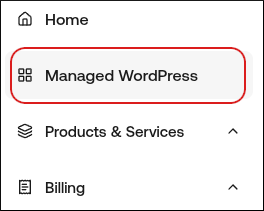 3. On the **My Websites** page, locate the site, and then click **Manage**:
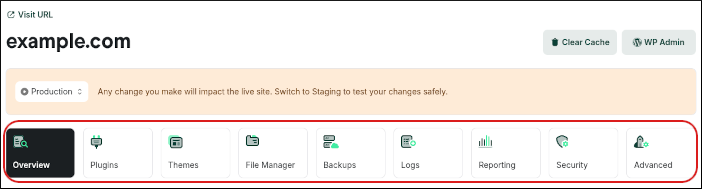
 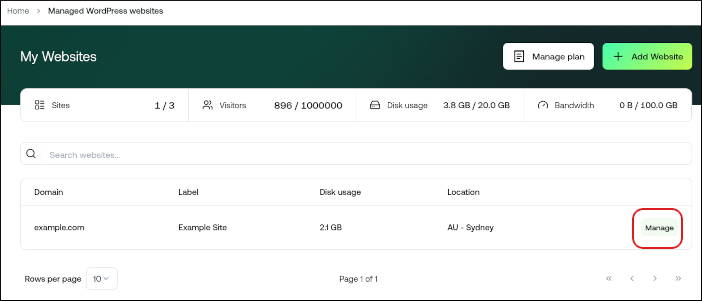 4. The hosting.com Dashboard appears with several tabs:
  * **Overview**
* **Plugins**
* **Themes**
* **File Manager**
* **Backups**
* **Logs**
* **Reporting**
* **Security**
* **Advanced** The following sections describe each of these tabs in greater detail.
## The Overview tab
On the **Overview** tab, you can find all of your website information and account features, including:
* Domain name.
* One-click WordPress admin dashboard login.
* Clear the cache.
* Plugins, themes, and backups overview.
* CDN and WAF reports.
* Advanced settings.
### Clearing the cache
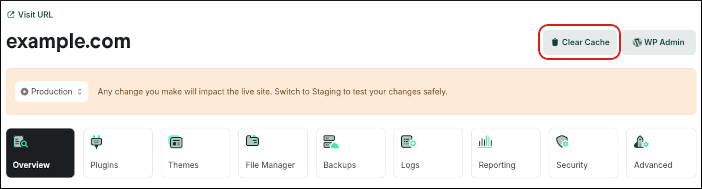
To clear your website cache, click **Clear Cache**:
For more information about this feature, go to [Manually purging the CDN cache on hosting.com Managed WordPress](/docs/manually-purging-the-cdn-cache-on-hostingcom-managed-wordpress).
### One-click WordPress login
To log in to the WordPress admin dashboard directly, click **WP Admin**:
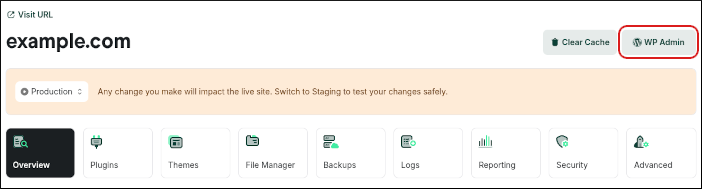
For more information about this feature, go to [How to log in to your WordPress admin area on hosting.com Managed WordPress](/docs/how-to-log-in-to-your-wordpress-admin-area-on-hostingcom-managed-wordpress).
### Staging website creation
There are **Production** and **Staging** status indicators to remind you which site you are currently managing. You can easily change between the production and staging environments using the following list box:
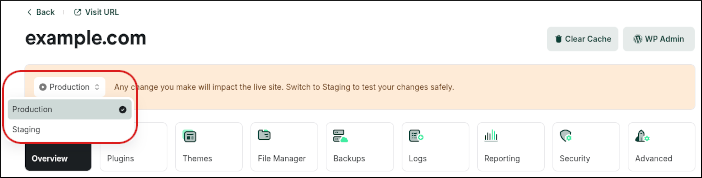
Staging environments give you a playground to test new plugins and themes, the latest PHP versions, code modifications, and other changes. When you create a staging site it is a copy of your live site. When you’re ready, you can send all changes back to your live site with the click of a button.
To create a staging site, click **Create Staging**:
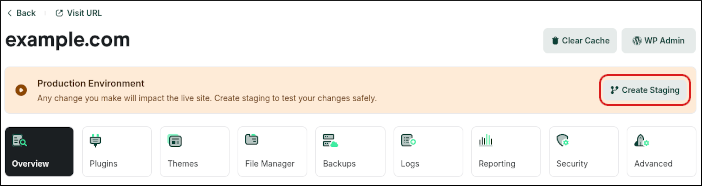
For more information about how to create a staging site, go to [How to create a staging site on hosting.com Managed WordPress](/docs/how-to-create-a-staging-site-on-hostingcom-managed-wordpress).
## The Plugins tab
On the **Plugins** tab is a list of all of your installed WordPress plugins, both activated and inactive. You can view the current version number, as well as if there are any updates available. Also, you can install and activate a plugin without logging in to the WordPress admin dashboard.
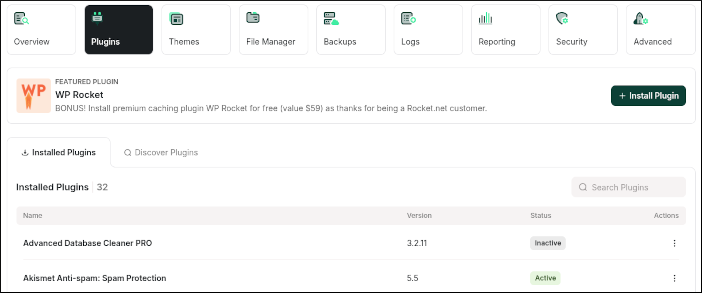
For more information about how to manage plugins from the hosting.com Dashboard, go to:
* [Managing WordPress plugins from the hosting.com Dashboard](/docs/managing-wordpress-plugins-from-the-hostingcom-dashboard)
* [How to enable automatic core, theme, and plugin updates on hosting.com Managed WordPress](/docs/how-to-enable-automatic-theme-and-plugin-updates-on-hostingcom-managed-wordpress)
## The Themes tab
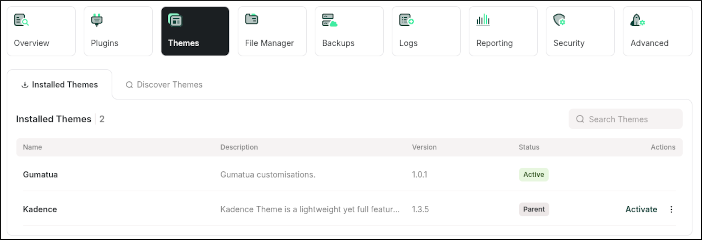
On the **Themes** tab is a list of all of your installed WordPress themes, both activated and inactive. You can view the current version number, as well as if there are any updates available. Also, you can install and activate a theme without logging in to the WordPress admin dashboard.
For more information about how to manage themes from the hosting.com Dashboard, go to:
* [Managing WordPress themes from the hosting.com dashboard](/docs/managing-wordpress-themes-from-the-hostingcom-dashboard)
* [How to enable automatic core, theme, and plugin updates on hosting.com Managed WordPress](/docs/how-to-enable-automatic-theme-and-plugin-updates-on-hostingcom-managed-wordpress)
## The File Manager tab
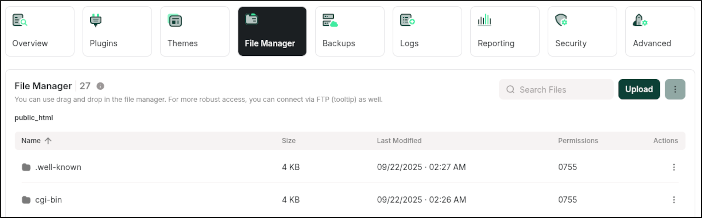
On the **File Manager** tab, you can view, edit, upload, download, and delete your website files.
For more information about how to use the File Manager, go to [How to use the File Manager on hosting.com Managed WordPress](/docs/how-to-use-the-file-manager-on-hostingcom-managed-wordpress).
## The Backups tab
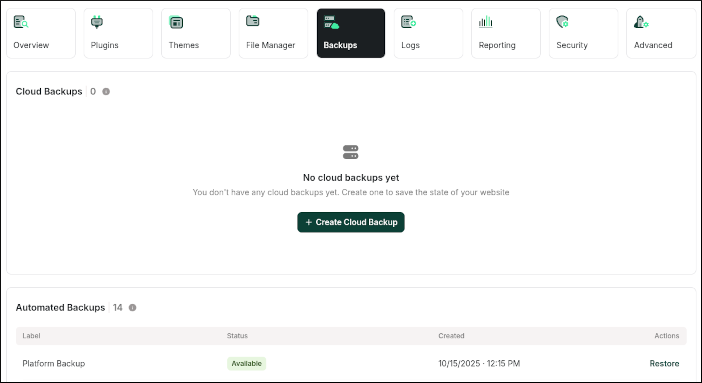
The **Backups** tab is divided into two sections:
* **Cloud Backups:** You can create up to **three** cloud backups per site. These backups are stored in the cloud near your server location and are intended for short-term use before making changes such as updating plugins, modifying your website, or testing new features. Cloud Backups are available for **24 hours** after creation. You can also download a Cloud Backup if you need to keep a point-in-time copy of your website.
* **Automated Backups:** We create an automatic system backup every day.
For more information about how to manage backups and restores from the hosting.com Dashboard, go to:
* [How to manually generate and download a full cloud backup on hosting.com Managed WordPress](/docs/how-to-manually-generate-and-download-a-full-cloud-backup-on-hostingcom-managed-wordpress)
* [How to back up and restore a database on hosting.com Managed WordPress](/docs/how-to-back-up-and-restore-a-database-on-hostingcom-managed-wordpress)
## The Logs tab
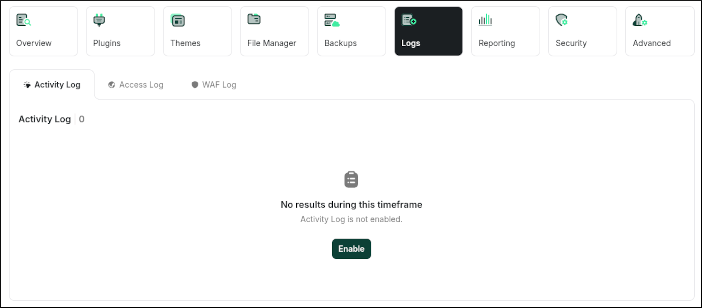
On the **Logs** tab, you can enable and view logging for:
* Activity Log
* Access Log
* WAF (Web Application Firewall) Log
For more information about how to enable and view logs, go to [Using the WordPress Activity Log on hosting.com Managed WordPress](/docs/using-the-wordpress-activity-log-on-hostingcom-managed-wordpress).
## The Reporting tab
On the **Reporting** tab, you can view detailed statistics about your site's visitors, the WAF (Web Application Firewall), and CDN (Content Delivery Network).
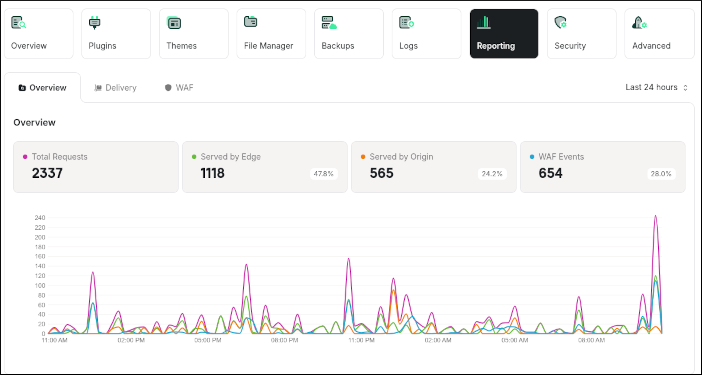
For more information about how to view your site statistics, go to [How to view site reporting statistics on hosting.com Managed WordPress](/docs/how-to-view-site-statistics-on-hostingcom-managed-wordpress).
## The Security tab
On the **Security** tab, you can lock your site to prevent any updates to your site's files and database. For example, if you have a site with static content, this feature helps increase site security. On the other hand, if you have a site with dynamic content (such as an e-commerce site), you should not enable this feature.
You can also add password protection to your site. When this is enabled, visitors must type a username and password to view your site.
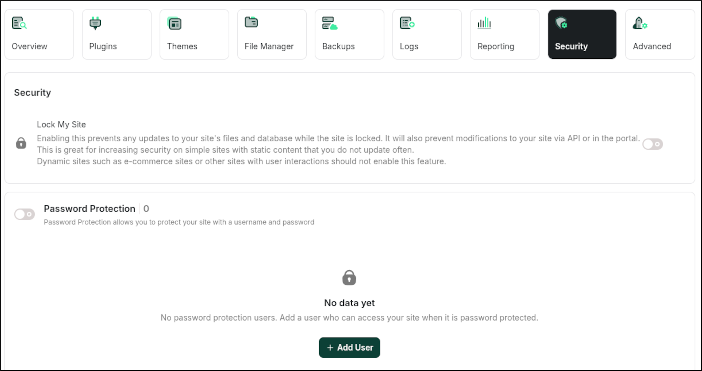
For more information about how to manage security settings, go to [How to manage site security on hosting.com Managed WordPress](/docs/how-to-manage-site-security-on-hostingcom-managed-wordpress).
## The Advanced tab
On the **Advanced** tab, you can:
* Manage your database.
* Access WP-CLI for a command-line interface to WordPress.
* Select the active PHP version for your site.
* Enable SSH access.
* Enable or disable automatic updates for WordPress core, themes, and plugins.
* Delete the website.
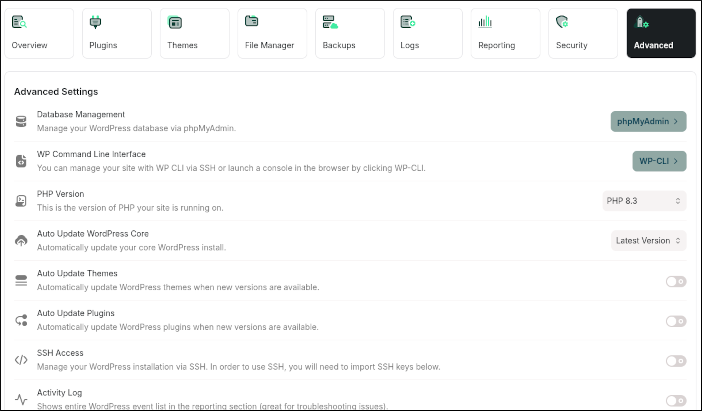
For more information about these features, go to:
* [How to manage your databases with phpMyAdmin on hosting.com Managed WordPress](/docs/how-to-manage-your-databases-with-phpmyadmin-on-hostingcom-managed-wordpress)
* [How to change the PHP version for your hosting.com Managed WordPress website](/docs/how-to-change-the-php-version-for-your-hostingcom-managed-wordpress-website)
* [How to enable SSH on your hosting.com Managed WordPress site](/docs/how-to-enable-ssh-on-your-hostingcom-managed-wordpress-site)
* [How to enable automatic core, theme, and plugin updates on hosting.com Managed WordPress](/docs/how-to-enable-automatic-theme-and-plugin-updates-on-hostingcom-managed-wordpress)
* **Overview**
* **Plugins**
* **Themes**
* **File Manager**
* **Backups**
* **Logs**
* **Reporting**
* **Security**
* **Advanced** The following sections describe each of these tabs in greater detail.
## The Overview tab
On the **Overview** tab, you can find all of your website information and account features, including:
* Domain name.
* One-click WordPress admin dashboard login.
* Clear the cache.
* Plugins, themes, and backups overview.
* CDN and WAF reports.
* Advanced settings.
### Clearing the cache
To clear your website cache, click **Clear Cache**:

For more information about this feature, go to [Manually purging the CDN cache on hosting.com Managed WordPress](/docs/manually-purging-the-cdn-cache-on-hostingcom-managed-wordpress).
### One-click WordPress login
To log in to the WordPress admin dashboard directly, click **WP Admin**:

For more information about this feature, go to [How to log in to your WordPress admin area on hosting.com Managed WordPress](/docs/how-to-log-in-to-your-wordpress-admin-area-on-hostingcom-managed-wordpress).
### Staging website creation
There are **Production** and **Staging** status indicators to remind you which site you are currently managing. You can easily change between the production and staging environments using the following list box:

Staging environments give you a playground to test new plugins and themes, the latest PHP versions, code modifications, and other changes. When you create a staging site it is a copy of your live site. When you’re ready, you can send all changes back to your live site with the click of a button.
To create a staging site, click **Create Staging**:

For more information about how to create a staging site, go to [How to create a staging site on hosting.com Managed WordPress](/docs/how-to-create-a-staging-site-on-hostingcom-managed-wordpress).
## The Plugins tab
On the **Plugins** tab is a list of all of your installed WordPress plugins, both activated and inactive. You can view the current version number, as well as if there are any updates available. Also, you can install and activate a plugin without logging in to the WordPress admin dashboard.

For more information about how to manage plugins from the hosting.com Dashboard, go to:
* [Managing WordPress plugins from the hosting.com Dashboard](/docs/managing-wordpress-plugins-from-the-hostingcom-dashboard)
* [How to enable automatic core, theme, and plugin updates on hosting.com Managed WordPress](/docs/how-to-enable-automatic-theme-and-plugin-updates-on-hostingcom-managed-wordpress)
## The Themes tab
On the **Themes** tab is a list of all of your installed WordPress themes, both activated and inactive. You can view the current version number, as well as if there are any updates available. Also, you can install and activate a theme without logging in to the WordPress admin dashboard.

For more information about how to manage themes from the hosting.com Dashboard, go to:
* [Managing WordPress themes from the hosting.com dashboard](/docs/managing-wordpress-themes-from-the-hostingcom-dashboard)
* [How to enable automatic core, theme, and plugin updates on hosting.com Managed WordPress](/docs/how-to-enable-automatic-theme-and-plugin-updates-on-hostingcom-managed-wordpress)
## The File Manager tab
On the **File Manager** tab, you can view, edit, upload, download, and delete your website files.

For more information about how to use the File Manager, go to [How to use the File Manager on hosting.com Managed WordPress](/docs/how-to-use-the-file-manager-on-hostingcom-managed-wordpress).
## The Backups tab
The **Backups** tab is divided into two sections:
* **Cloud Backups:** You can create up to **three** cloud backups per site. These backups are stored in the cloud near your server location and are intended for short-term use before making changes such as updating plugins, modifying your website, or testing new features. Cloud Backups are available for **24 hours** after creation. You can also download a Cloud Backup if you need to keep a point-in-time copy of your website.
* **Automated Backups:** We create an automatic system backup every day.

For more information about how to manage backups and restores from the hosting.com Dashboard, go to:
* [How to manually generate and download a full cloud backup on hosting.com Managed WordPress](/docs/how-to-manually-generate-and-download-a-full-cloud-backup-on-hostingcom-managed-wordpress)
* [How to back up and restore a database on hosting.com Managed WordPress](/docs/how-to-back-up-and-restore-a-database-on-hostingcom-managed-wordpress)
## The Logs tab
On the **Logs** tab, you can enable and view logging for:
* Activity Log
* Access Log
* WAF (Web Application Firewall) Log

For more information about how to enable and view logs, go to [Using the WordPress Activity Log on hosting.com Managed WordPress](/docs/using-the-wordpress-activity-log-on-hostingcom-managed-wordpress).
## The Reporting tab
On the **Reporting** tab, you can view detailed statistics about your site's visitors, the WAF (Web Application Firewall), and CDN (Content Delivery Network).

For more information about how to view your site statistics, go to [How to view site reporting statistics on hosting.com Managed WordPress](/docs/how-to-view-site-statistics-on-hostingcom-managed-wordpress).
## The Security tab
On the **Security** tab, you can lock your site to prevent any updates to your site's files and database. For example, if you have a site with static content, this feature helps increase site security. On the other hand, if you have a site with dynamic content (such as an e-commerce site), you should not enable this feature.
You can also add password protection to your site. When this is enabled, visitors must type a username and password to view your site.

For more information about how to manage security settings, go to [How to manage site security on hosting.com Managed WordPress](/docs/how-to-manage-site-security-on-hostingcom-managed-wordpress).
## The Advanced tab
On the **Advanced** tab, you can:
* Manage your database.
* Access WP-CLI for a command-line interface to WordPress.
* Select the active PHP version for your site.
* Enable SSH access.
* Enable or disable automatic updates for WordPress core, themes, and plugins.
* Delete the website.

For more information about these features, go to:
* [How to manage your databases with phpMyAdmin on hosting.com Managed WordPress](/docs/how-to-manage-your-databases-with-phpmyadmin-on-hostingcom-managed-wordpress)
* [How to change the PHP version for your hosting.com Managed WordPress website](/docs/how-to-change-the-php-version-for-your-hostingcom-managed-wordpress-website)
* [How to enable SSH on your hosting.com Managed WordPress site](/docs/how-to-enable-ssh-on-your-hostingcom-managed-wordpress-site)
* [How to enable automatic core, theme, and plugin updates on hosting.com Managed WordPress](/docs/how-to-enable-automatic-theme-and-plugin-updates-on-hostingcom-managed-wordpress)