> ## Documentation Index
> Fetch the complete documentation index at: https://kb.hosting.com/llms.txt
> Use this file to discover all available pages before exploring further.
# Migrating from wordpress.com to wordpress.org
> Easily migrate your site from wordpress.com to wordpress.org in a few steps, including export, import, and redirect setup.
If you recently purchased a [WordPress](https://hosting.com/hosting/platforms/wordpress-hosting) hosting account at hosting.com and want to leave WordPress.com, this article will show you how to migrate your existing WordPress.com content to your self-hosted WordPress hosting account in just a few steps.
* Before you begin migrating your WordPress.com content, keep the following points in mind:
* WordPress must be installed on your Web Hosting account.
* The theme is not included in the migration process; if you use a specific theme, install and activate it before migrating.
* There may be some WordPress.com functionality that is missing; please contact our Support team at [https://my.hosting.com](https://my.hosting.com) if you have any specific needs.
* You will need to manually update the internal links in the post.
Alternatively, you can request [your free migration](/docs/site-migration-request) after you've signed up for your new high speed, ultra-reliable [hosting.com Managed WordPress](https://hosting.com/hosting/platforms/wordpress-hosting/managed-wordpress-hosting/) account!
## Migrating from Wordpress.com to Wordpress.org
Follow the steps below to migrate Wordpress.com to Wordpress.org:
### Step 1: Exporting Data from WordPress.com
1. Log in to your [WordPress](https://hosting.com/hosting/platforms/wordpress-hosting) site with an administrator account.
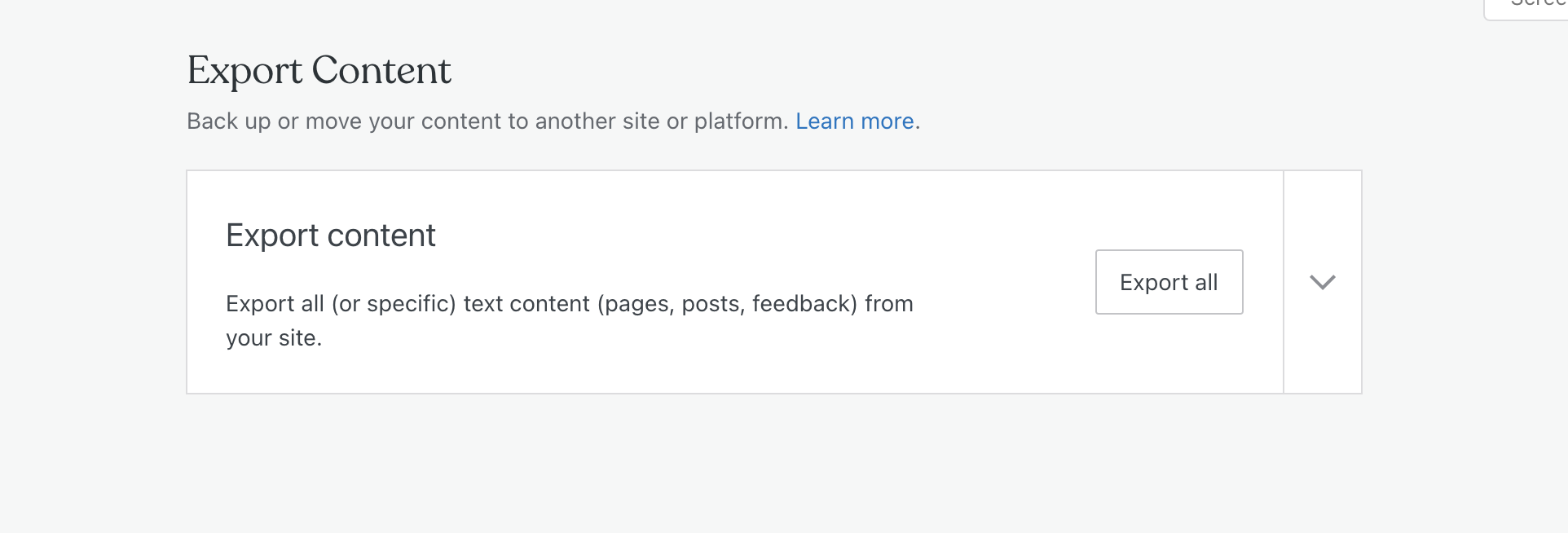
2. On the **Dashboard** in the left sidebar, click **Tools**, click **Export**:\ 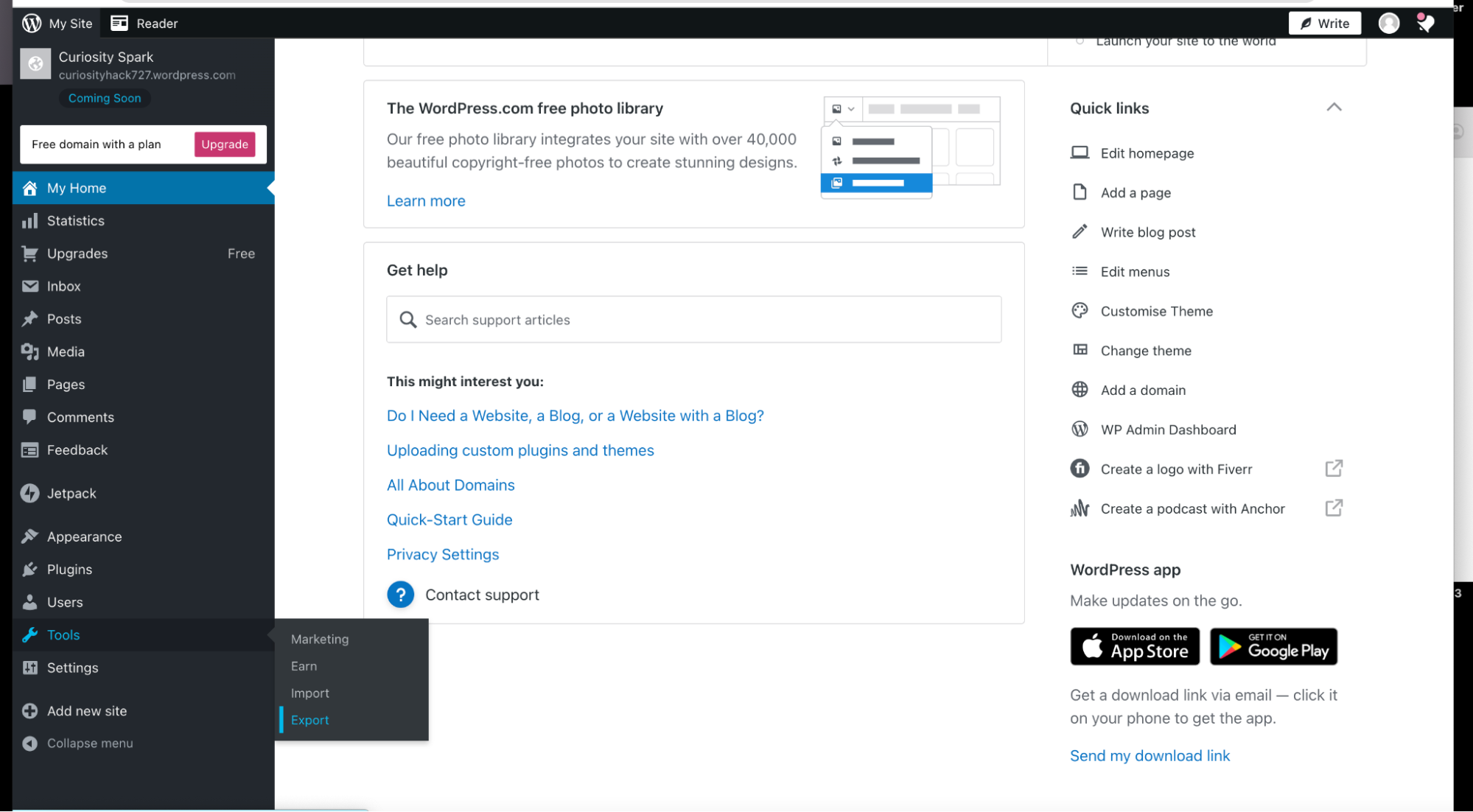 3. Click **Export all** to export all content:\
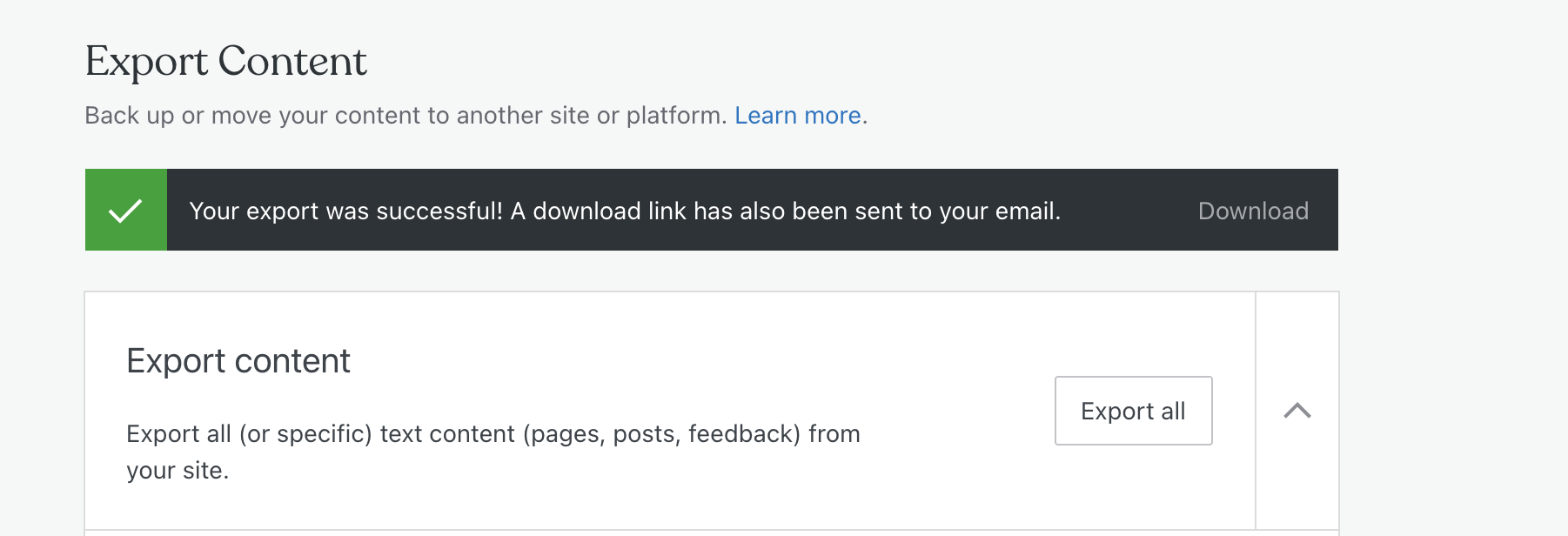
  4. The download link will be emailed. Download the.xml file and use it for the upcoming steps:\
  ### Step 2: Import your content into your new WordPress site
1. Install WordPress on your new hosting account.
> 👍 Tip
>
> If you do not know how to install WordPress on your hosting.com account,please see this\
> [article](/docs/wordpress1).
2. Log in to your WordPress site with an administrator account.
3. On the **Dashboard** in the left sidebar, click **Tools**, click **Import** and then click **Install Now:** \*\*\*\*
4. Click on **Choose File**, select the.xml file exported in the earlier step, and then click **Upload file and export:**
***
5. Choose either one of the options to assign the author to an old posts:
* Create the same author profile as on your WordPress.com site
* Assign all the imported posts to a new author profile that you specify
* Assign all the imported posts to an existing author profile
### Step 2: Import your content into your new WordPress site
1. Install WordPress on your new hosting account.
> 👍 Tip
>
> If you do not know how to install WordPress on your hosting.com account,please see this\
> [article](/docs/wordpress1).
2. Log in to your WordPress site with an administrator account.
3. On the **Dashboard** in the left sidebar, click **Tools**, click **Import** and then click **Install Now:** \*\*\*\*
4. Click on **Choose File**, select the.xml file exported in the earlier step, and then click **Upload file and export:**
***
5. Choose either one of the options to assign the author to an old posts:
* Create the same author profile as on your WordPress.com site
* Assign all the imported posts to a new author profile that you specify
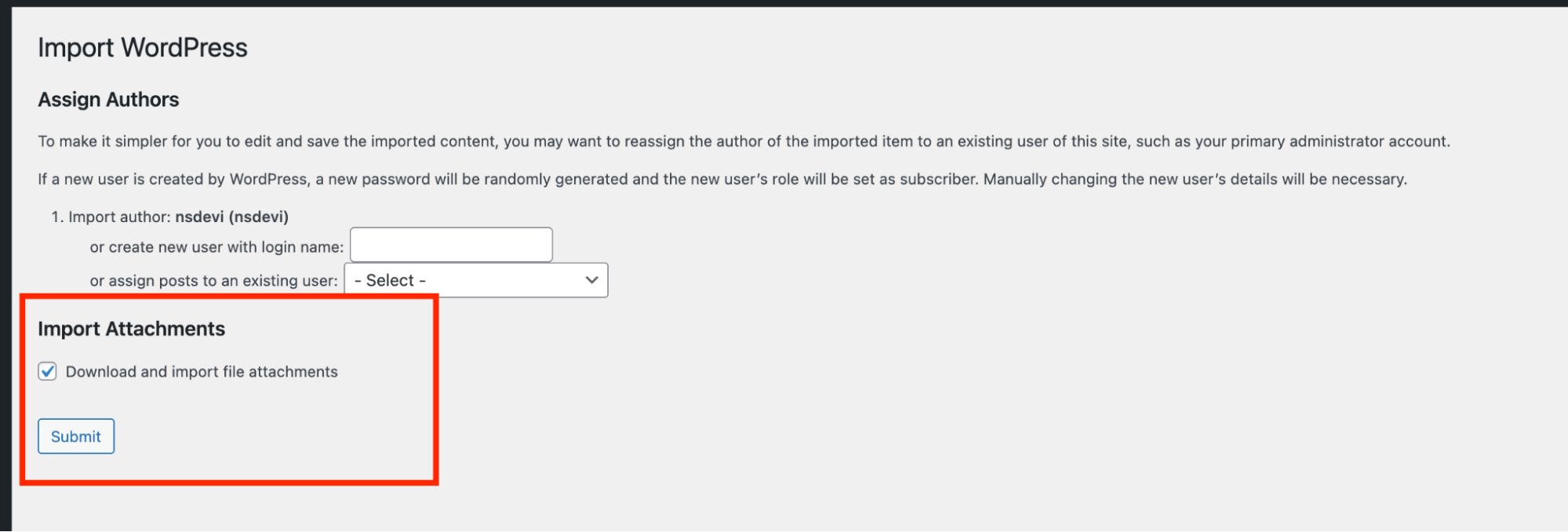
* Assign all the imported posts to an existing author profile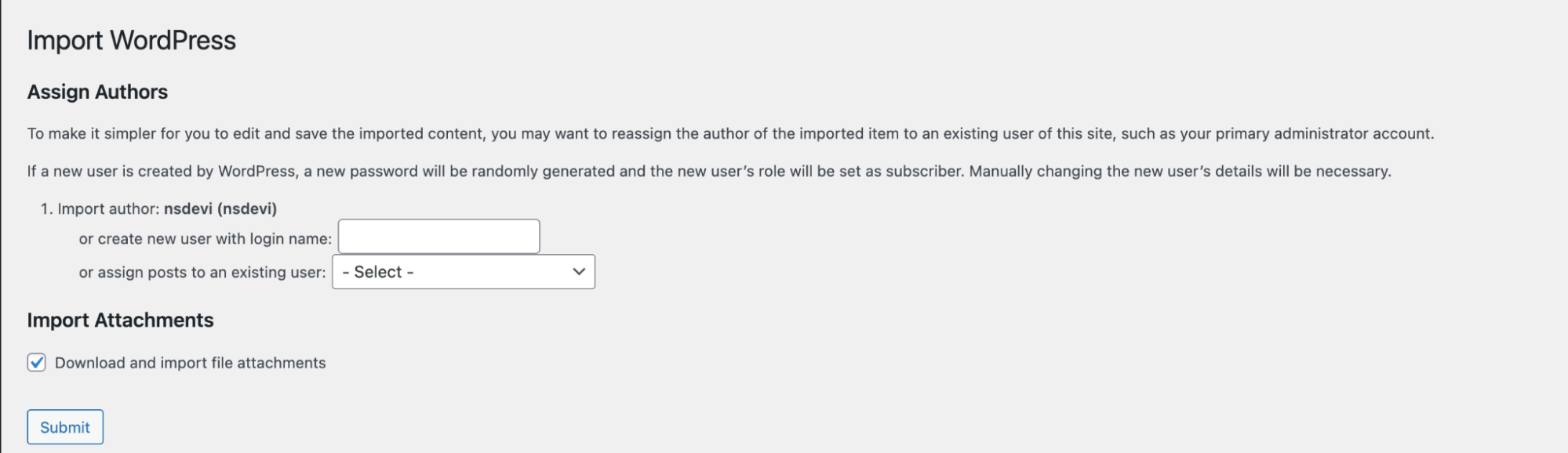 6. To import select the checkbox to import uploaded images or other media and then click on the Submit button to complete the process:\
  ### Step 3: Redirecting existing WordPress.com to WordPress.org site
Following are the two options to redirect users from the existing WordPress.com site:
* Free: Set the existing WordPress.com to private,to avoid duplicate content on the Web:
1. On the Dashboard in the left sidebar, click Settings,and then click Reading:\
### Step 3: Redirecting existing WordPress.com to WordPress.org site
Following are the two options to redirect users from the existing WordPress.com site:
* Free: Set the existing WordPress.com to private,to avoid duplicate content on the Web:
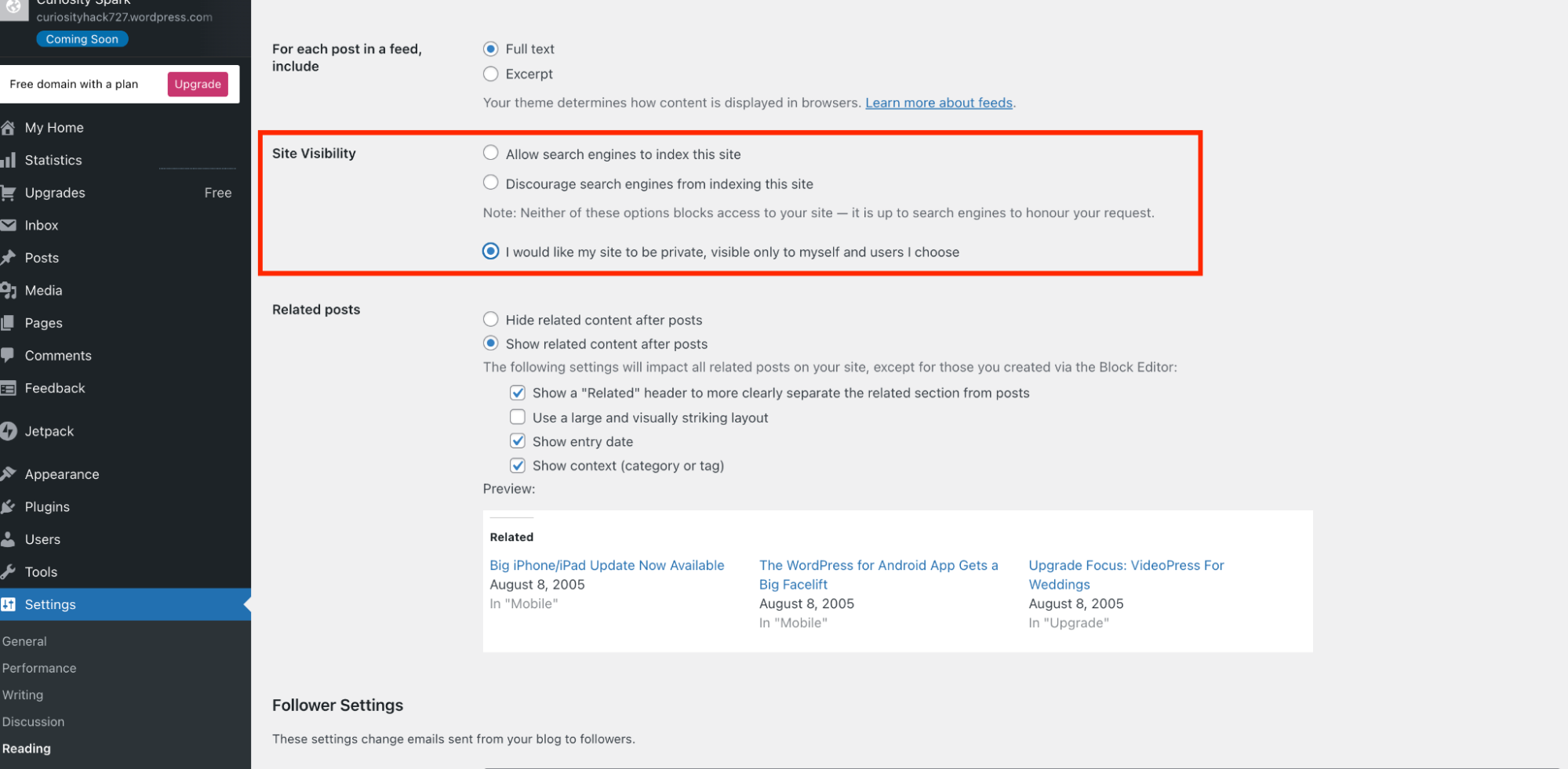
1. On the Dashboard in the left sidebar, click Settings,and then click Reading:\ 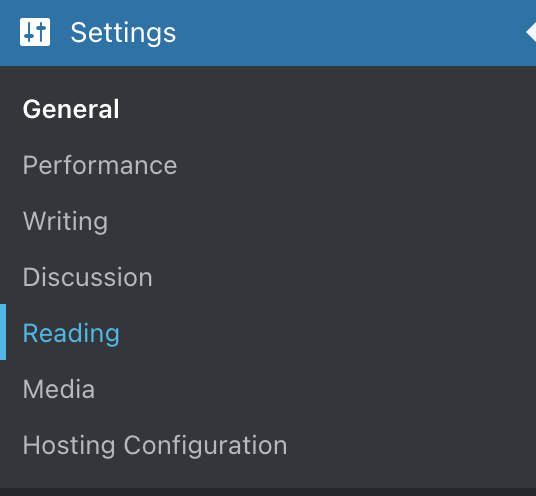 2. On the Reading Settings page, scroll to Site Visibility, and the select the "*I would like my site to be private, visible only to myself and users I choose*" option:\
  * Paid option: WordPress.com charges US13.00 per year to redirect your traffic to your new site:
1. On the Dashboard in the left sidebar, click **Settings**,and then click **General**. Click on the redirect link below the **Site address:**
***
2. Enter your new site address and click **Go**:
* Paid option: WordPress.com charges US13.00 per year to redirect your traffic to your new site:
1. On the Dashboard in the left sidebar, click **Settings**,and then click **General**. Click on the redirect link below the **Site address:**
***
2. Enter your new site address and click **Go**: 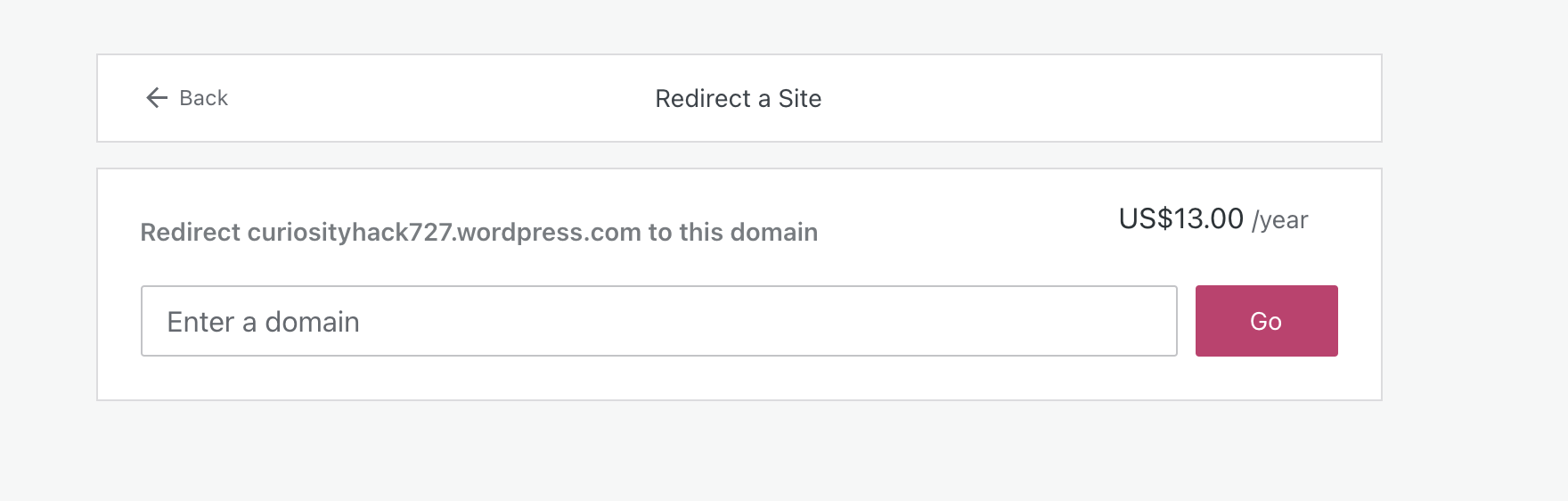 ## Related articles
* [Backing up WordPress](/docs/backing-up-your-wordpress-site)
* [Redirecting the primary domain to an existing WordPress installation](/docs/redirecting-the-primary-domain-to-an-existing-wordpress-installation)
## Related articles
* [Backing up WordPress](/docs/backing-up-your-wordpress-site)
* [Redirecting the primary domain to an existing WordPress installation](/docs/redirecting-the-primary-domain-to-an-existing-wordpress-installation)