> ## Documentation Index
> Fetch the complete documentation index at: https://kb.hosting.com/llms.txt
> Use this file to discover all available pages before exploring further.
# Installing MonsterInsights Google Analytics plugin in WordPress
> Track your WordPress site's traffic effortlessly with MonsterInsights. Discover how to install it and add Google Analytics without coding.
MonsterInsights helps you in gathering and tracking data to discover how visitors find your site or how your [WordPress](https://hosting.com/hosting/platforms/wordpress-hosting/managed-wordpress-hosting/) site connects with your audience. It adds Google Analytics tracking without touching a single line of code. This article will show you how to easily integrate Google Analytics with MonsterInsights on your [WordPress](https://hosting.com/hosting/platforms/wordpress-hosting/managed-wordpress-hosting/) website.
## Installing and configuring MonsterInsights in WordPress
To use MonsterInsights in your WordPress website, follow these steps:
1. Sign up for a Google Analytics account to integrate its tracking services for the WordPress site.
2. Log in to your **WordPress** site with an administrator account.
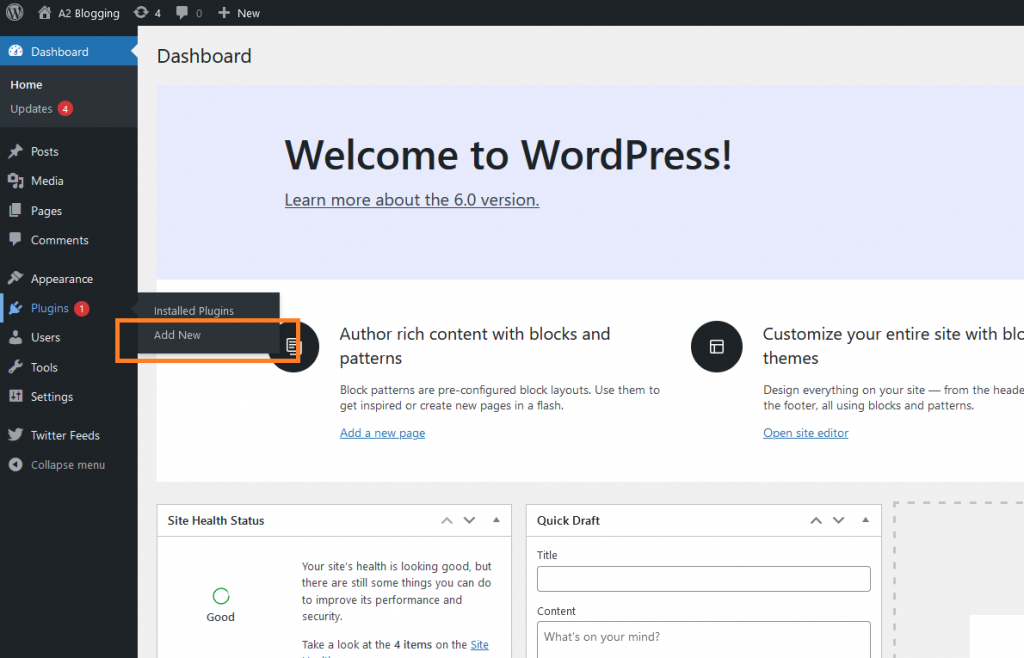
3. On the **Dashboard** in the left sidebar, click **Plugins**, and then click **Add New**:\\
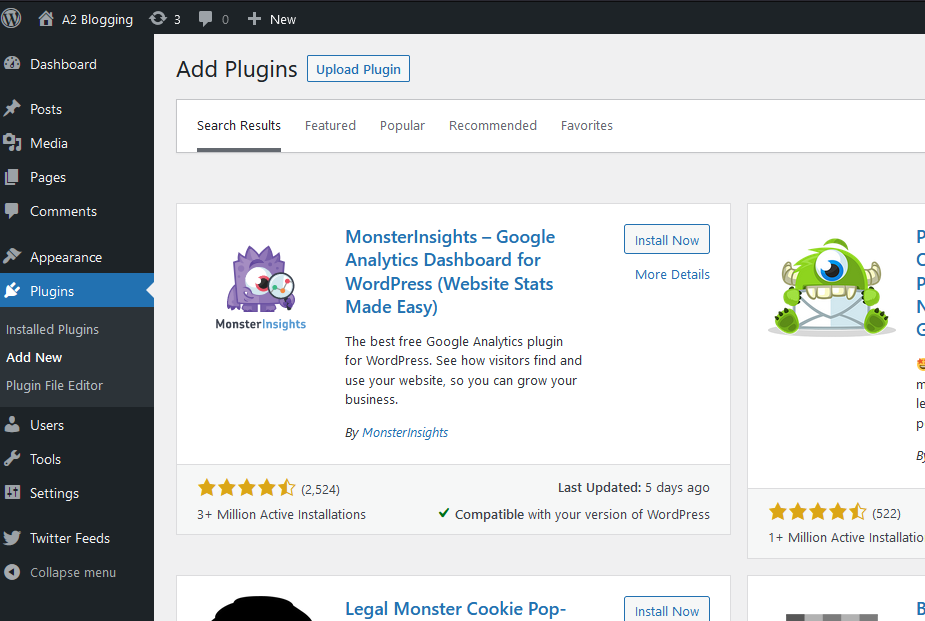
 4. Search for "**MonsterInsights**" and then **install** and **activate** the **MonsterInsights Plugin**:\\
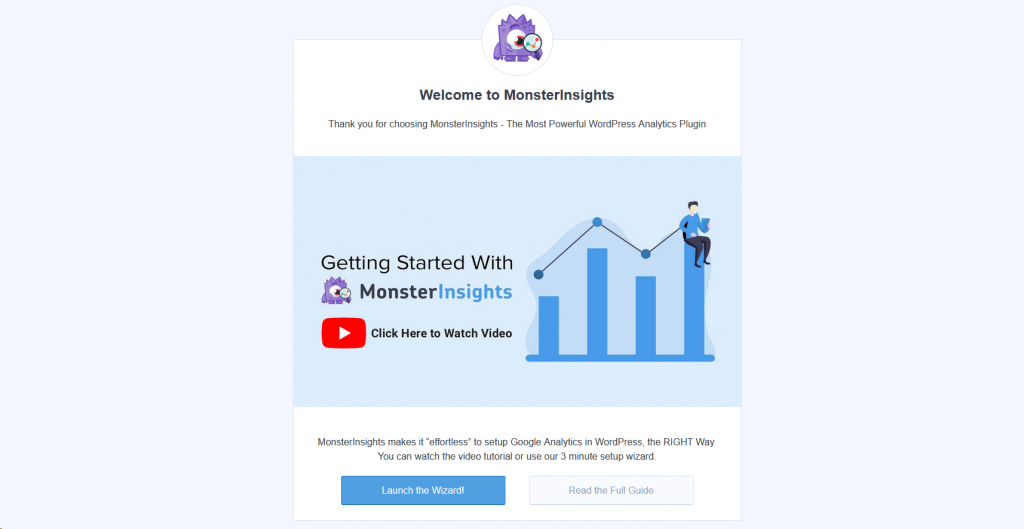
 5. Click on **Launch the Wizard!** button to start the configuration process after activating the plugin:\\
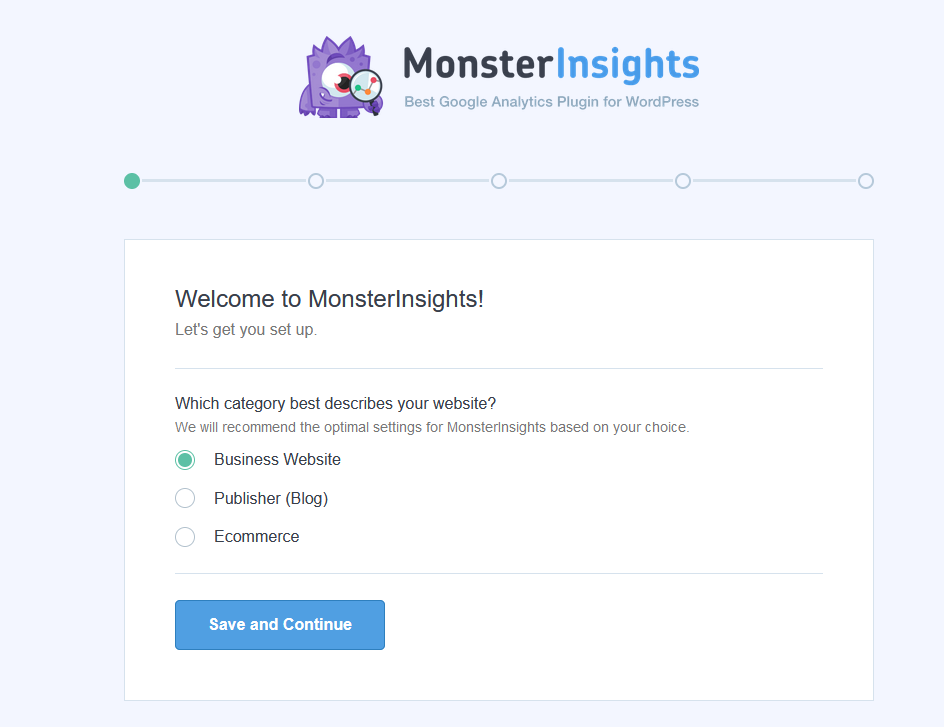
 6. Select the **category** of the website:\\
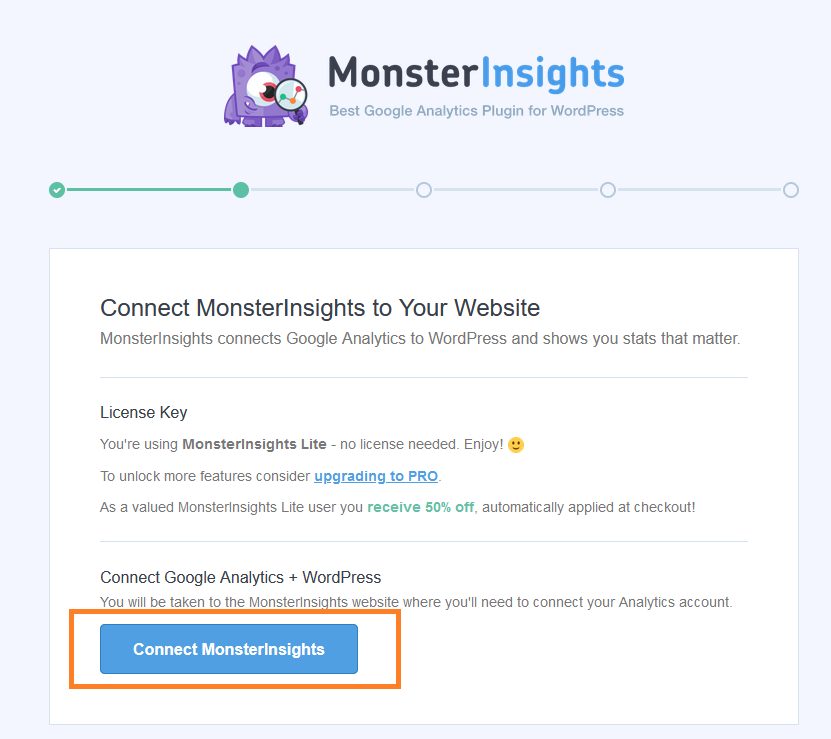
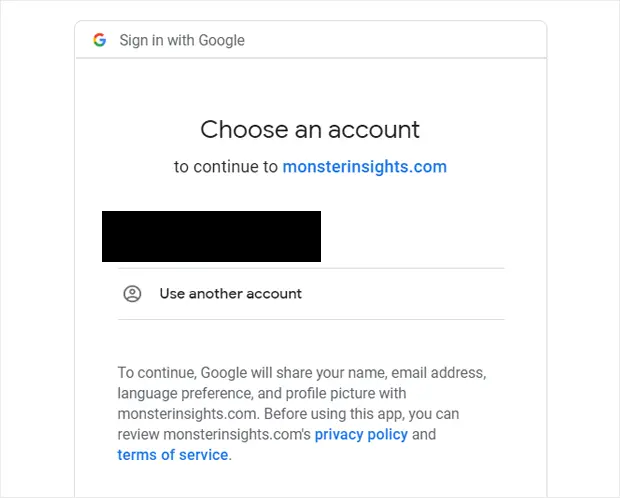
 7. Click on the **Connect MonsterInsights** button to connect your **Google Analytics** with the **MonsterInsights** account. Select the Google account to continue authentication to give permissions to access data/account:\\
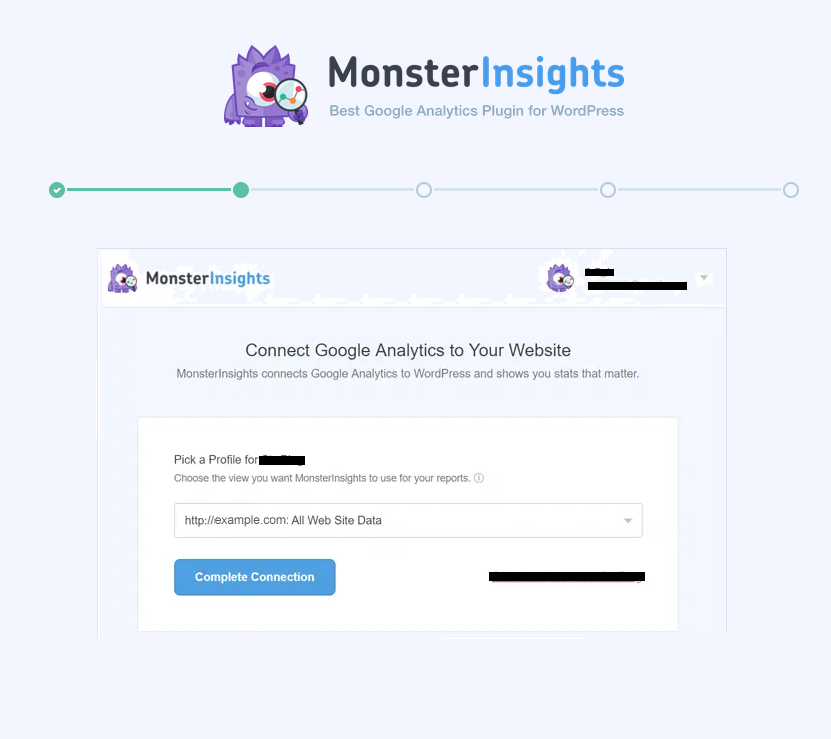
 8. Choose a **Google profile**, and click on the **Complete** connection button:\\
 9. Click on the **Finish** setup and **Exit** wizard button to complete the integration:\\
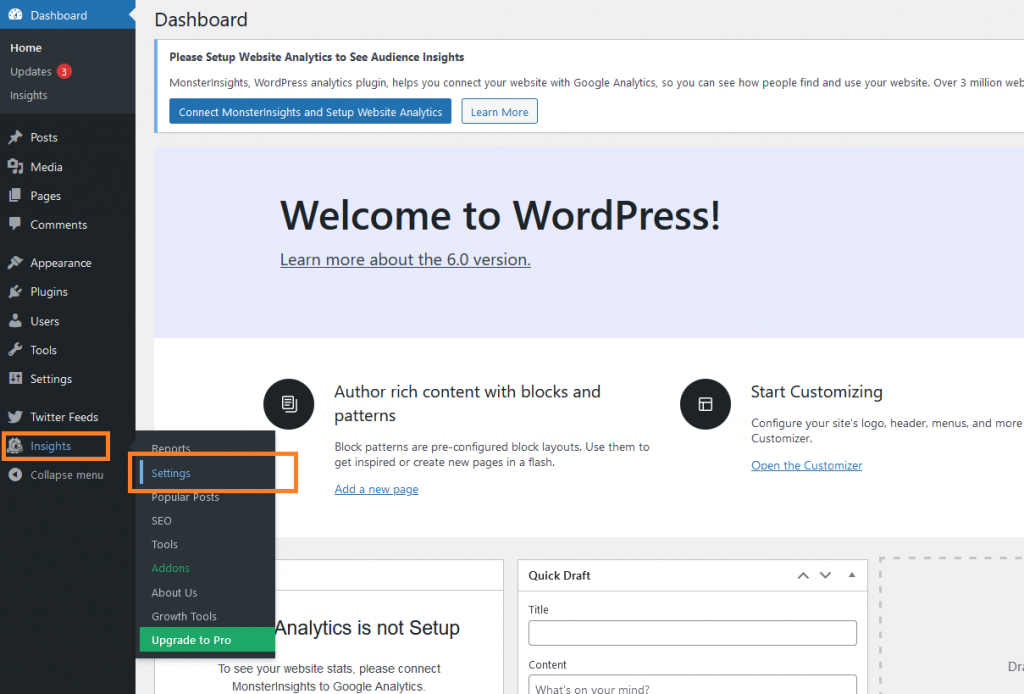
 10. On the **Dashboard** in the left sidebar, click **Insights**, and then click **Settings**:\\
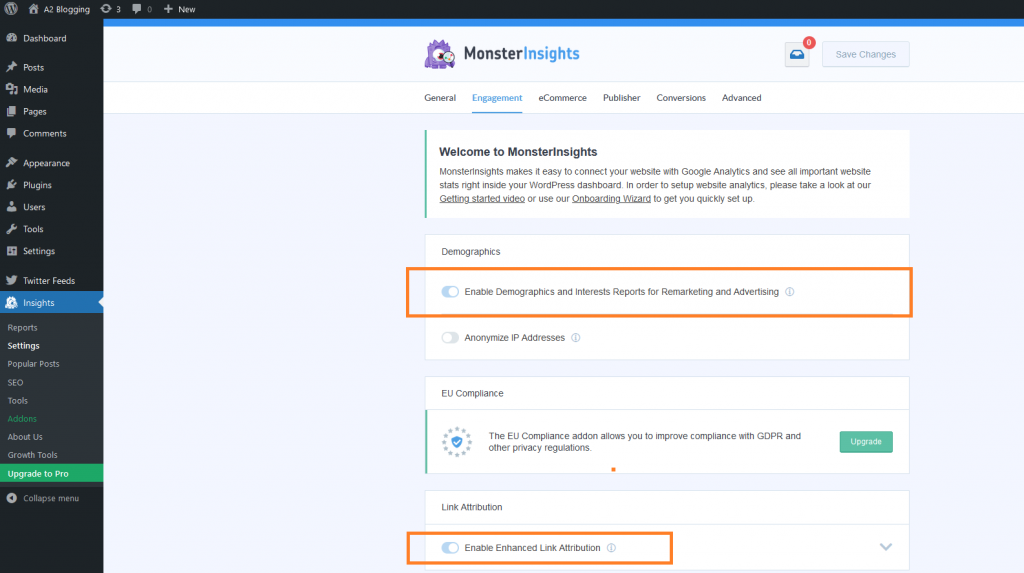
 11. Enable the **Demographics** and **Link attribution** options:\\
 12. Preview the site's statistics in the **Administration** dashboard. It takes a couple of hours after activating MonsterInsights to show tracking data.
## More information
For more information about website analytics, please visit: [https://www.hosting.com/blog/what-are-analytics/](https://www.hosting.com/blog/what-are-analytics/)
## Related articles
* [Using Google Analytics with WordPress](/docs/using-google-analytics-with-wordpress)
12. Preview the site's statistics in the **Administration** dashboard. It takes a couple of hours after activating MonsterInsights to show tracking data.
## More information
For more information about website analytics, please visit: [https://www.hosting.com/blog/what-are-analytics/](https://www.hosting.com/blog/what-are-analytics/)
## Related articles
* [Using Google Analytics with WordPress](/docs/using-google-analytics-with-wordpress)