> ## Documentation Index
> Fetch the complete documentation index at: https://kb.hosting.com/llms.txt
> Use this file to discover all available pages before exploring further.
# Optimizing images for WordPress with LiteSpeed Cache
> Optimize your site's images with the LiteSpeed Cache for WordPress plugin. Discover options for peak performance in this guide.
You can use the [LiteSpeed Cache for WordPress plugin](https://www.litespeedtech.com/products/cache-plugins/wordpress-acceleration) to optimize images for your site. The LiteSpeed Cache plugin includes numerous options to help you get the best performance when serving images to your visitors.
If you have not already installed the LiteSpeed Cache for WordPress plugin on your WordPress site, please see [this article](/docs/installing-and-configuring-the-litespeed-cache-for-wordpress-plugin) for information about how to do so.
To configure image optimization for LiteSpeed Cache, follow these steps:
1. Log in to WordPress as the administrator.
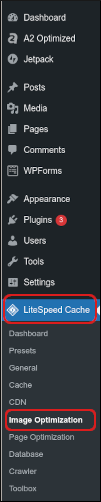
2. In the left sidebar, click **LiteSpeed Cache**, and then click **Image Optimization**:\
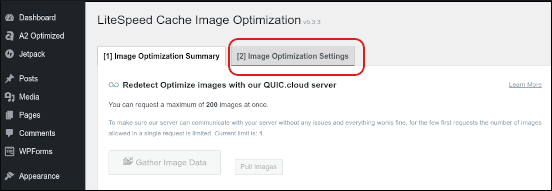
3. Under **LiteSpeed Cache Image Optimization**, click the **Image Optimization Settings** tab:\
4. A list of available image optimization settings appears:\
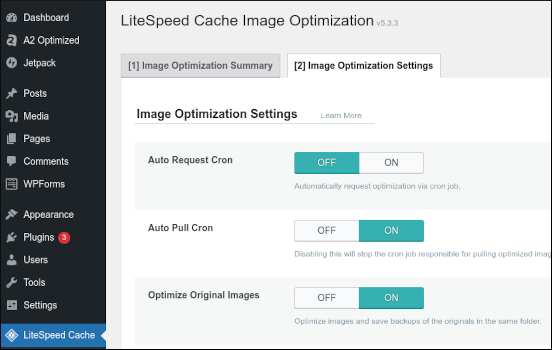
For detailed information about all of these optimization settings, please visit [https://docs.litespeedtech.com/lscache/lscwp/imageopt/#image-optimization-settings-tab](https://docs.litespeedtech.com/lscache/lscwp/imageopt/#image-optimization-settings-tab).
## More information
For more information about the LiteSpeed Cache for WordPress plugin, please visit [https://www.litespeedtech.com/products/cache-plugins/wordpress-acceleration](https://www.litespeedtech.com/products/cache-plugins/wordpress-acceleration).
## Related articles
* [Installing and configuring the LiteSpeed Cache for WordPress plugin](/docs/installing-and-configuring-the-litespeed-cache-for-wordpress-plugin)
* [Clearing the LiteSpeed cache](/docs/clearing-the-litespeed-cache)
* [Installing and configuring the EWWW Image Optimizer plugin](/docs/installing-and-configuring-the-ewww-image-optimizer-plugin)