> ## Documentation Index
> Fetch the complete documentation index at: https://kb.hosting.com/llms.txt
> Use this file to discover all available pages before exploring further.
# Managing account passwords in WHM
> Force users to change passwords on their next login with WHM, or update them yourself. Follow our guide!
This article describes how to manage passwords for accounts in WebHost Manager (WHM).
## Modifying a password
You can change a customer's password yourself. This may be necessary, for example, if they forget their password and are unable to log in. Alternatively, if the account has been compromised, you should change the password as soon as possible to prevent any further fraudulent logins.
To change a customer's password, follow these steps:
1. Log in to WebHost Manager.
> 📘 Note
>
> If you do not know how to log in to your WebHost Manager account, please see [this article](/docs/accessing-webhost-manager).
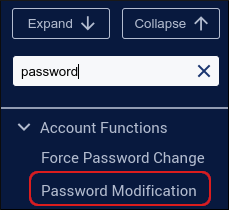
2. In the search box at the upper left of the WebHost Manager screen, start typing **password**, and then click **Password Modification** when it becomes visible:\
3. On the **Password Modification** page, click the radio button next to the account you want to modify.
If the account is not visible, start typing the user name or domain of the account in the search box until it appears in the list.
4. In the **New Password** text box, type the new password.
Alternatively, you can click **Generate** and WebHost Manager generates a random, strong password for you.
5. In the **Confirm Password** text box, retype the new password.
6. Select the **Enable Digest Authentication** check box if the account uses WebDisk with Windows.
7. Click **Change Password**. The new password takes effect immediately.
## Forcing a password change
You can force customers to change their password the next time they log in. To do this, follow these steps:
1. Log in to WebHost Manager.
> 📘 Note
>
> If you do not know how to log in to your WebHost Manager account, please see [this article](/docs/accessing-webhost-manager).
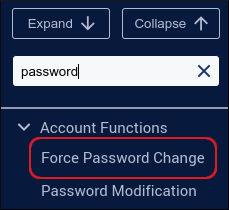
2. In the search box at the upper left of the WebHost Manager screen, start typing **password**, and then click **Force Password Change** when it becomes visible:\
3. Locate the account, select the corresponding **Forced?** check box, and then click **Submit**.
4. The next time the customer logs in to cPanel, he or she must change the password.
## Related articles
* [Managing WHM accounts](/docs/managing-whm-accounts)