> ## Documentation Index
> Fetch the complete documentation index at: https://kb.hosting.com/llms.txt
> Use this file to discover all available pages before exploring further.
# Setting the PHP include path
> Learn to set the PHP include path with step-by-step directions, code snippets, and related articles.
This article describes several methods for setting the include path in PHP. By using include paths, you can centralize code that your web site frequently uses. Additionally, some features, such as PEAR, require you to set the include path so PHP can locate the appropriate files.
**Important**
You should create the include directory at the username directory level (that is, one level above the *public\_html* directory). This ensures that sensitive files are not in the *public\_html* directory, which anyone can access.
## Method #1: Use the PHP Selector in cPanel
If your hosting account includes the [cPanel PHP Selector](/docs/changing-php-versions-and-settings-in-cpanel), this is the easiest way to change the include path. To do this, follow these steps:
1. Log in to cPanel.
> 📘 Note
>
> If you do not know how to log in to your cPanel account, please see [this article](/docs/accessing-cpanel).
2. In the **SOFTWARE** section of the cPanel home screen, click **Select PHP Version**:\

3. On the **PHP Selector** page, click the **Options** tab:\

4. Under **PHP Options**, scroll down to the **include\_path** option:\
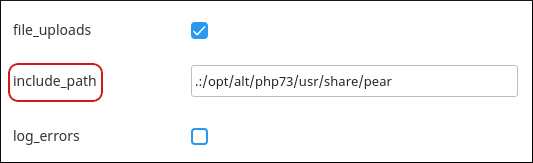
5. In the text box, type the include path.
> 👍 Tip
>
> You can separate multiple directories with a colon. For example, to specify the current directory (.) and the */home/username* directory in the include path, type `.:/home/username`.
6. Click anywhere on the page. cPanel saves the new include path, which takes effect immediately.
## Method #2: Use a custom php.ini file
You can use a custom *php.ini* file to specify the include path. If you have not already set up a custom *php.ini* file, please read [this article](/docs/custom-php-ini-files) before you proceed.
To set the include path using a custom *php.ini* file, follow these steps:
1. Open the *php.ini* file in an editor. You can do this by [logging into your account over SSH](/docs/using-ssh-secure-shell), or by [using the cPanel File Manager](/docs/cpanel-file-manager-editors).
2. Add the following line to the *php.ini* file. Replace ***username*** with your hosting.com username, and replace ***include\_directory*** with the include directory's name:
```
include_path = ".:/home/username/include_directory"
```
3. Save the file. The include path is now set.
## Method #3: Use the set\_include\_path() function
Instead of setting the include path globally in a configuration file, you can set the path directly in a script file. To do this, you use the **set\_include\_path()** function.
When you set the include path using this method, it is only effective for the duration of the script's execution. The include path that you specify does not affect any other running scripts.
The following sample code demonstrates how to set the include path using the **set\_include\_path()** function. Replace ***username*** with your hosting.com username:
```
```
## Method #4: Use the .htaccess file
A few of our VPS and dedicated servers use Apache modules instead of CGI binaries to run PHP. If your server uses an Apache module to run PHP, you can modify the *.htaccess* file in your web site's document root directory.
To set the include path using the *.htaccess* file, follow these steps:
1. Open the *.htaccess* file in an editor. You can do this by [logging into your account over SSH](/docs/using-ssh-secure-shell), or by using the cPanel File Manager.
2. Add the following line to the *.htaccess* file. Replace ***path*** with the include directory's path:
```
php_value include_path ".:/path"
```
3. Save the file. The include path is now set.
## More information
* For more information about the **include\_path** directive in php.ini files, please visit [http://php.net/manual/en/ini.core.php](http://php.net/manual/en/ini.core.php).
* For more information about the **set\_include\_path()** function, please visit [http://php.net/manual/en/function.set-include-path.php](http://php.net/manual/en/function.set-include-path.php).
## Related articles
* [PHP script basics](/docs/php-script-basics)
* [Custom php.ini files](/docs/custom-php-ini-files)
* [Viewing PHP settings](/docs/view-php-settings)