> ## Documentation Index
> Fetch the complete documentation index at: https://kb.hosting.com/llms.txt
> Use this file to discover all available pages before exploring further.
# Publishing your web site with iWeb
> Learn how to publish your iWeb website! Just follow our easy, step-by-step instructions to quickly install your website built with iWeb!
This article describes how to publish a web site created in Apple's iWeb to a hosting.com server.
This article assumes that you have already created a web site using iWeb, and you are ready to publish it to a hosting.com web server.
## Publishing a iWeb web site to a hosting.com server
After you create a web site in Apple's iWeb, you can publish it to the hosting.com server associated with your account. To do this, follow these steps:
1. Start iWeb.
2. In the left pane, click the name of the site that you want to publish. The **Site Publishing Settings** page appears:\
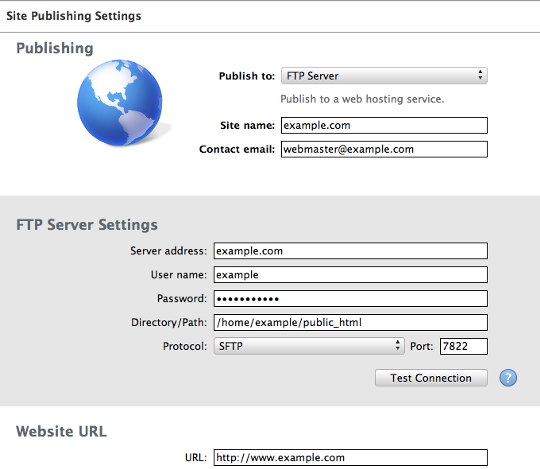
3. Under **Publishing**, in the **Publish to** list box, select **FTP Server**.
4. Under **FTP Server Settings**, in the **Server address** text box, type your site's domain name (for example, *example.com* ).
If you have not set up your domain to point to hosting.com's name servers yet, you can use the name of the server that hosts your account instead. For information about how to determine your account's server name, please see [this article](/docs/determining-your-accounts-server-name).
5. In the **User name** text box, type your hosting.com account (cPanel) username.
If you do not know your cPanel username or password, you can use the hosting.com Hosting Panel to view it. For more information, please see [this article](/docs/viewing-and-changing-login-settings-for-shared-hosting-accounts).
6. In the **Password** text box, type your hosting.com account (cPanel) password.
7. In the **Directory/Path** text box, type `/home/USERNAME/public_html`, where *USERNAME* represents the same account username you specified in step 5.
8. In the **Protocol** list box, select **SFTP**.
9. In the **Port** text box, type `22`.
> 🚧 Important
>
> Make sure you use the correct SSH port number for your account. For example, some hosting accounts use a different port for SSH, such as 7822.
10. Click **Test Connection**. If the connection settings are correct, you should receive a **Testing succeeded!** message.
If the connection test fails, verify that you entered the correct settings, and then try again.
11. Click **OK**.
12. Under **Website URL**, in the **URL** text box, type your web site's URL.
Usually, the web site URL is *[http://www.example.com](http://www.example.com)*, where *example.com* represents your domain name.
13. In the bottom pane click **Publish Site**, and then click **Continue**. iWeb uploads the web site files to your hosting.com account.
14. Click **OK**. You can now view your site in any web browser.
## More information
For more information about iWeb, please visit [http://www.apple.com/support/iweb](http://www.apple.com/support/iweb).