> ## Documentation Index
> Fetch the complete documentation index at: https://kb.hosting.com/llms.txt
> Use this file to discover all available pages before exploring further.
# Publishing your web site with Sandvox
> Learn how to publish your website built with Sandvox. Just follow our step-by-step instructions. It couldn't be easier to get your Sandvox site online!
This article describes how to publish your Sandvox-developed web site to a hosting.com server.
This article assumes that you have already created a web site using Sandvox, and you are ready to publish it to a hosting.com web server. For general information about how to use Sandvox to create a web site, please visit [http://www.karelia.com/sandvox](http://www.karelia.com/sandvox).
## Publishing a Sandvox web site to a hosting.com server
After you create a web site in Sandvox, you can publish it to the hosting.com server associated with your account. To do this, follow these steps:
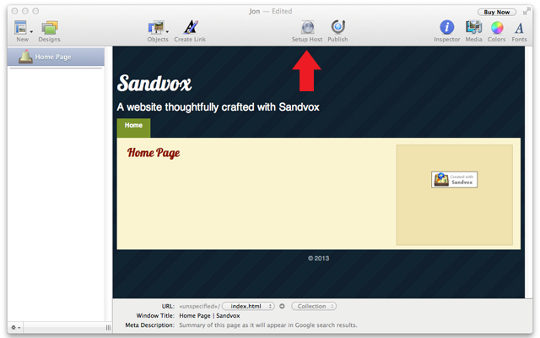
1. In Sandvox, click the **Setup Host** icon:\
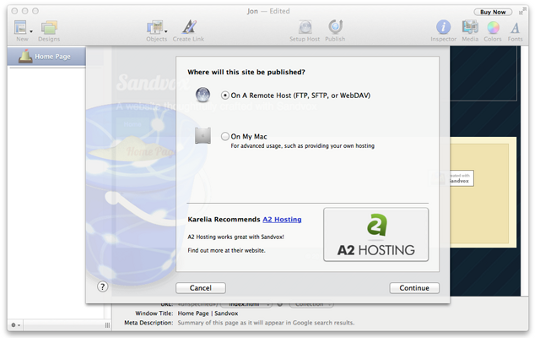
2. Under **Where will this site be published?**, click **On A Remote Host (FTP, SFTP, or WebDAV)**, and then click **Continue**:\
3. The hosting account dialog appears:\
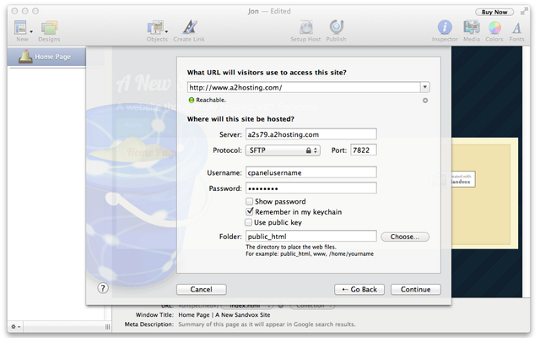
4. In the **What URL will visitors use to access this site?** text box, type your web site's domain name, starting with http\://. For example, type `http://www.example.com`.
If DNS has not updated for your domain name yet, you can use the server's shared URL for your account instead. For information about how to determine the correct shared URL for your account, please see [this article](/docs/using-shared-urls-to-access-your-site).
5. In the **Server** text box, type the name of the hosting.com server where your account is located.
For information about how to determine your account's server name, please see [this article](/docs/determining-your-accounts-server-name).
6. In the **Protocol** list box, select **SFTP**.
SFTP is the most secure method for publishing your Sandvox web site.
7. In the **Port** text box, type `22`.
> 🚧 Important
>
> Make sure you use the correct SSH port number for your account. For example, some hosting accounts use a different port for SSH, such as 7822.
8. In the **Username** text box, type your hosting.com account (cPanel) username.
9. In the **Password** text box, type your hosting.com account (cPanel) password.
If you do not know your cPanel username or password, you can use the hosting.com Hosting Panel to view it. For more information, please see [this article](/docs/viewing-and-changing-login-settings-for-shared-hosting-accounts).
10. In the **Folder** text box, type `public_html`.
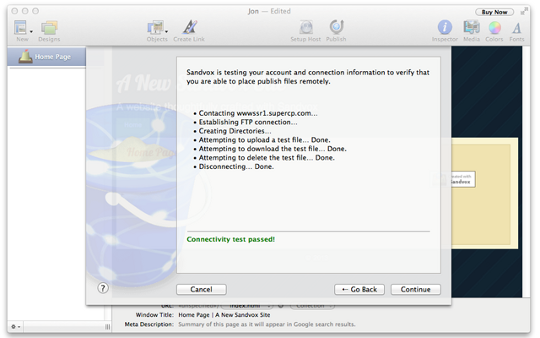
11. Click **Continue**. Sandvox uses the account settings you provided to test the connection to the web server. When this information is correct and the test succeeds, the following dialog appears:\
12. To publish your web site on the hosting.com server, click the **Publish** icon at the top of the Sandvox screen.
13. When Sandvox finishes publishing your web site to the hosting.com server, visitors on the Internet can view it in their web browsers.
## More information
For more information about Sandvox, please visit [http://www.karelia.com/sandvox](http://www.karelia.com/sandvox).