> ## Documentation Index
> Fetch the complete documentation index at: https://kb.hosting.com/llms.txt
> Use this file to discover all available pages before exploring further.
# Setting the default HTML editor in WordPress
> Discover how to switch the default WordPress editor to HTML with a simple code snippet.
[WordPress](https://hosting.com/hosting/platforms/wordpress-hosting/managed-wordpress-hosting/) comes with a default visual editor.This article shows you how to change the default WYSIWYG editor to an HTML editor in WordPress using a short code snippet.
## Setting default HTML editor in WordPress
**Important**
Always perform a backup before you make any changes to the theme files. If you break any codes, it will be easier to revert your site to its last good known state. Alternatively, you could also create a child theme. Read this link on how to create a child theme: [https://www.hosting.com/blog/wordpress-child-theme/](https://www.hosting.com/blog/wordpress-child-theme/)
Follow the steps below to edit your Theme setting file to set HTML editor in WordPress:
1. Log in to your WordPress site with an administrator account.
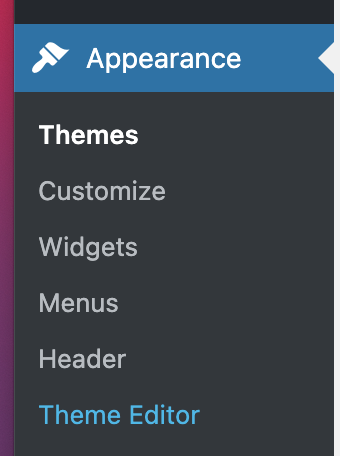
2. On the **Dashboard** in the left sidebar, click **Appearance**, and then click **Theme Editor**:\
**Important**
You will not be able to roll back to your earlier theme configuration after any edits. Always save the theme files before proceeding with the amendments.
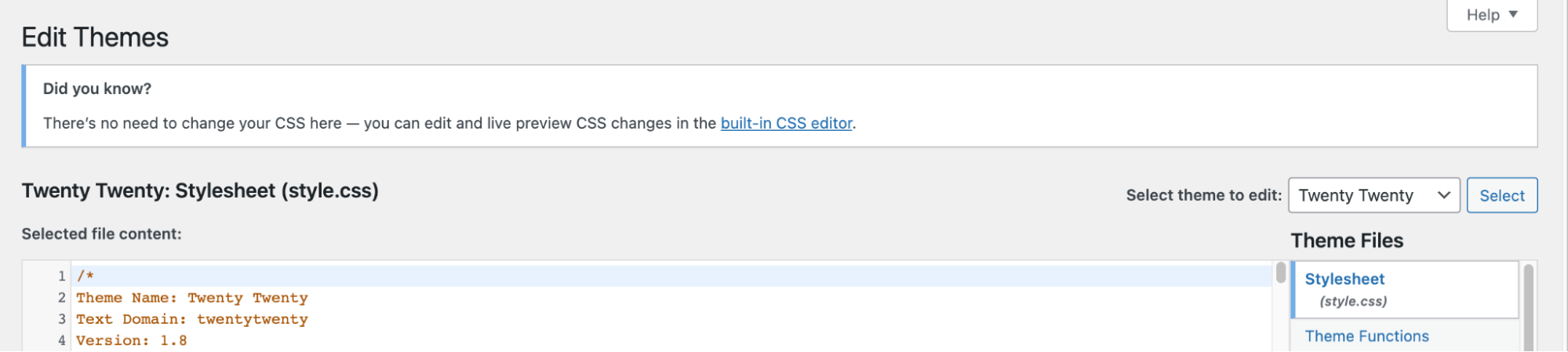
3. On the **Theme Editor**, select the **Theme** you want to edit from the dropdown:\
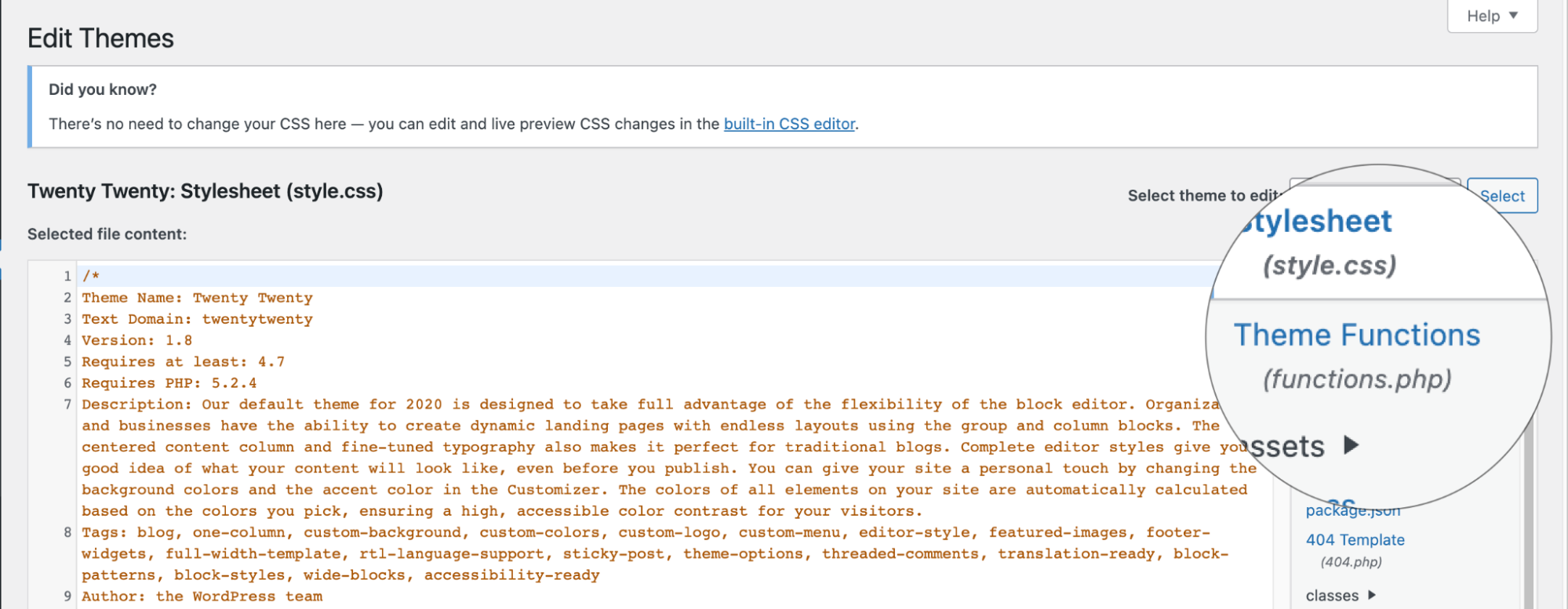
4. The files for this selected theme are listed on the right column under **Theme Files**. Click on the file named "**functions.php**":\
5. Insert the following code to the end of functions.php file and click **Update File Button** to save the changes:
```
add_filter( 'wp_default_editor', create_function('', 'return "html";') );
```
## Related articles
* [Installing and configuring the TinyMCE Advanced editor plugin](/docs/installing-and-configuring-the-tinymce-advanced-editor-plugin)
* [Widget Block Editor in WordPress](/docs/widget-block-editor-in-wordpress)