> ## Documentation Index
> Fetch the complete documentation index at: https://kb.hosting.com/llms.txt
> Use this file to discover all available pages before exploring further.
# Setting up Professional and Business Email
> Learn how to set up Professional and Business Email accounts in this article.
Setting up your hosting.com Professional or Business email is easy, and we'll walk you through each step -- from setting up your user to configuring your devices.
## Creating a new user in your account
First, create a new user in your account. To do this, follow these steps:
1. Log in to the Hosting Panel at [https://my.hosting.com](https://my.hosting.com).
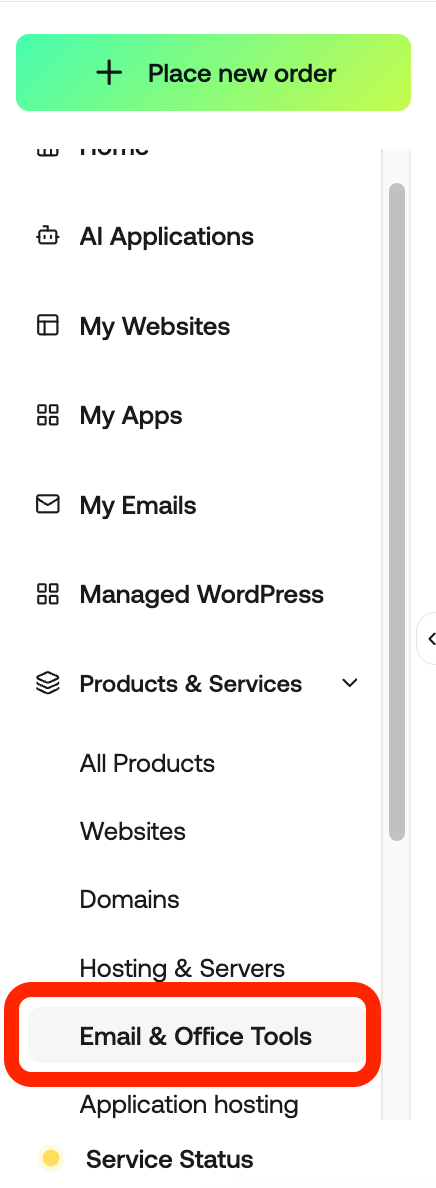
2. In the left sidebar, under **Products & Services**, click **Email & Office Tools**
 3. On the **Email & Office Tools** page, locate your email account, and then click **Admin Login**:
 4. The administration interface appears in a new tab. On the top menu bar, click **More**, and then click **Domain Settings**.
5. In the **Users** section, click **New**.
6. Complete the fields, and then click **Save**.
## Setting up your device
Now that your email address and password are set up, here's how to add your new email account to your device:
***Pro tip:*** If your email app (like Outlook) has automatic settings, try those first. It’s usually an easy way to get started. But if you’d rather configure it yourself, use the following settings.
## Manual Email Setup
1. Open your email application (for example, Outlook).
2. Select **Add Account** or **Add Email Account**.
3. Choose **Advanced options** or **Set up my account manually** (if prompted).
4. Select **IMAP** as the account type (recommended).
5. Enter the following information:
**Incoming (IMAP) Server**
* Server: `mail.yourdomain.com`
* Port: `993`
* Encryption: `SSL/TLS`
**Outgoing (SMTP) Server**
* Server: `mail.yourdomain.com`
* Port: `465` (SSL/TLS) or `587` (STARTTLS)
* Encryption: `SSL/TLS` or `STARTTLS`
6. Enter your full email address as the username.
7. Enter your email account password.
8. Save the settings and allow the email application to test the connection.
9. Once the test is successful, select **Finish** to complete the setup.
4. The administration interface appears in a new tab. On the top menu bar, click **More**, and then click **Domain Settings**.
5. In the **Users** section, click **New**.
6. Complete the fields, and then click **Save**.
## Setting up your device
Now that your email address and password are set up, here's how to add your new email account to your device:
***Pro tip:*** If your email app (like Outlook) has automatic settings, try those first. It’s usually an easy way to get started. But if you’d rather configure it yourself, use the following settings.
## Manual Email Setup
1. Open your email application (for example, Outlook).
2. Select **Add Account** or **Add Email Account**.
3. Choose **Advanced options** or **Set up my account manually** (if prompted).
4. Select **IMAP** as the account type (recommended).
5. Enter the following information:
**Incoming (IMAP) Server**
* Server: `mail.yourdomain.com`
* Port: `993`
* Encryption: `SSL/TLS`
**Outgoing (SMTP) Server**
* Server: `mail.yourdomain.com`
* Port: `465` (SSL/TLS) or `587` (STARTTLS)
* Encryption: `SSL/TLS` or `STARTTLS`
6. Enter your full email address as the username.
7. Enter your email account password.
8. Save the settings and allow the email application to test the connection.
9. Once the test is successful, select **Finish** to complete the setup.