> ## Documentation Index
> Fetch the complete documentation index at: https://kb.hosting.com/llms.txt
> Use this file to discover all available pages before exploring further.
# TurboHub's Intelligent Performance feature for WordPress
> This article discusses TurboHub’s Intelligent Performance feature for WordPress.
This article discusses TurboHub’s Intelligent Performance feature for WordPress.
## About Intelligent Performance
TurboHub's Intelligent Performance (IP) feature enables you to optimize WordPress sites without any downtime and with just a single click. IP applies optimized presets and image compression to instantly improve site speed and performance. At each step, IP displays an updated [PageSpeed](https://developers.google.com/speed) score so you can see how your site is performing in real-time.
If IP encounters any errors during optimization, it automatically rolls back the site to its previous working configuration. At no time is site content modified. Additionally, you can roll back to the previous working configuration yourself at any time.
## Intelligent Performance requirements
Before enabling Intelligent Performance, make sure your hosting account and WordPress site meet the following requirements:
* PHP version 7 (or newer).
* WordPress 5.6 (or newer).
* Confirm your domain is hosted at hosting.com.
- Intelligent Performance currently only supports single installation sites. [WordPress multisite networks](https://learn.wordpress.org/tutorial/introduction-to-wordpress-multisite-networks/)are not supported.
- Content Delivery Networks (CDNs) are currently not supported during the optimization process. Before running Intelligent Performance, please temporarily disable Cloudflare on your account. For information about how to do this, please see [this article](/docs/turning-off-cloudflare). You can re-enable Cloudflare after the optimization process is complete.
- You can only run IP on a site once. Alternatively, you can roll back changes made by IP, and run it again.
## Enabling Intelligent Performance
To enable Intelligent Performance for a site, follow these steps:
1. Log in to the Hosting Panel at [https://my.hosting.com](https://my.hosting.com).
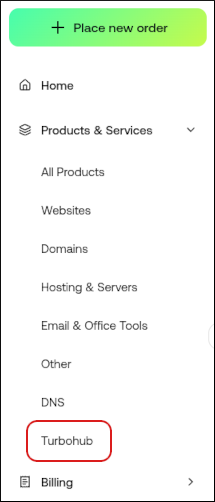
2. In the left sidebar, under **Products & Services**, click **Turbohub**:
3. The TurboHub dashboard appears with all of your WordPress sites:
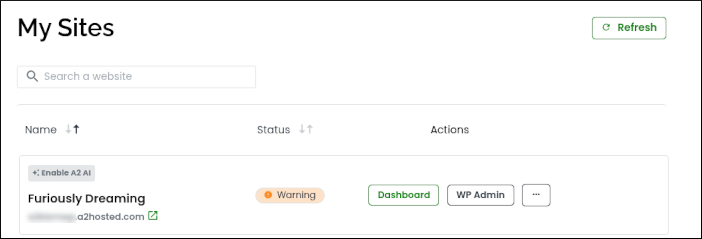
4. Click **Dashboard** for the site you want to optimize.
5. Click **Performance**:\

6. In the **Boost Performance** section, click **Start**.
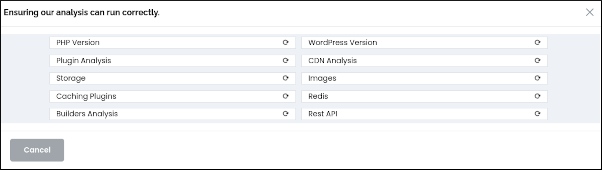
7. IP checks that your site meets the requirements as described in the previous section:\
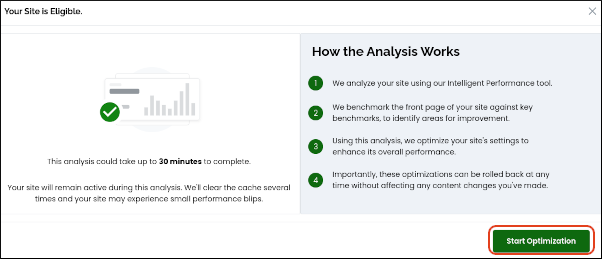
8. Click **Start Optimization**:\
9. Phase 1 begins:\
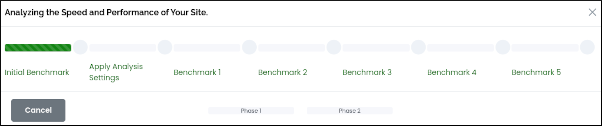
10. When Phase 1 is complete, Phase 2 begins:\
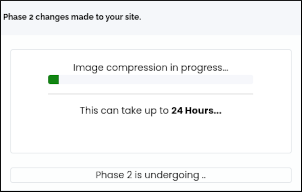
11. If you want to undo the changes IP made to your site, click **Roll Back**:\

## Related articles
* [TurboHub: centralized, simplified WordPress site management](/docs/turbohub-centralized-simplified-wordpress-site-management)
* [TurboHub "Implementation of Phase 2" error message](/docs/turbohub-implementation-of-phase-2-error-message)
* [TurboHub’s Intelligent Performance and WordPress plugins](/docs/turbohubs-intelligent-performance-and-wordpress-plugins)