> ## Documentation Index
> Fetch the complete documentation index at: https://kb.hosting.com/llms.txt
> Use this file to discover all available pages before exploring further.
# Updating WordPress manually
> Discover how to easily update WordPress for enhanced stability and security in this guide.
This article describes how to update a [WordPress](https://hosting.com/hosting/platforms/wordpress-hosting/managed-wordpress-hosting/) site manually.
There are other ways to update WordPress:
* You can update WordPress using Softaculous. For information about how to do this, please see [this article](/docs/manage-your-applications).
* You can update WordPress using the command line. For information about how do this, please see [this article](/docs/administering-wordpress-from-the-command-line).
## Updating WordPress manually
You should update a [WordPress](https://hosting.com/hosting/platforms/wordpress-hosting) installation frequently to ensure it is running the latest version. There are several reasons for this:
* **Security:** WordPress updates contain fixes that patch security vulnerabilities. One of the most important things you can do to maintain a more secure WordPress site is apply updates regularly.
* **Stability:** WordPress updates contain fixes that patch bugs and other issues. Your site is more stable when you apply the latest updates.
* **New features:** WordPress is continually improving, and by running the latest version, you have access to the latest features and functionality.
To update WordPress, follow these steps:
1. Log in to WordPress as the administrator.
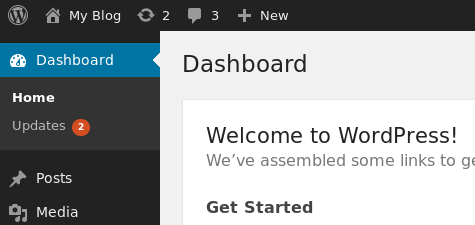
2. In the left sidebar, click **Dashboard**, and when updates are available, the number of updates are indicated in a red circle:\
3. Click **Updates**. WordPress displays any updates available for the WordPress core installation, plugins, and themes:
* To update WordPress, click **Upgrade Automatically**.
* To update plugins, select the plugin or plugins that you want to update, and then click **Update Plugins**.
* To update themes, select the theme or themes that you want to update, and then click **Update Themes**.
4. To keep the WordPress site updated automatically, click the **Switch to automatic updates…** link:\
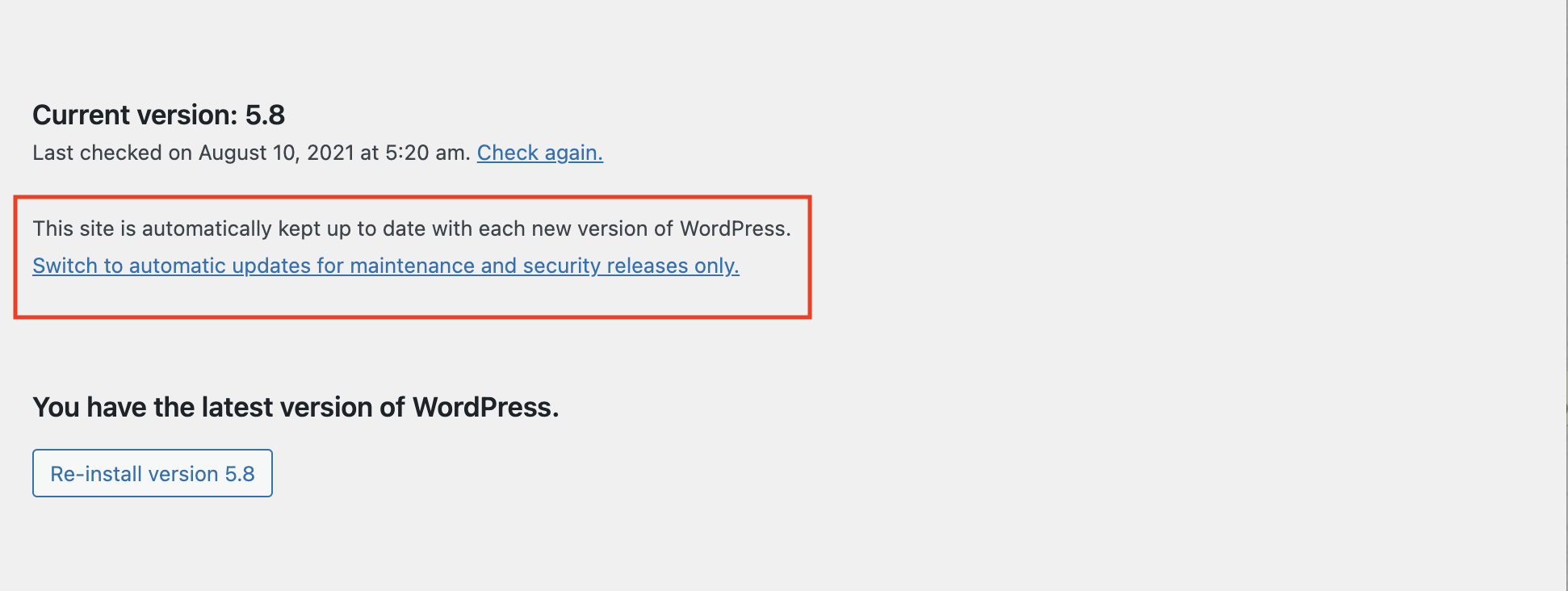
The previous procedure describes how to update WordPress manually. However, you can configure WordPress sites for automatic updates by combining cron jobs and the WP-CLI program. For information about how to do this, please see [this article](/docs/administering-wordpress-from-the-command-line).
## Related articles
* [WordPress security](/docs/wordpress-security)
* [Determining the WordPress version](/docs/determining-the-wordpress-version)