> ## Documentation Index
> Fetch the complete documentation index at: https://kb.hosting.com/llms.txt
> Use this file to discover all available pages before exploring further.
# Using a catch-all e-mail address
> In this article, learn about catch-all e-mail addresses -- what they are, how to use them, and alternatives.
This article discusses the usage of catch-all e-mail addresses.
## About catch-all addresses
A catch-all address "catches" e-mail messages that are sent to non-existent or invalid e-mail addresses on your domain. For example, normally if a customer sends a message to [sals@example.com](mailto:_sals@example.com_) instead of [sales@example.com](mailto:_sales@example.com_), the message is rejected (assuming, of course, that a [sals@example.com](mailto:_sals@example.com_) address does not actually exist). With a catch-all address however, this message is delivered to an e-mail account that is configured as the catch-all address.
There are potential downsides to using a catch-all address, however. These include:
* Receiving a large volume of e-mail messages, including spam. These messages take up disk space, so a catch-all address must be regularly monitored to ensure it is not filling the disk.
* Negatively impacting server performance due to [dictionary attacks](https://en.wikipedia.org/wiki/Dictionary_attack), where attackers try thousands or even millions of e-mail address combinations in a brute-force attempt to gain access.
For these reasons, we usually recommend setting up e-mail forwarders instead of a catch-all address. For information about how to set up e-mail forwarders in cPanel, please see [this article](/docs/e-mail-forwarders).
If you still want to use a catch-all address, read the appropriate section below for your hosting account.
## Managed accounts without root access
For managed accounts without root access, we can enable a catch-all address upon request. If you want to do this, please open a support ticket at [https://my.hosting.com](https://my.hosting.com). Please include the following information in your request:
* The e-mail address that will receive the "caught" messages.
* The domain for which you want the catch-all address set.
**Important**
The catch-all e-mail address must be on the server. It cannot be an external address (for example, a Gmail or Outlook.com address).
## Managed accounts with root access
For managed accounts with root access, you can enable a catch-all address yourself using WebHost Manager and cPanel.
### WebHost Manager configuration
You must first enable the **Default Address** feature in WHM. To do this, follow these steps:
1. Log in to WHM.
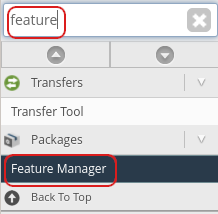
2. In the left sidebar, in the search box, type `feature`.
3. In the left sidebar, under **Packages**, click **Feature Manager**:\
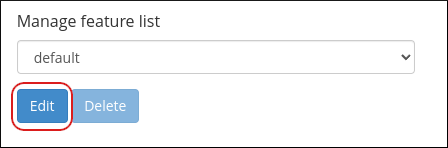
4. Under **Manage feature list**, select **default**, and then click **Edit**:\
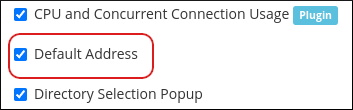
5. In the feature list, select the **Default Address** check box, and then click **Save**:\
Users can now access the catch-all configuration options in cPanel.
### cPanel configuration
After you have enabled default addresses in WHM, users can configure them in cPanel. To do this, follow these steps:
1. Log in to cPanel.
2. In the **MAIL** section of the cPanel home page, click the **Default Address** icon:\

3. In the **Send all unrouted email for the following domain** list box, select the domain for the catch-all address:\
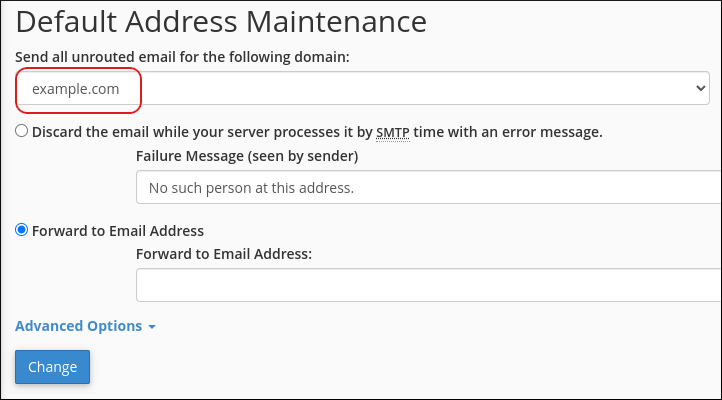
4. Click **Forward to Email Address**, and then type the e-mail address that will receive the "caught" e-mail messages.
**Important**
The catch-all e-mail address must already exist, and it must be on the server. It cannot be an external address (for example, a Gmail or Outlook.com address).
5. Click **Change**. The catch-all address is now active.
## Unmanaged accounts
With unmanaged accounts, you have root access to the server and complete control over the operating environment. This enables you to install, configure, and maintain the e-mail server and accounts yourself.
For information about how to configure a catch-all address, please consult the documentation for your mail transfer agent (MTA), such as [Postfix](https://www.postfix.org/documentation.html) or [Exim](https://www.exim.org/docs.html).
## Related articles
* [E-mail Accounts](/docs/e-mail-accounts)
* [E-mail forwarders](/docs/e-mail-forwarders)
* [Import e-mail accounts and forwarders](/docs/import-e-mail-accounts-and-forwarders)
* [Autoresponders](/docs/cpanel-auto-responders)
* [Managing spam in cPanel](/docs/managing-spam-in-cpanel)