> ## Documentation Index
> Fetch the complete documentation index at: https://kb.hosting.com/llms.txt
> Use this file to discover all available pages before exploring further.
# Using FTP with Linux hosting accounts
> Learn to transfer files with FTP on your hosting.com account using our Linux hosting packages.
This article describes how to connect to your hosting.com account using an FTP (File Transfer Protocol) client.
**Important**
For general information about what FTP is and when you might use it, please see [this article](/docs/using-ftp-file-transfer-protocol).
## Using an FTP client
There are numerous FTP clients available, and many of them support SFTP (Secure FTP) and FTPS (FTP Secure) as well. hosting.com recommends FileZilla, a free program that you can [download here](https://filezilla-project.org/download.php). It supports all three protocols (FTP, SFTP, and FTPS), and runs on Microsoft Windows, Apple macOS, and Linux. In the following procedures, we show how to use FileZilla to connect to your account and transfer files.
You do not have to use FileZilla. If you want to use a different FTP client, however, you will need the following information to connect to your account:
* **Domain name:** Your web site's domain name. Alternatively, you can use your server name. (If you are using Cloudflare, use your server name.) For information about how to determine your account's server name, please see [this article](/docs/determining-your-accounts-server-name).
* **FTP account username:** - For SFTP, you must use your cPanel username. Make sure you do not include your domain name. For example, type `username`, do not type `username@example.com`.
* For FTPS, you can use either your cPanel username, or the username for an FTP user you have created in cPanel (for example, [*ftpuser@example.com*](mailto:_ftpuser@example.com_) ).
* For FTP, you can use either your cPanel username, or the username for an FTP user you have created in cPanel (for example, [*ftpuser@example.com*](mailto:_ftpuser@example.com_) ).
* **Password:** The password for the account you are using.
* **Port number:** For SFTP connections, use the SSH port for your account. This is usually 22, but some hosting accounts use a different port for SSH, such as 7822.
### Connecting to your account
To connect to your account using FileZilla, follow these steps:
1. Start FileZilla.
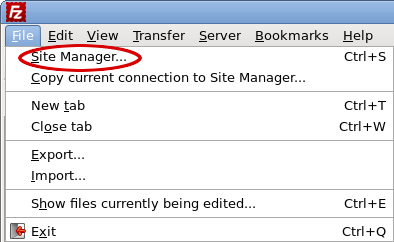
2. On the **File** menu, click **Site Manager**:\
The **Site Manager** dialog appears:\
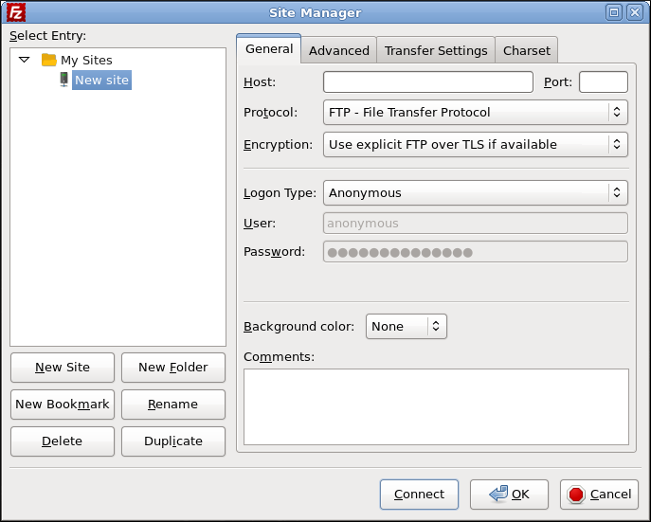
3. Click **New Site**, type a name for the site, and then press Enter.
4. In the **Host** text box, type your site's domain name. Alternatively, you can type the server hostname instead. (If you are using Cloudflare, use the server hostname.)
> 👍 Tip
>
> For information about how to determine your account's server name, please see [this article](/docs/determining-your-accounts-server-name).
5. If you want to connect using SFTP, type `22` in the **Port** text box. Otherwise, leave the **Port** text box blank.
> 📘 Note
>
> Make sure you use the correct SSH port number for your account. For example, some hosting accounts use a different port for SSH, such as 7822.
6. In the **Protocol** list box, select the protocol you want to use:
* To use SFTP, select **SFTP - SSH File Transfer Protocol**.
* To use FTPS, select **FTP - File Transfer Protocol**, and then in the **Encryption** list box, select **Require explicit FTP over TLS**.
* To use regular FTP, select **FTP - File Transfer Protocol**, and then in the **Encryption** list box, select **Only use plain FTP (insecure)**.
> 🚧 Important
>
> We strongly recommend that you use SFTP or FTPS whenever possible. Regular FTP sends usernames and passwords in unencrypted plaintext, and is not secure.
7. In the **Logon Type** list box, select **Normal**.
8. In the **User** text box, type the account username you want to use:
* If you are using SFTP, you must use your cPanel username. Make sure you do not include your domain name. For example, type `username`, do not type `username@example.com`.
* If you are using FTPS or a regular FTP connection, you can use either your cPanel username, or the username for an [FTP user you have created in cPanel](/docs/ftp-accounts-and-sessions) (for example, [*ftpuser@example.com*](mailto:_ftpuser@example.com_) ).
9. In the **Password** text box, type the password for the account you specified in step 8.
> 🚧 Important
>
> Remember that your account password is **not** the same as your hosting.com Hosting Panel password.
10. Optionally, you can specify a default directory for FileZilla to open on the remote server after it connects. For example, many people prefer to have an FTP client access the website document root directory by default. To do this, follow these steps:
* Click the **Advanced** tab.
* In the **Default remote directory** text box, type */home/username/public\_html*, where ***username*** represents your hosting.com account (cPanel) username.
11. Click **Connect**. After a few seconds, FileZilla establishes the connection.
### Transferring files
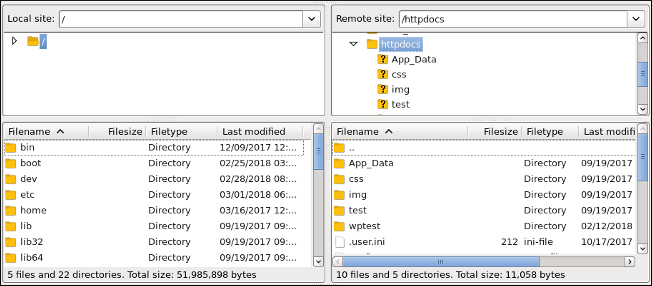
After FileZilla establishes a connection between your local computer and the hosting.com server, you can transfer files. FileZilla has a **Local site** pane that displays files on your local computer, and a **Remote site** pane that displays files in your account on the hosting.com server:\
To transfer files using FileZilla, follow these steps:
1. Navigate through folders in the **Local site** and **Remote site** panes just as you would in Windows Explorer or the macOS Finder. To open a folder, double-click it.
2. To upload a file to the server, drag the file from the **Local site** pane to the **Remote site** pane. After the file transfer is complete, the file appears in the **Remote site** pane.
> 👍 Tip
>
> To upload a file, you can also double-click it in the **Local site** pane.
3. To download a file to the local computer, drag the file from the **Remote site** pane to the **Local site** pane. After the file transfer is complete, the file appears in the **Local site** pane.
> 👍 Tip
>
> To download a file, you can also double-click it in the **Remote site** pane.
4. You can also transfer entire folders at once:
* To upload a folder to the server, drag the folder from the **Local site** pane to the **Remote site** pane.
* To download a folder to the local computer, drag the folder from the **Remote site** pane to the **Local site** pane.
## FTP logging
All FTP activity is monitored and recorded in our server FTP log files. If you need information from the log files, please open a support ticket at [https://my.hosting.com](https://my.hosting.com). Alternatively, if you use a managed VPS or dedicated server, you can check the FTP logs located at */var/log/messages*.
## More information
To view the official FileZilla documentation, please visit [http://wiki.filezilla-project.org/Documentation](https://wiki.filezilla-project.org/Documentation).
## Related articles
* [Using FTP (File Transfer Protocol)](/docs/using-ftp-file-transfer-protocol)
* [Managing FTP accounts](/docs/ftp-accounts-and-sessions)
* [Setting up SFTP access for multiple users](/docs/setting-up-sftp-access-for-multiple-users)
* [Transferring files using SCP (Secure Copy)](/docs/transferring-files-using-scp-secure-copy)
* [Using SSH (Secure Shell)](/docs/using-ssh-secure-shell)