> ## Documentation Index
> Fetch the complete documentation index at: https://kb.hosting.com/llms.txt
> Use this file to discover all available pages before exploring further.
# Using Git with Plesk
> Learn to use Git with Plesk: set up repositories, edit settings, and access helpful resources.
This article describes how to configure Plesk's integration with the [Git](https://git-scm.com) version control system.
Plesk is no longer included with new hosting.com plans, but it is still available on legacy Managed WordPress accounts. You can install Plesk manually on unmanaged VPS and Dedicated servers.
## Setting up a remote repository
In Plesk, you can configure a remote Git repository and pull files to your site. To do this, follow these steps:
1. Log in to Plesk.
> 📘 Note
>
> If you do not know how to log in to your Plesk account, please see [this article](/docs/logging-in-and-out-of-plesk).
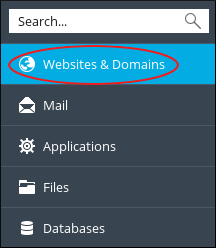
2. In the left sidebar, click **Websites & Domains**:\
3. Locate the domain you want to configure, and then click the **Git** icon:\

4. On the **Add Git Repository** page, confirm the **Remote Git hosting like GitHub or BitBucket** option is selected:\

5. In the **Remote Git repository** text box, type the URL where the remote repository is hosted:\
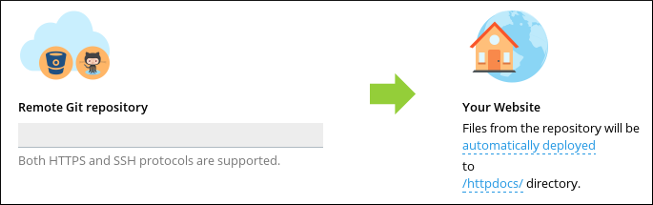
Plesk supports HTTPS and SSH protocols for Git.
6. To select the deployment mode, click **automatically deployed**, select the mode you want, and then click **Ok**.
7. To select the deployment directory on your site, click **/httpdocs/**, select the local directory you want to use, and then click **Ok**.
8. Click **OK**. Plesk clones the remote repository into the local directory you specified in step 7.
To pull updates from the remote repository, click **Pull Updates** .
## Creating a local repository
In Plesk, you can create a local Git repository. To do this, follow these steps:
1. Log in to Plesk.
> 📘 Note
>
> If you do not know how to log in to your Plesk account, please see [this article](/docs/logging-in-and-out-of-plesk).
2. In the left sidebar, click **Websites & Domains**:\

3. Locate the domain you want to configure, and then click the **Git** icon:\

4. Click **Add Repository**.
5. Select **Local repository on your workstation**:\

6. In the **Git Repository in Plesk** text box, type the name of the new repository:\
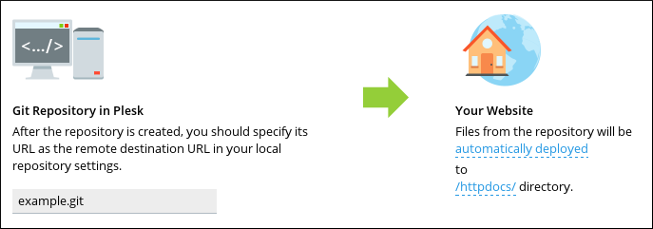
7. To select the deployment mode, click **automatically deployed**, select the mode you want, and then click **Ok**.
8. To select the deployment directory on your site, click **/httpdocs/**, select the local directory you want to use, and then click **Ok**.
9. Click **OK**. Plesk creates the local repository.
## Editing repository settings
To edit the settings of an existing repository in Plesk, follow these steps:
1. Log in to Plesk.
> 📘 Note
>
> If you do not know how to log in to your Plesk account, please see [this article](/docs/logging-in-and-out-of-plesk).
2. In the left sidebar, click **Websites & Domains**:\

3. Locate the domain you want to configure, and then click the **Git** icon:\

4. Locate the Git repository you want to edit, and then click **Repository Settings**:\

5. On the settings page, make the changes you want, and then click **OK**. Plesk updates the settings.
## More information
* For more information about Git, please visit [https://git-scm.com](https://git-scm.com).
* For more information about Plesk, please visit [https://www.plesk.com](https://www.plesk.com).
## Related articles
* [Getting started with Plesk](/docs/getting-started-with-plesk)
* [Getting started with the Plesk File Manager](/docs/getting-started-with-the-plesk-file-manager)
* [Managing FTP accounts in Plesk](/docs/managing-ftp-accounts-in-plesk)