> ## Documentation Index
> Fetch the complete documentation index at: https://kb.hosting.com/llms.txt
> Use this file to discover all available pages before exploring further.
# Using the Softaculous WordPress Manager
> Manage all your WordPress sites effortlessly with Softaculous' WordPress Manager. Learn how to access and use it in this guide.
This article describes how to access and use the [Softaculous WordPress Manager](https://www.softaculous.com/docs/enduser/wordpress-manager/) on your account.
WordPress Manager enables you to manage WordPress sites that you have installed through Softaculous. Some of the tasks you can do from WordPress Manager's convenient interface include:
* Logging in to your WordPress sites.
* Managing WordPress updates and upgrades.
* Managing WordPress plugins.
* Managing WordPress themes.
* Configuring the WordPress cron job.
* Changing the WordPress site URL.
## Accessing WordPress Manager
To access WordPress Manager, follow these steps:
1. Log in to cPanel.
> 📘 Note
>
> If you do not know how to log in to your cPanel account, please see [this article](/docs/accessing-cpanel).
2. On the **Tools** page, in the **Softaculous Apps Installer** section, click **Softaculous Apps Installer** (or any of the icons under **Scripts** or **Categories**).
3. On the top menu bar, click the WordPress icon:\

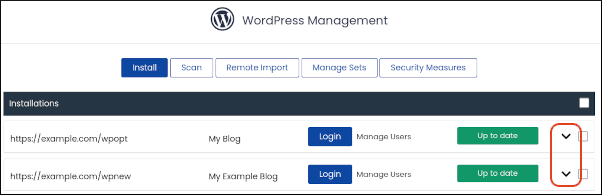
4. A list of your WordPress sites appears. To view the details and options for a site, click the down arrow icon:\
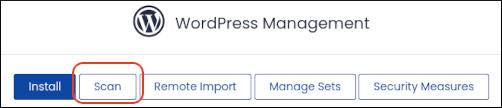
5. If no WordPress sites appear, but you are sure you have at least one WordPress installation in your account, click **Scan**:\
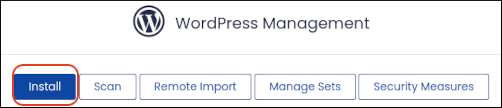
6. To install a new WordPress site, click **Install**:\
## Using WordPress Manager
The following sections cover most of the features that WordPress Manager offers.
### Automatic site login
To log in to a WordPress site automatically, follow these steps:
1. In Softaculous WordPress Manager, locate the site you want to access, and then click **Login**:\
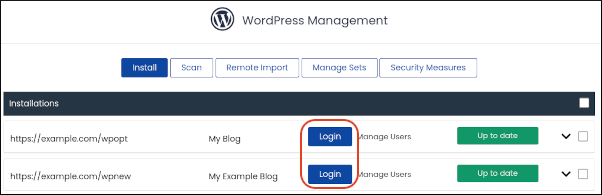
WordPress Manager logs you in to the site automatically.
### Upgrades
You can upgrade your WordPress sites, and optionally configure automatic upgrades. To do this, follow these steps:
1. In Softaculous WordPress Manager, locate the site you want to configure, and then click the down arrow icon:\

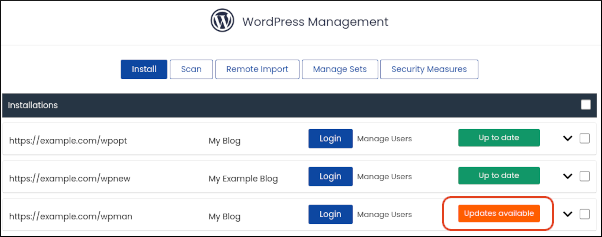
2. If there a newer version available, the **Updates available** notification appears:\
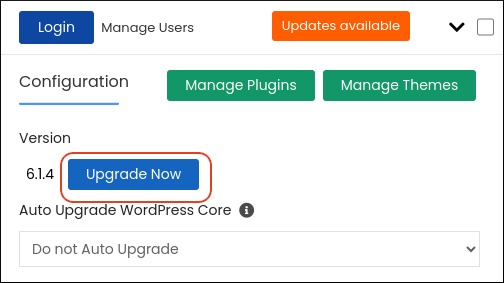
* Click **Upgrade Now**:\
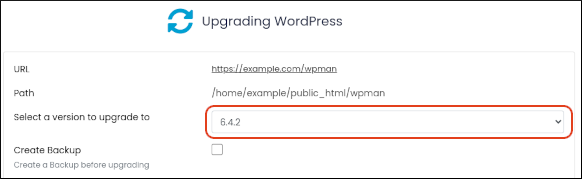
* On the **Upgrading WordPress** page, select the version you want, and then click **Upgrade**:\
3. To enable automatic upgrades, under **Auto Upgrade WordPress Core**, in the list box select one of the following options:
* **Upgrade to Minor versions only**: WordPress Manager will only upgrade to minor versions.
* **Upgrade to latest version available (Major as well as Minor)**: WordPress Manager will upgrade to any new version (major or minor).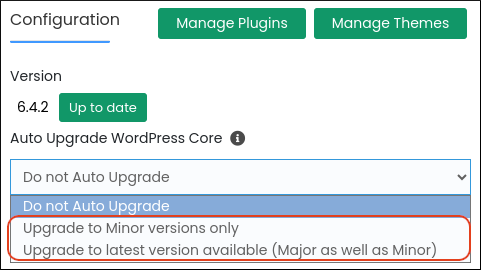
The new setting takes effect immediately.
#### Upgrading plugins and themes
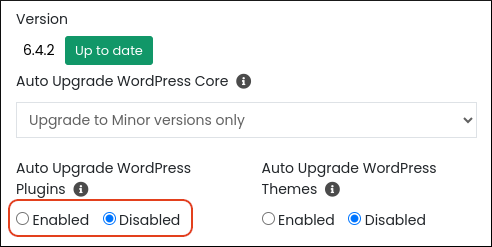
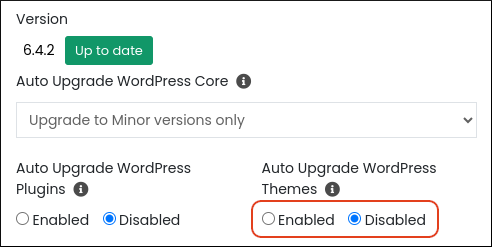
You can also configure automatic upgrades for plugins and themes. To do this, follow these steps:
1. In Softaculous WordPress Manager, locate the site you want to configure, and then click the down arrow icon:\

2. Under **Auto Upgrade WordPress Plugins**, click **Enabled** or **Disabled**:\
3. Under **Auto Upgrade WordPress Themes**, click **Enabled** or **Disabled**:\
### Search engine visibility
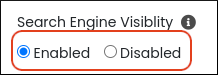
You can make your WordPress sites visible or invisible to search engine crawlers. For example, if your site is under construction you may not want it to be visible to search engines.
To enable or disable search engine visibility, follow these steps:
1. In Softaculous WordPress Manager, locate the site you want to configure, and then click the down arrow icon:\

2. Under **Search Engine Visibility**, click **Enabled** or **Disabled**:\
### Cron job
WordPress uses a virtual "cron job" for scheduled tasks, but the WordPress Manager enables you to create a real cron job instead.
For more information about the differences between the WordPress virtual "cron job" and an actual system cron job, please see [this article](/docs/configuring-a-cron-job-for-wordpress).
To configure the cron job for WordPress, follow these steps:
1. In Softaculous WordPress Manager, locate the site you want to configure, and then click the down arrow icon:\

2. Under **WordPress Cron (wp-cron.php)** select one of the following options:
* **Enabled**: WordPress uses its virtual "cron job".
* **Disabled**: The virtual "cron job" is disabled, and a system cron job is used instead. The system cron job is guaranteed to run at a specific interval and frequency (twice per hour).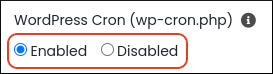
### Site URL
You can change the site URL for a WordPress installation. To do this, follow these steps:
1. In Softaculous WordPress Manager, locate the site you want to configure, and then click the down arrow icon:\

2. In the **Website URL** text box, type the new URL:\
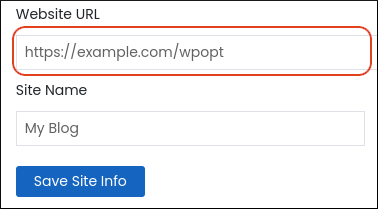
3. Click **Save Site Info**.
For more information about changing the WordPress site URL, please see [this article](/docs/changing-the-website-url-in-wordpress).
### Password
If you forget the password for a WordPress user, or just want to reset a user's password, follow these steps:
1. In Softaculous WordPress Manager, locate the site, and then click **Manage Users**:\

2. On the **Change Password** tab, in the **Username** list box, select the user:\
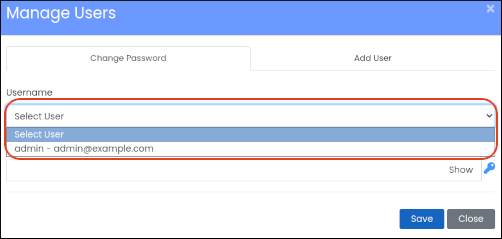
3. In the **Password** text box, type the new password, and then click **Save**:\
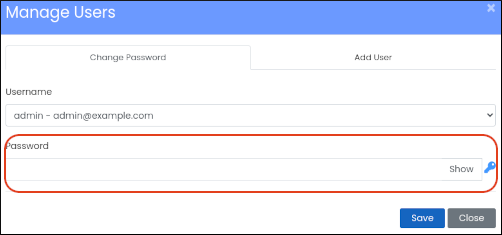
You can click the key icon and WordPress Manager generates a random, strong password for you automatically.
### Plugins
WordPress Manager enables you to install, enable, disable, and delete plugins for your WordPress sites. To do this, follow these steps:
1. In Softaculous WordPress Manager, locate the site you want to configure, and then click the down arrow icon:\

2. Click **Manage Plugins**:\
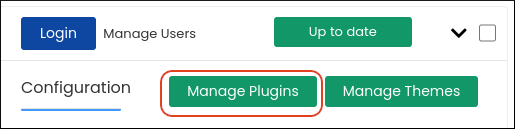
3. On the **Installed** tab, a list of installed plugins appears:
* If an update for a plugin is available, a circular arrow icon appears in the **Version** column. Click it to update the plugin.
* To enable or disable a plugin, click the slider in the **Status** column.
* To uninstall a plugin, click the red trash can icon in the **Delete** column.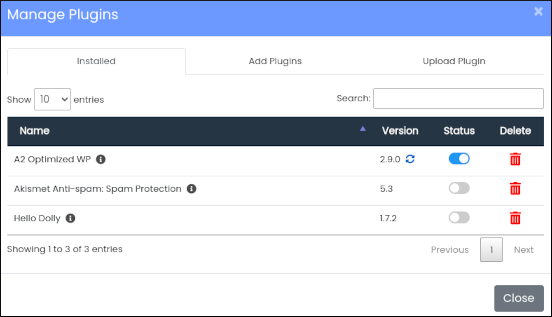
4. On the **Add Plugins** tab, you can install a new plugin:
* In the **Search from wordpress.org** text box, type the name of the plugin you want to install.
* A list of matching plugins appears. Locate the plugin you want to install, and then click **Install**.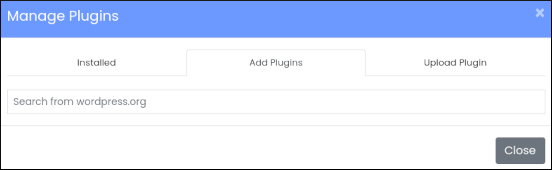
5. When you are done managing plugins, click **Close**.
### Themes
WordPress Manager enables you to install, enable, disable, and delete themes for your WordPress sites. To do this, follow these steps:
1. In Softaculous WordPress Manager, locate the site you want to configure, and then click the down arrow icon:\

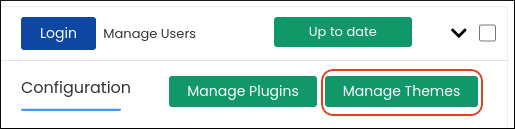
2. Click **Manage Themes**:\
3. On the **Installed** tab, a list of installed themes appears:
* If an update for a theme is available, a circular arrow icon appears in the **Version** column. Click it to update the theme.
* To enable or disable a theme, click the slider in the **Status** column.
* To uninstall a theme, click the red trash can icon in the **Delete** column.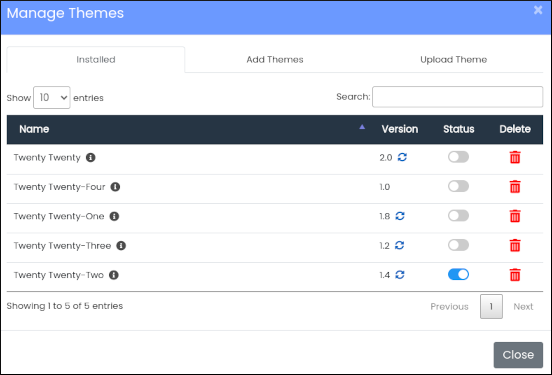
4. On the **Add Themes** tab, you can install a new theme:
* In the **Search from wordpress.org** text box, type the name of the theme you want to install.
* A list of matching themes appears. Locate the theme you want to install, and then click **Install**.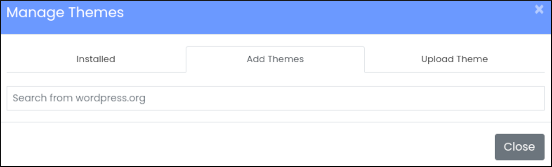
5. When you are done managing themes, click **Close**.
## More information
For more information about WordPress Manager, please visit [https://www.softaculous.com/docs/enduser/wordpress-manager/](https://www.softaculous.com/docs/enduser/wordpress-manager/).