> ## Documentation Index
> Fetch the complete documentation index at: https://kb.hosting.com/llms.txt
> Use this file to discover all available pages before exploring further.
# Verifying site ownership with Google
> Discover how to verify your site's ownership with Google using methods like HTML file upload, HTML tag, DNS records, and Google Analytics.
This article describes how you can verify website ownership with Google. To use various Google services with a particular domain, you must first verify that you have control over what you claim to own.
**Important**
Before you can verify site ownership with Google, you must set up a Google Search Console account for your domain. To do this, please visit [https://search.google.com/search-console/welcome](https://search.google.com/search-console/welcome).
## Verifying site ownership
There are several methods you can use to verify site ownership with Google.
You only need to use **one** of the following methods. You do not need to follow all of them.
### Method #1: HTML file upload
You can upload a special HTML file to your site to verify site ownership. For information about how to do this, please visit [https://support.google.com/webmasters/answer/9008080#zippy=,html-file-upload](https://support.google.com/webmasters/answer/9008080#zippy=,html-file-upload).
### Method #2: HTML tag
You can include a special\*\\* HTML tag in a specific site page to verify site ownership. For information about how to do this, please visit [https://support.google.com/webmasters/answer/9008080#zippy=,html-tag](https://support.google.com/webmasters/answer/9008080#zippy=,html-tag).
### Method #3: DNS record
You can add a **TXT** or **CNAME** DNS record to verify site ownership:
* Use a **CNAME** record to verify a subdomain (for example, *test.example.com* ), or a domain that is itself defined with a CNAME record.
* Use a **TXT** record to verify any other type of domain, such as your primary domain (for example, *example.com* ). This is the more common scenario, and is described below.
To add a TXT record in cPanel, follow these steps:
1. Log in to cPanel.
> 📘 Note
>
> If you do not know how to log in to your cPanel account, please see [this article](/docs/accessing-cpanel).
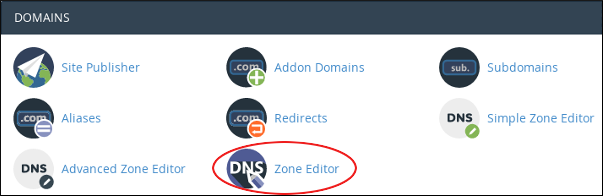
2. In the **DOMAINS** section of the cPanel home screen, click **Zone Editor**:\
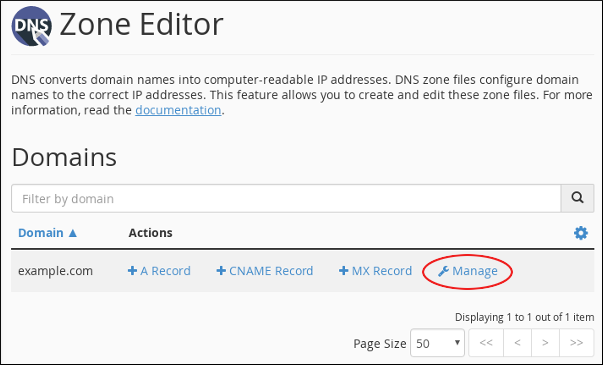
3. Under **DOMAINS**, locate the domain for which you want to add the TXT record, and then click **Manage**:\
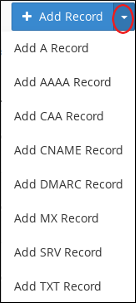
4. Next to **Add Record**, click the down arrow, and then click **Add "TXT" Record**:\
5. In the **Name** text box, type the fully-qualified domain name (FQDN) for the record (for example, *example.com* ).
6. In the **TTL** text box, type the time-to-live value in seconds.
If you are unsure of the value to specify, type `14400` , which is four hours.
7. Confirm that the **Type** list box is set to **TXT**.
8. In the **Record** text box, paste the unique TXT record value that Google Search Console displays for your account.
9. Click **Add Record**. cPanel adds the record.
10. In Google Search Console, click **Verify**. Google checks that the unique value matches the TXT record.
### Method #4: Google Analytics tracking ID
You can use Google Analytics to verify site ownership. To use this method, you must have a Google Analytics account configured. By including your unique tracking ID in your website pages, you prove that you control the site. For more information about Google Analytics, please visit [https://marketingplatform.google.com/about/analytics](https://marketingplatform.google.com/about/analytics).
## More information
For more information about Google site verification, please visit [https://support.google.com/webmasters/answer/9008080](https://support.google.com/webmasters/answer/9008080) .
## Related articles
* [Measuring website performance using Google Chrome Developer Tools](/docs/measuring-website-performance-using-google-chrome-developer-tools)
* [Installing and configuring the Google XML Sitemaps plugin](/docs/installing-and-configuring-the-google-xml-sitemaps-plugin)
* [Using Google Analytics with WordPress](/docs/using-google-analytics-with-wordpress)
* [Using Google Analytics with Magento](/docs/using-google-analytics-with-magento)
* [Using Google Analytics with Drupal](/docs/using-google-analytics-with-drupal)