> ## Documentation Index
> Fetch the complete documentation index at: https://kb.hosting.com/llms.txt
> Use this file to discover all available pages before exploring further.
# Adding a Whatsapp chat link on WordPress
> Learn how to add a Watsapp Click-to-chat link to your WordPress site. This article will show you how to add a WhatsApp chat link to your WordPress site.
WP Chat App is a [WordPress](https://hosting.com/hosting/platforms/wordpress-hosting/managed-wordpress-hosting/) plugin that enables you to connect multiple WhatsApp accounts. In addition to using short codes, you can embed buttons to provide your users with easy access. This plugin enables you to create several phone numbers, accounts, and group chats for customer care agents, sales representatives, and technical support personnel, among others. This post will demonstrate how to connect your [WordPress](https://hosting.com/hosting/platforms/wordpress-hosting/managed-wordpress-hosting/) -powered website to your WhatsApp account, providing your users with a direct access to communicate with you.
## Installing and configuring WP Chat App Plugin for WordPress
To install and configure WP Chat App Plugin, follow these steps:
1. Log in to your WordPress site with an administrator account.
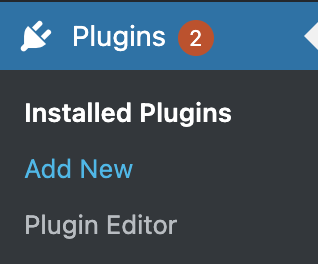
2. On the **Dashboard** in the left sidebar, click **Plugins**, and then click **Add New**:\\
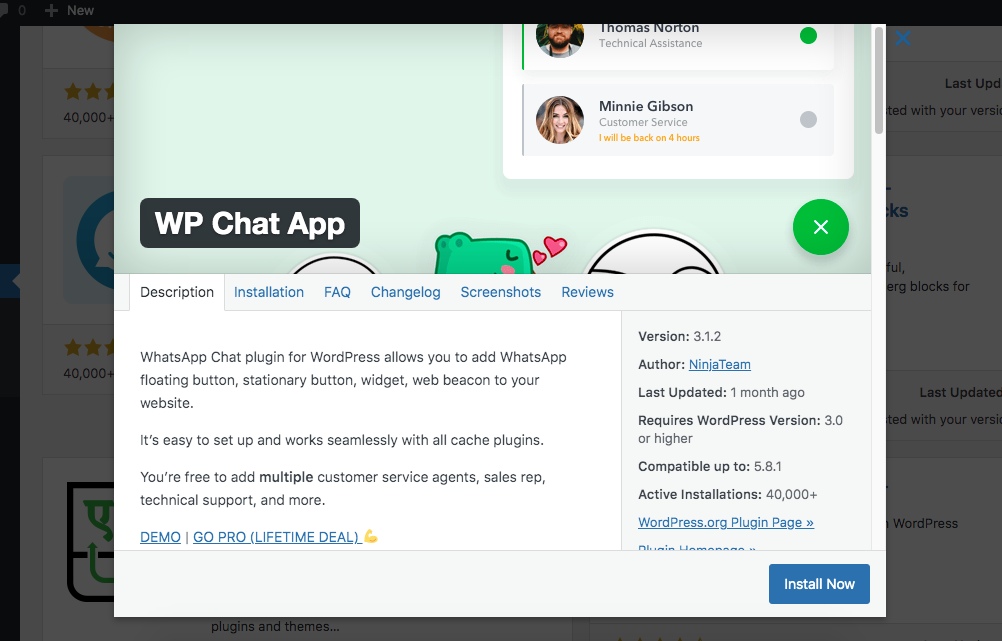
 3. Search for "**WP Chat App**" click Install, and then click **Activate** the plugin:\\
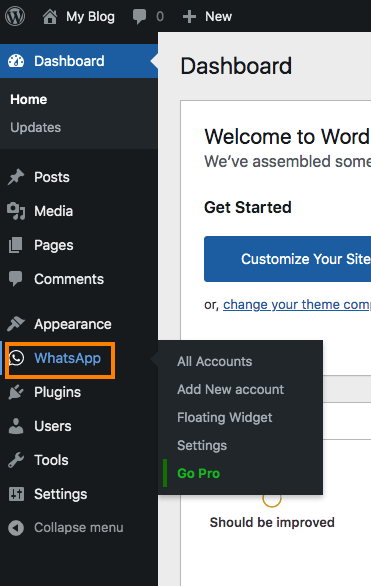
 4. On the sidebar menu, click on **WhatsApp** to access the settings page:\\
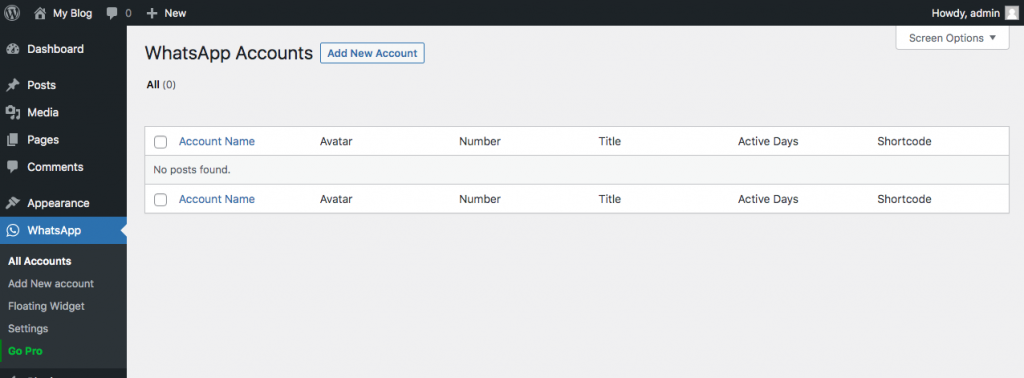
 5. Click **Add New Account** to create a new account:\\
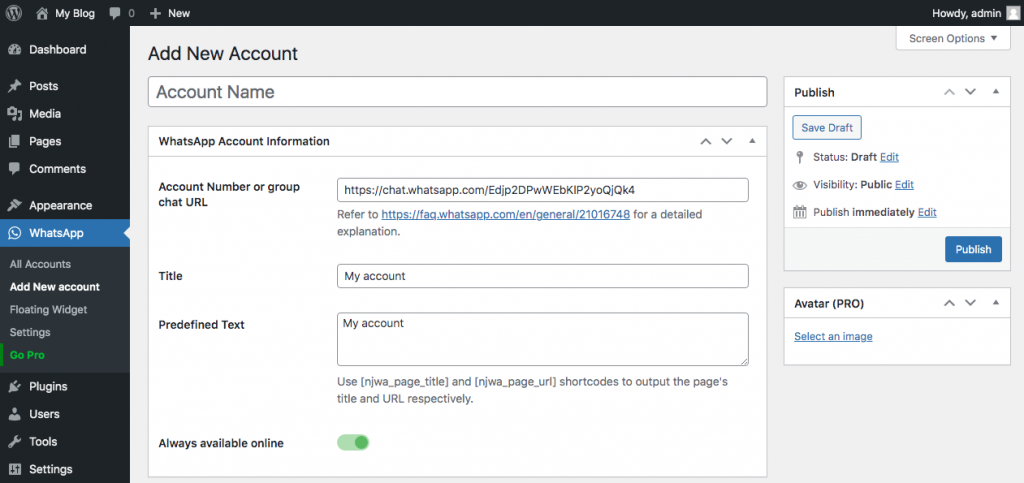
 6. Add the number or URL of a chat group, a title, predefined text and the option to always appear online:\\
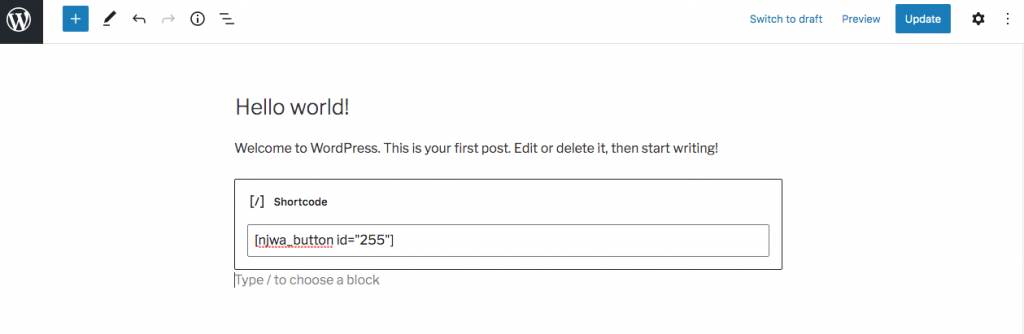
 7. Save and the copy the generated shortcode and paste it on your website, post, page or widget:\\
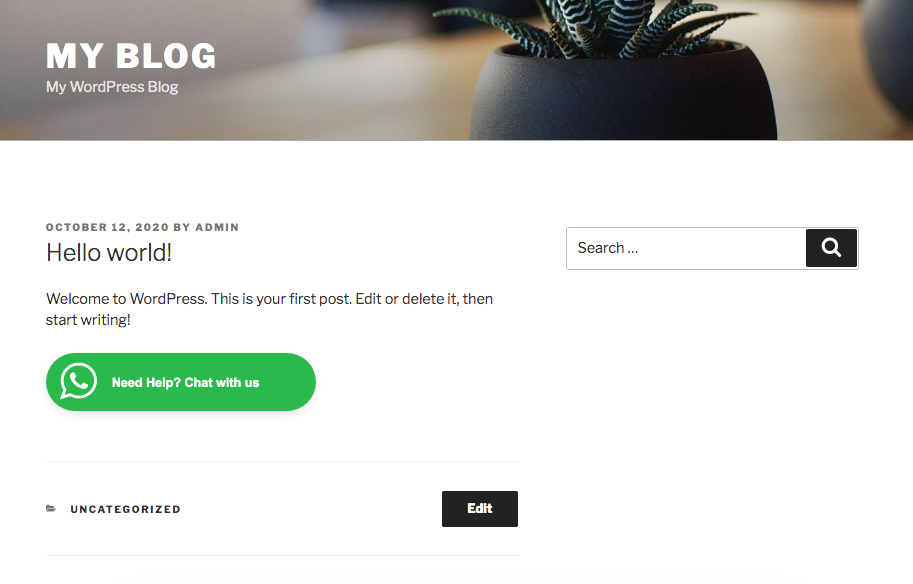
 8. The button for linking to a WhatsApp account number or chat group appears as follows:\\
 ## More information
For more information about the WhatsApp integration, please visit: [https://www.whatsapp.com/business/api](https://www.whatsapp.com/business/api)
## Related articles
* [Adding CAPTCHA protection to a WordPress site](/docs/adding-captcha-protection-to-a-wordpress-site)
* [Adding Mailchimp subscribers from WordPress](/docs/adding-mailchimp-subscribers-from-wordpress)
* [CTA button shortcode on WordPress](/docs/cta-button-shortcode-on-wordpress)
* [Default gravatar on WordPress](/docs/default-gravatar-on-wordpress)
## More information
For more information about the WhatsApp integration, please visit: [https://www.whatsapp.com/business/api](https://www.whatsapp.com/business/api)
## Related articles
* [Adding CAPTCHA protection to a WordPress site](/docs/adding-captcha-protection-to-a-wordpress-site)
* [Adding Mailchimp subscribers from WordPress](/docs/adding-mailchimp-subscribers-from-wordpress)
* [CTA button shortcode on WordPress](/docs/cta-button-shortcode-on-wordpress)
* [Default gravatar on WordPress](/docs/default-gravatar-on-wordpress)