> ## Documentation Index
> Fetch the complete documentation index at: https://kb.hosting.com/llms.txt
> Use this file to discover all available pages before exploring further.
# Imapsync: Web-Based Mailbox Migration Guide
## What is Imapsync?
Imapsync is a tool for migrating or backing up email mailboxes between IMAP servers. It copies messages from a source mailbox to a destination mailbox, preserving folder structure, read/unread and flagged status, and original timestamps, without creating duplicates on repeat runs.
This guide uses the free hosted web version, so no terminal or software installation is required — just a browser. It works between any two IMAP-capable providers (e.g., SmarterMail, Gmail, Microsoft 365/Outlook, Zimbra, cPanel, Dovecot, and most others).
## Before You Start
You'll need, for **both** the source and destination mailbox:
* The IMAP server hostname and port (check the mailbox provider's documentation if unsure)
* The full email address (username)
* The account password, or an app password if 2-factor authentication is enabled
**Tip:** If either mailbox has 2FA enabled, generate an **app password** first — the regular account password usually won't work for IMAP logins in that case.
**Disclaimer:** The tools below are third-party services, not operated or maintained by us. We do not control their security practices, uptime, or handling of your credentials, and we cannot guarantee or take responsibility for their performance or safety. Use at your own discretion, and prefer temporary app passwords over your primary account password wherever possible.
## Step-by-Step Migration Process
### Step 1: Access the Tool
Go to: [https://imapsync.lamiral.info/X/](https://imapsync.lamiral.info/X/)
### Step 2: Fill in Source Mailbox Details
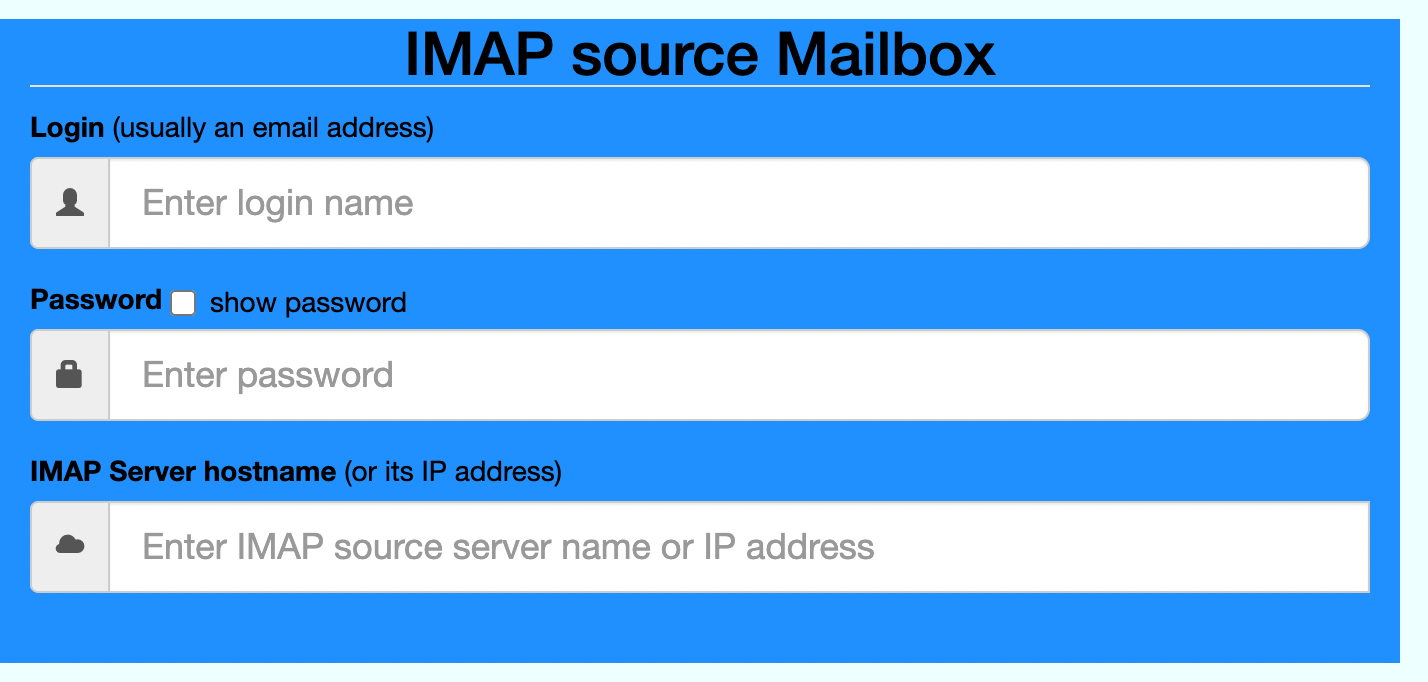 | Field Label | What to Enter |
| --------------- | --------------------------------------------------------------------------------- |
| Source Server | IMAP hostname of the mailbox you're migrating *from* (e.g., `serverhostname.com`) |
| Source Username | Full email address, e.g., `test@domain.com` |
| Source Password | Source mailbox password (or app password) |
| Source Port/SSL | Usually `993` with SSL/TLS |
### Step 3: Fill in Destination Mailbox Details
| Field Label | What to Enter |
| --------------- | --------------------------------------------------------------------------------- |
| Source Server | IMAP hostname of the mailbox you're migrating *from* (e.g., `serverhostname.com`) |
| Source Username | Full email address, e.g., `test@domain.com` |
| Source Password | Source mailbox password (or app password) |
| Source Port/SSL | Usually `993` with SSL/TLS |
### Step 3: Fill in Destination Mailbox Details
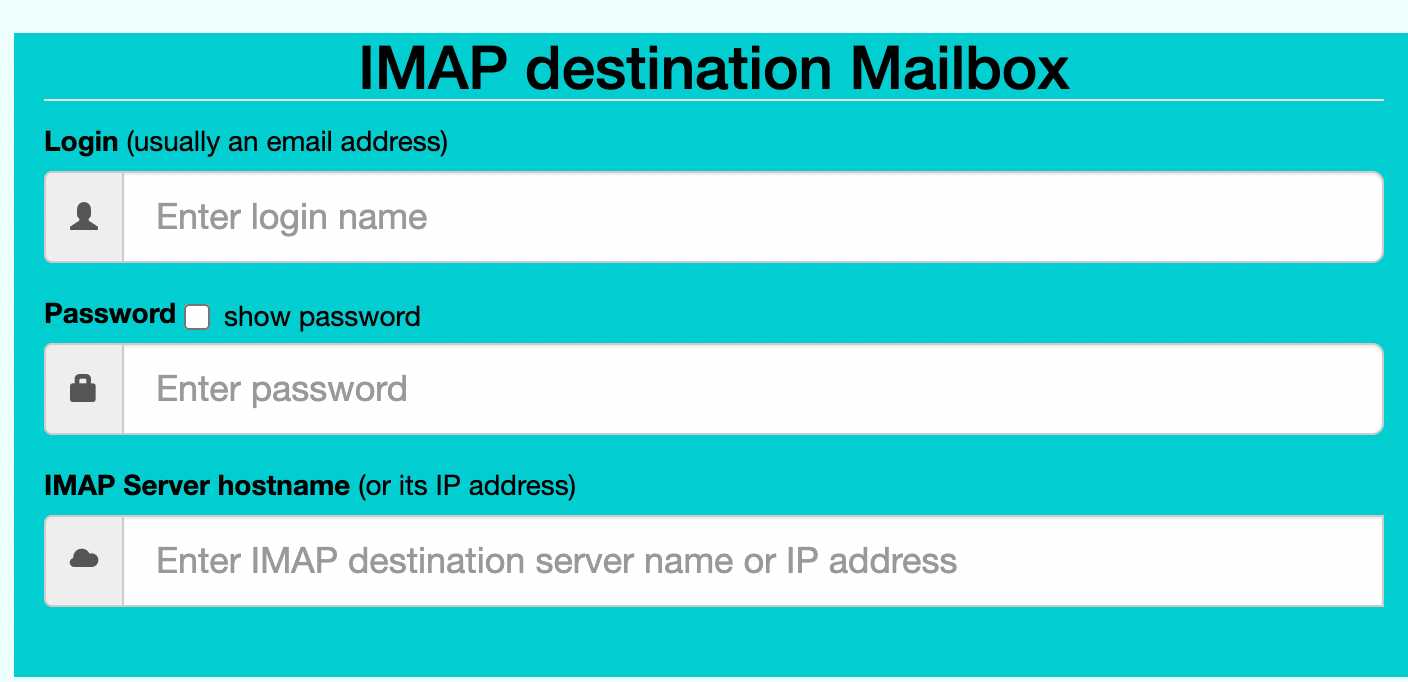 | Field Label | What to Enter |
| -------------------- | ----------------------------------------------------------------------------------------------------------------------------------------- |
| Destination Server | IMAP hostname of the mailbox you're migrating *to* (e.g., `imap.gmail.com`, `outlook.office365.com`, or your new provider's IMAP address) |
| Destination Username | Full email address, e.g., `test@domain.com` |
| Destination Password | Destination mailbox password (or app password) |
| Destination Port/SSL | Usually `993` with SSL/TLS |
### Step 4: Start the Migration
Click the button to launch the sync. The page will display a live log as imapsync connects to both mailboxes and transfers folders and messages. Leave the browser tab open until it completes — larger mailboxes take longer.
### Step 5: Review the Results
Once finished, check the summary log for the number of folders and messages transferred, and any errors or skipped items. If anything failed, you can safely re-run the migration — imapsync only transfers what's missing on the destination, so it won't create duplicates.
### Step 6: Clean Up
If you created a temporary app password for this migration, revoke it once you've confirmed everything transferred correctly.
## Alternative Tools
| Service | Cost | Link |
| ---------------------- | ---- | ---------------------------------------------------------------------------------- |
| WPSimply | Free | [https://imapsync.wpsimply.io/](https://imapsync.wpsimply.io/) |
| MddHosting / NameHero | Free | [https://imapsync.net/](https://imapsync.net/) |
| Slovenia Control Panel | Free | [https://tools.controlpanel.si/imapsync/](https://tools.controlpanel.si/imapsync/) |
| Intertune Cloud | Free | [https://tools.intertune.io/imapsync/X/](https://tools.intertune.io/imapsync/X/) |
## Troubleshooting
* **Login fails**: double-check the server hostname/port for both mailboxes, and confirm whether either provider requires an app password.
* **Migration seems stuck**: large mailboxes take time — check the live log rather than assuming it's frozen.
* **Some folders missing after sync**: enable any "auto-map folders" option if the tool offers one, to translate provider-specific folder names into standard ones.
* **Duplicate messages after re-running**: this shouldn't normally happen, but if it does, look for a "delete duplicates on destination" option.
| Field Label | What to Enter |
| -------------------- | ----------------------------------------------------------------------------------------------------------------------------------------- |
| Destination Server | IMAP hostname of the mailbox you're migrating *to* (e.g., `imap.gmail.com`, `outlook.office365.com`, or your new provider's IMAP address) |
| Destination Username | Full email address, e.g., `test@domain.com` |
| Destination Password | Destination mailbox password (or app password) |
| Destination Port/SSL | Usually `993` with SSL/TLS |
### Step 4: Start the Migration
Click the button to launch the sync. The page will display a live log as imapsync connects to both mailboxes and transfers folders and messages. Leave the browser tab open until it completes — larger mailboxes take longer.
### Step 5: Review the Results
Once finished, check the summary log for the number of folders and messages transferred, and any errors or skipped items. If anything failed, you can safely re-run the migration — imapsync only transfers what's missing on the destination, so it won't create duplicates.
### Step 6: Clean Up
If you created a temporary app password for this migration, revoke it once you've confirmed everything transferred correctly.
## Alternative Tools
| Service | Cost | Link |
| ---------------------- | ---- | ---------------------------------------------------------------------------------- |
| WPSimply | Free | [https://imapsync.wpsimply.io/](https://imapsync.wpsimply.io/) |
| MddHosting / NameHero | Free | [https://imapsync.net/](https://imapsync.net/) |
| Slovenia Control Panel | Free | [https://tools.controlpanel.si/imapsync/](https://tools.controlpanel.si/imapsync/) |
| Intertune Cloud | Free | [https://tools.intertune.io/imapsync/X/](https://tools.intertune.io/imapsync/X/) |
## Troubleshooting
* **Login fails**: double-check the server hostname/port for both mailboxes, and confirm whether either provider requires an app password.
* **Migration seems stuck**: large mailboxes take time — check the live log rather than assuming it's frozen.
* **Some folders missing after sync**: enable any "auto-map folders" option if the tool offers one, to translate provider-specific folder names into standard ones.
* **Duplicate messages after re-running**: this shouldn't normally happen, but if it does, look for a "delete duplicates on destination" option.