> ## Documentation Index
> Fetch the complete documentation index at: https://kb.hosting.com/llms.txt
> Use this file to discover all available pages before exploring further.
# Marketing Suite
Getting started with your Marketing Suite takes just a few minutes. Follow these steps to set up your project and start monitoring or growing your online presence.
## Step 1: Add Your Basic Project Details
First, you'll be asked to name your project and set a few basics:
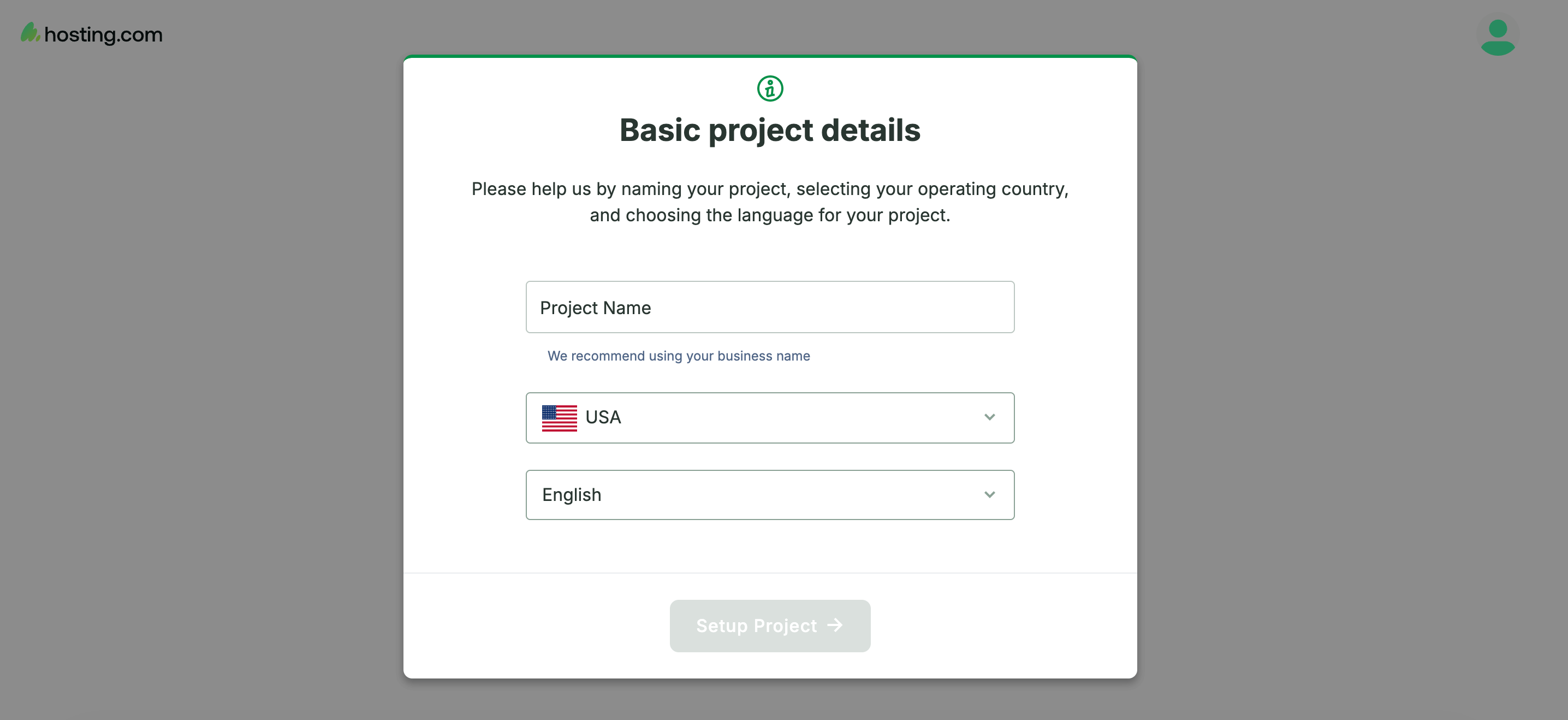 * **Project Name** — We recommend using your business name so it's easy to identify later.
* **Operating Country** — Select the country your business operates in.
* **Language** — Choose the language you'd like your project to use.
Once these are filled in, click **Setup Project** to continue.
## Step 2: Find Your Business
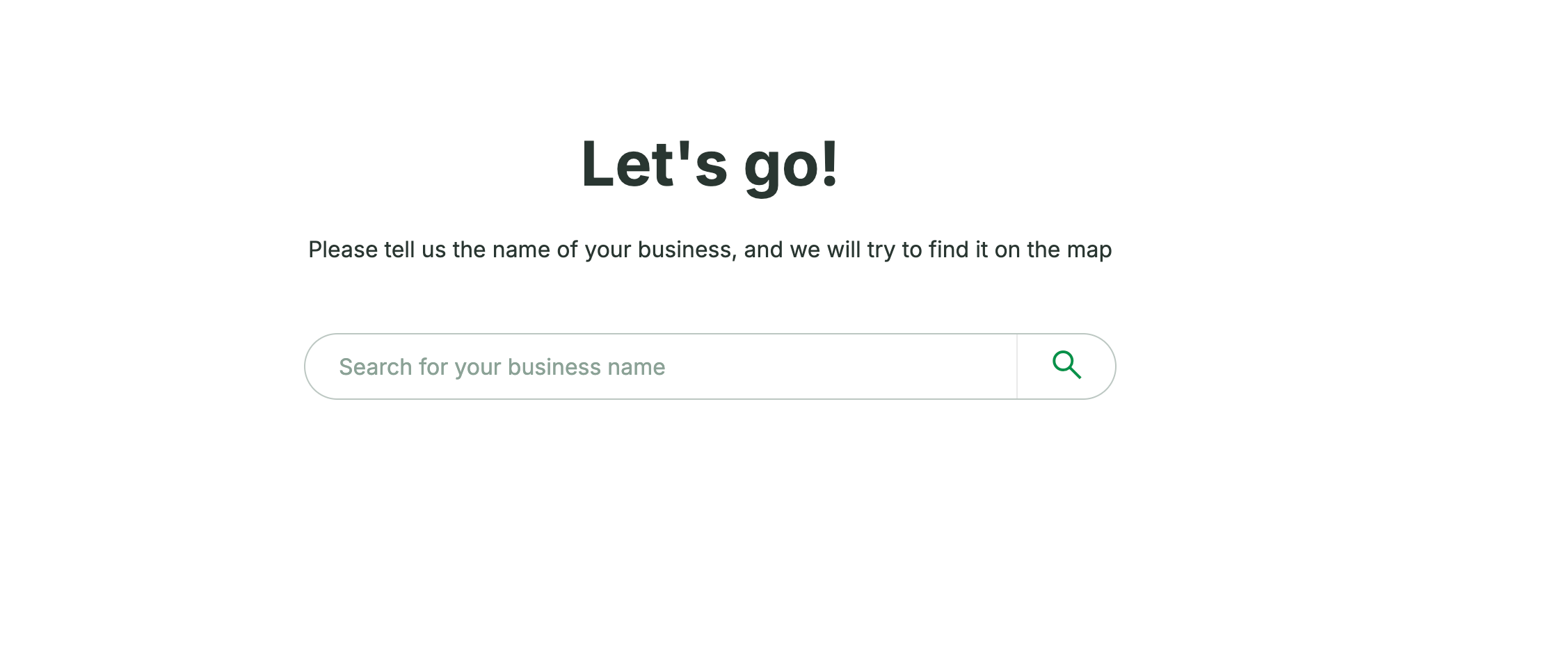
Next, tell us your business name, and we'll try to locate it on the map for you. Just type it into the search bar and select your business if it appears in the results.
* **Project Name** — We recommend using your business name so it's easy to identify later.
* **Operating Country** — Select the country your business operates in.
* **Language** — Choose the language you'd like your project to use.
Once these are filled in, click **Setup Project** to continue.
## Step 2: Find Your Business
Next, tell us your business name, and we'll try to locate it on the map for you. Just type it into the search bar and select your business if it appears in the results.
 *Don't worry if your business isn't on the map yet — you can still continue setting up your project.*
## Step 3: Choose Your Business Type
Let us know whether your business has a physical location customers or clients can visit:
* **With physical location** — Choose this if you have a storefront, office, warehouse, or service location (like a dental practice or clinic) where people can visit.
* **Without physical location** — Choose this if you operate exclusively online or don't have a public-facing address.
*Don't worry if your business isn't on the map yet — you can still continue setting up your project.*
## Step 3: Choose Your Business Type
Let us know whether your business has a physical location customers or clients can visit:
* **With physical location** — Choose this if you have a storefront, office, warehouse, or service location (like a dental practice or clinic) where people can visit.
* **Without physical location** — Choose this if you operate exclusively online or don't have a public-facing address.
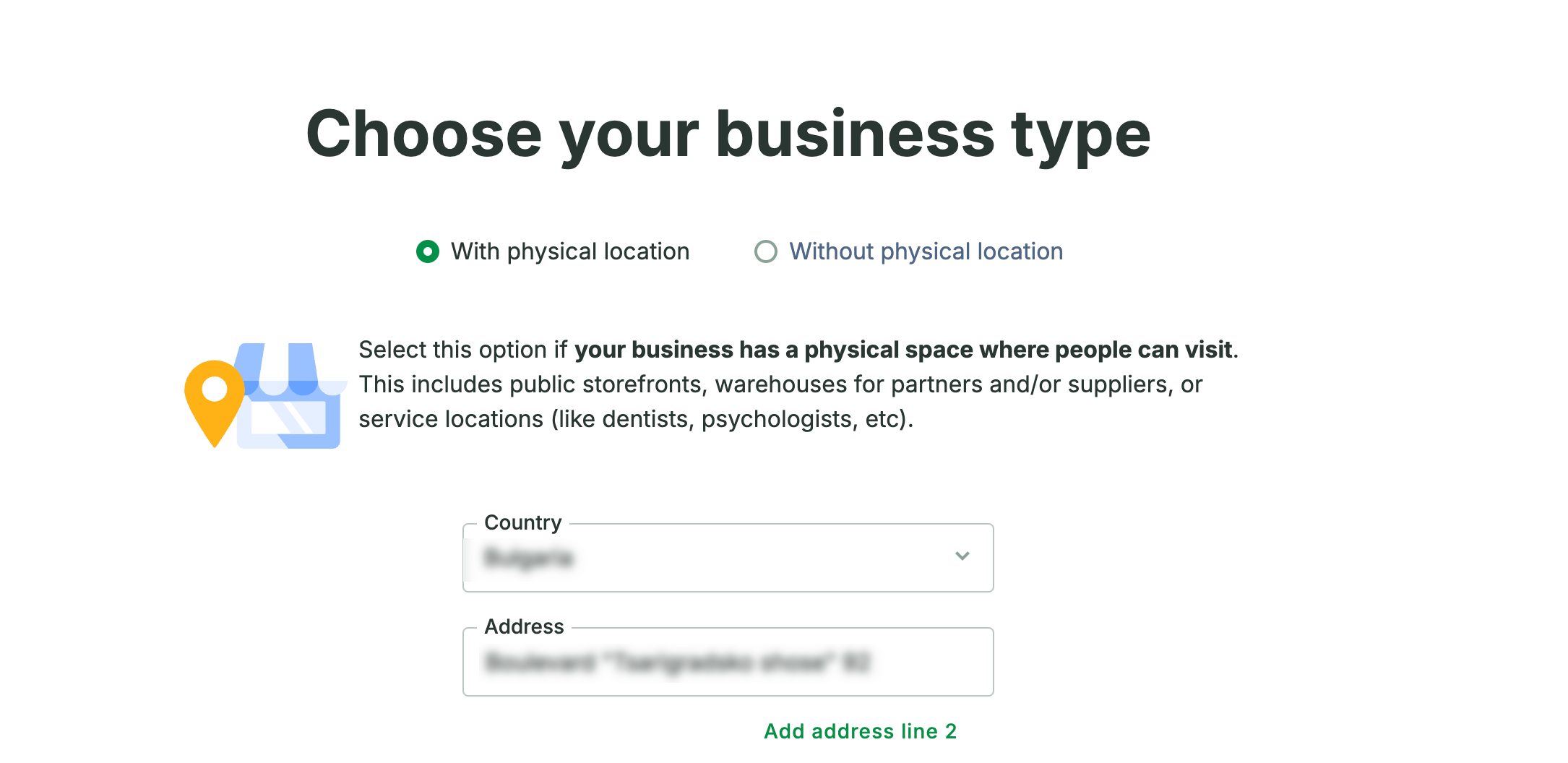 If you select **With physical location**, you'll be asked to confirm your **Country** and **Address**. You can also add a second address line if needed.
## Step 4: Add Your Keywords
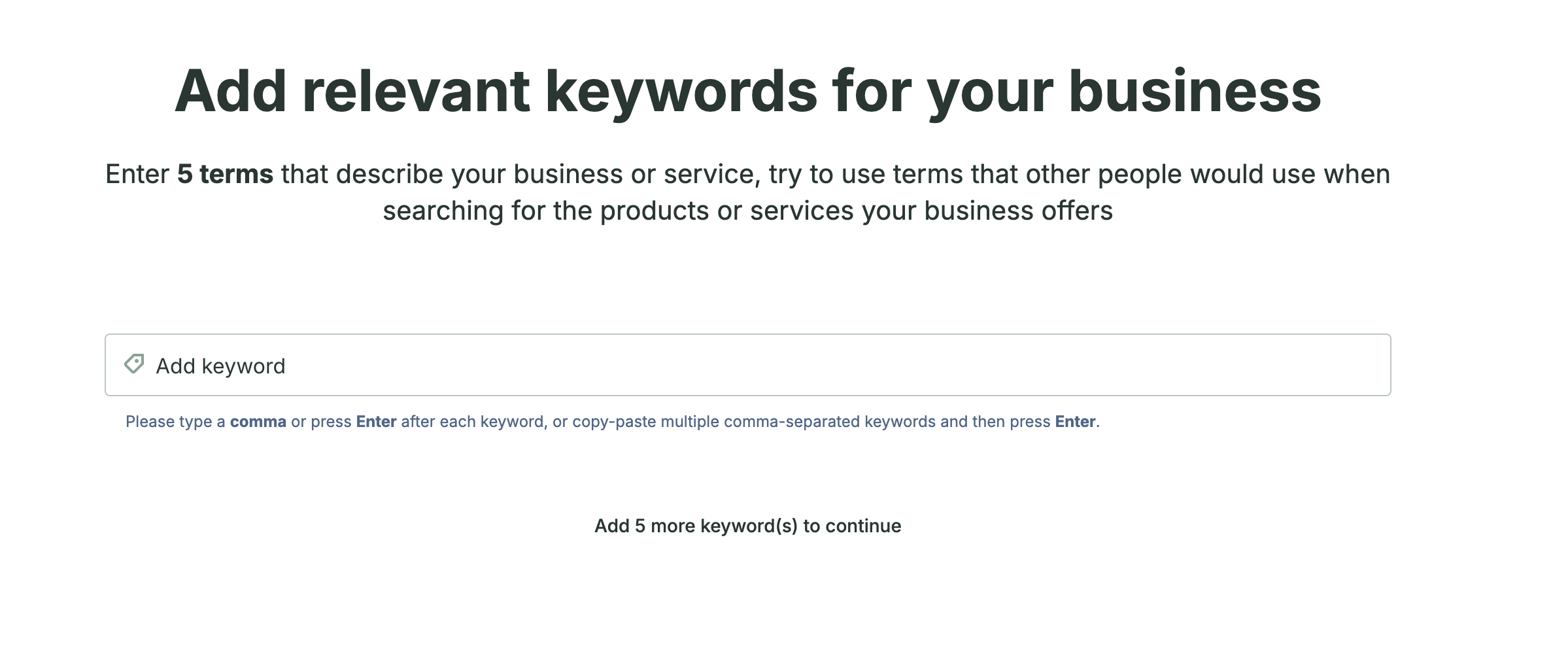
Now it's time to tell us how customers find businesses like yours. Enter the terms people would search for when looking for your products or services.
* Type a keyword and press **comma** or **Enter** to add it (or paste several comma-separated keywords at once).
* You'll be asked to add a set number of keywords to continue — just keep adding until the prompt clears.
If you select **With physical location**, you'll be asked to confirm your **Country** and **Address**. You can also add a second address line if needed.
## Step 4: Add Your Keywords
Now it's time to tell us how customers find businesses like yours. Enter the terms people would search for when looking for your products or services.
* Type a keyword and press **comma** or **Enter** to add it (or paste several comma-separated keywords at once).
* You'll be asked to add a set number of keywords to continue — just keep adding until the prompt clears.
 *Tip: Think like your customer. What would they type into Google to find a business like yours?*
## Step 5: Monitor Your Competitors
Finally, add the websites of businesses you consider competitors. This helps us keep an eye on how you stack up and alert you to changes in their online activity.
* Add at least **1** competitor, up to a maximum allowed for your step.
* You can add a competitor's website directly, or choose from any suggestions we surface for you.
## You're All Set!
Once you've completed these steps, your project is ready and your dashboard will begin populating with insights, monitoring data, and AI-guided recommendations tailored to your business.
*Tip: Think like your customer. What would they type into Google to find a business like yours?*
## Step 5: Monitor Your Competitors
Finally, add the websites of businesses you consider competitors. This helps us keep an eye on how you stack up and alert you to changes in their online activity.
* Add at least **1** competitor, up to a maximum allowed for your step.
* You can add a competitor's website directly, or choose from any suggestions we surface for you.
## You're All Set!
Once you've completed these steps, your project is ready and your dashboard will begin populating with insights, monitoring data, and AI-guided recommendations tailored to your business.