.jpg?fit=max&auto=format&n=E2LlsT5gBITvo732&q=85&s=ec11e1673894bdf46663a5d73602eb87)

cPanel
To determine the IP address on a cPanel-based account, follow these steps:-
Log in to cPanel.
📘 Note If you do not know how to log in to your cPanel account, please see this article.
-
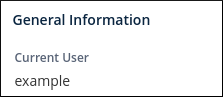
In the right column of the cPanel home screen, locate the General Information heading:
-
In the General Information section, click Server Information:

-
On the Server Information page, in the Item column, locate Shared IP Address or Dedicated IP Address:


Plesk
To determine the IP address on a Plesk-based account, follow these steps:-
Log in to Plesk.
📘 Note If you do not know how to log in to your Plesk account, please see this article.
-
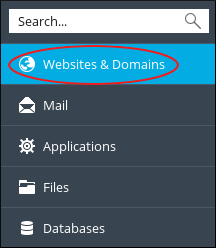
In the left sidebar, click Websites & Domains:
-
The IP address appears near the top of the website management area:
