.jpg?fit=max&auto=format&n=E2LlsT5gBITvo732&q=85&s=ec11e1673894bdf46663a5d73602eb87)
Step 1: Access the Server Console (VNC)
- Log in to https://my.hosting.com/
- Go to Products and Services -> Hosting and Services
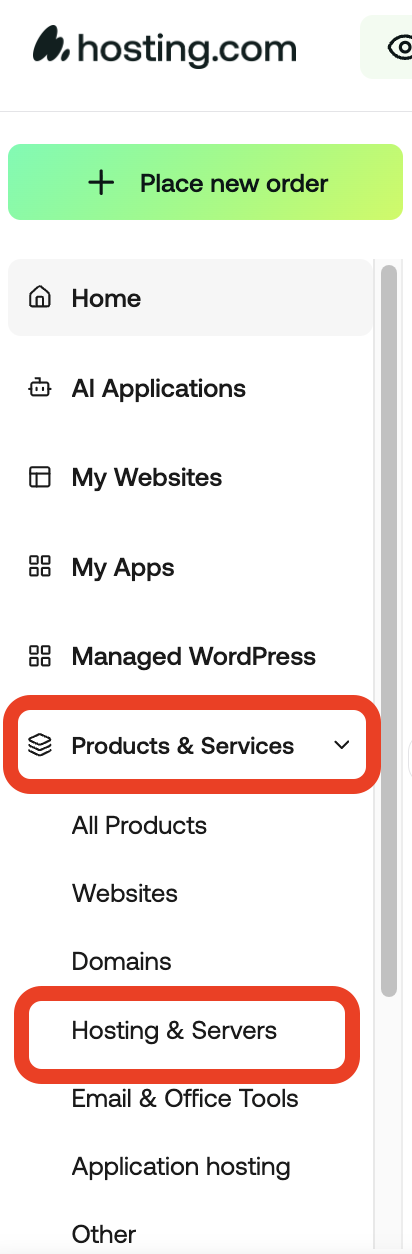
- Click on Manage
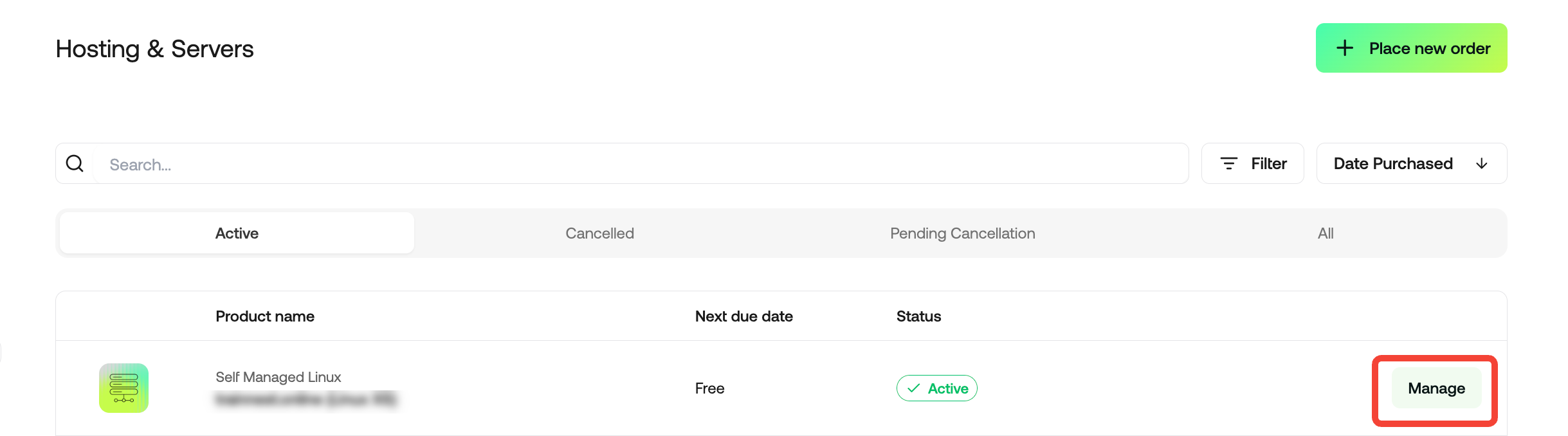
- Click the Login button
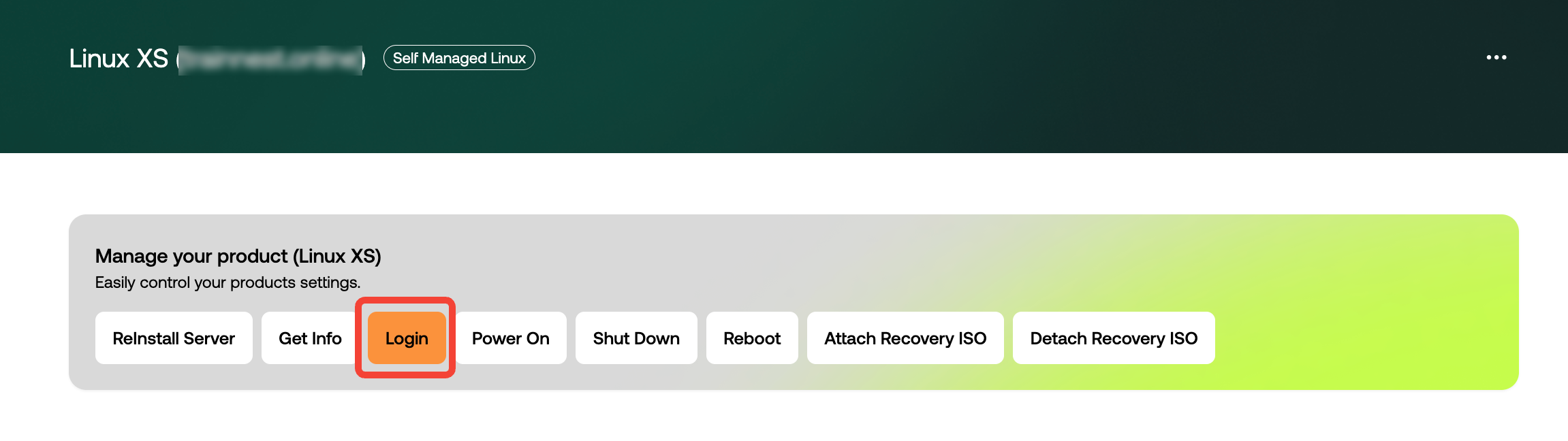 Now you are in your Console

Step 2: Boot into GRUB Menu
- Reboot the system.
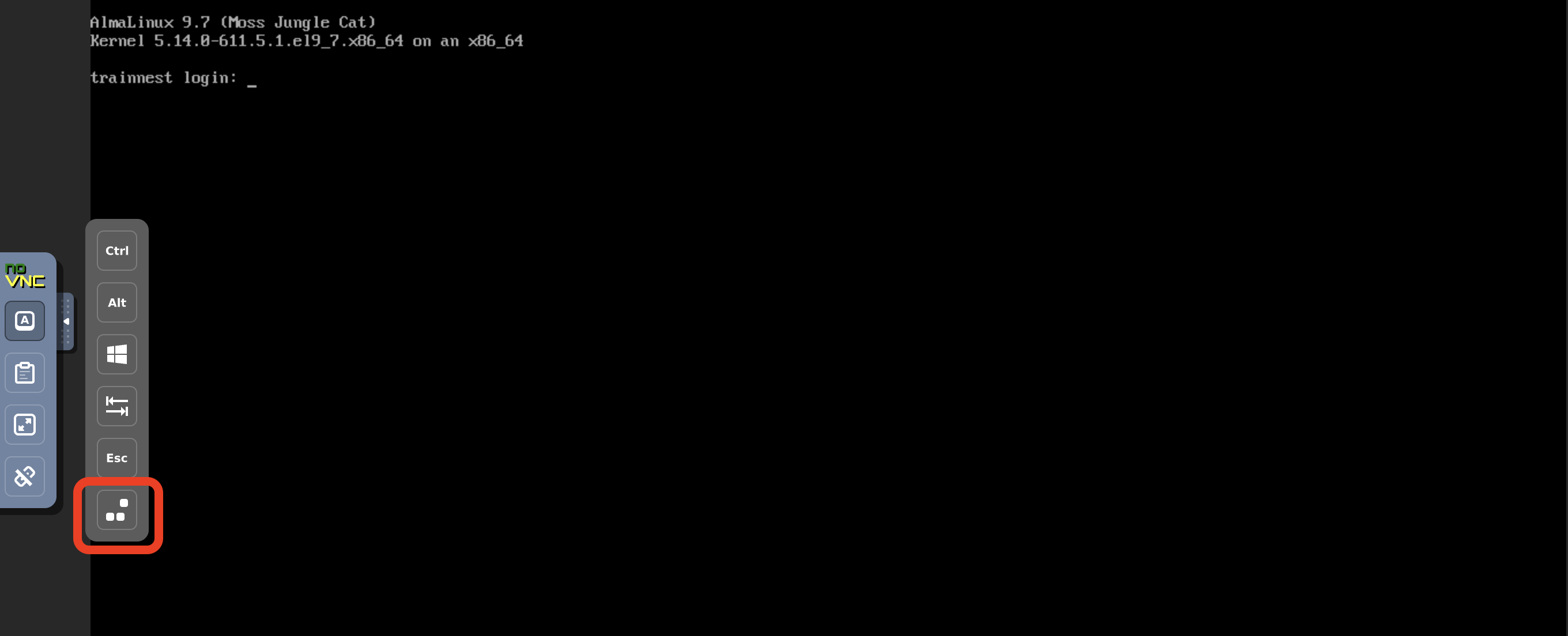
- When the GRUB menu appears, select the default kernel entry. You should navigate with the arrows
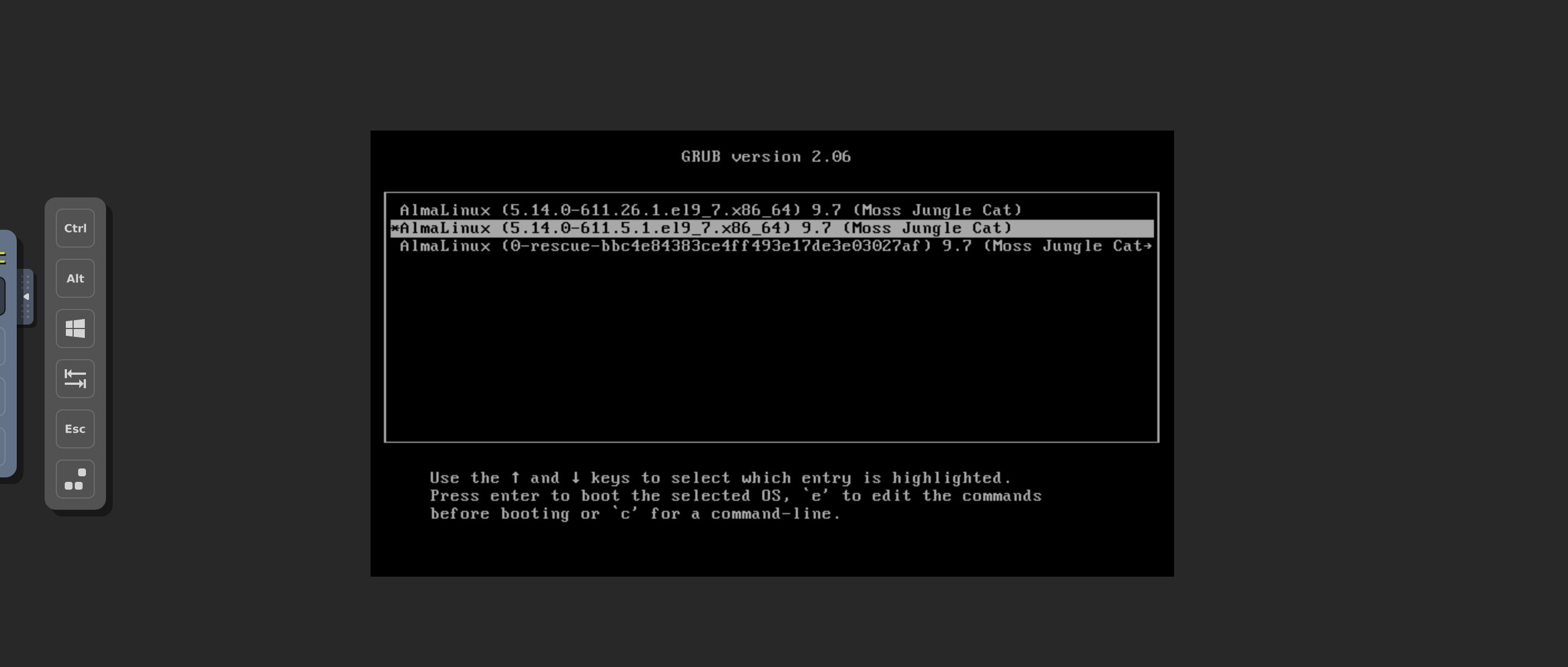
- Press
eto edit the boot parameters.
Step 3: Modify Kernel Boot Parameters
- Locate the line starting with linux or linuxefi.
- At the end of that line, add:
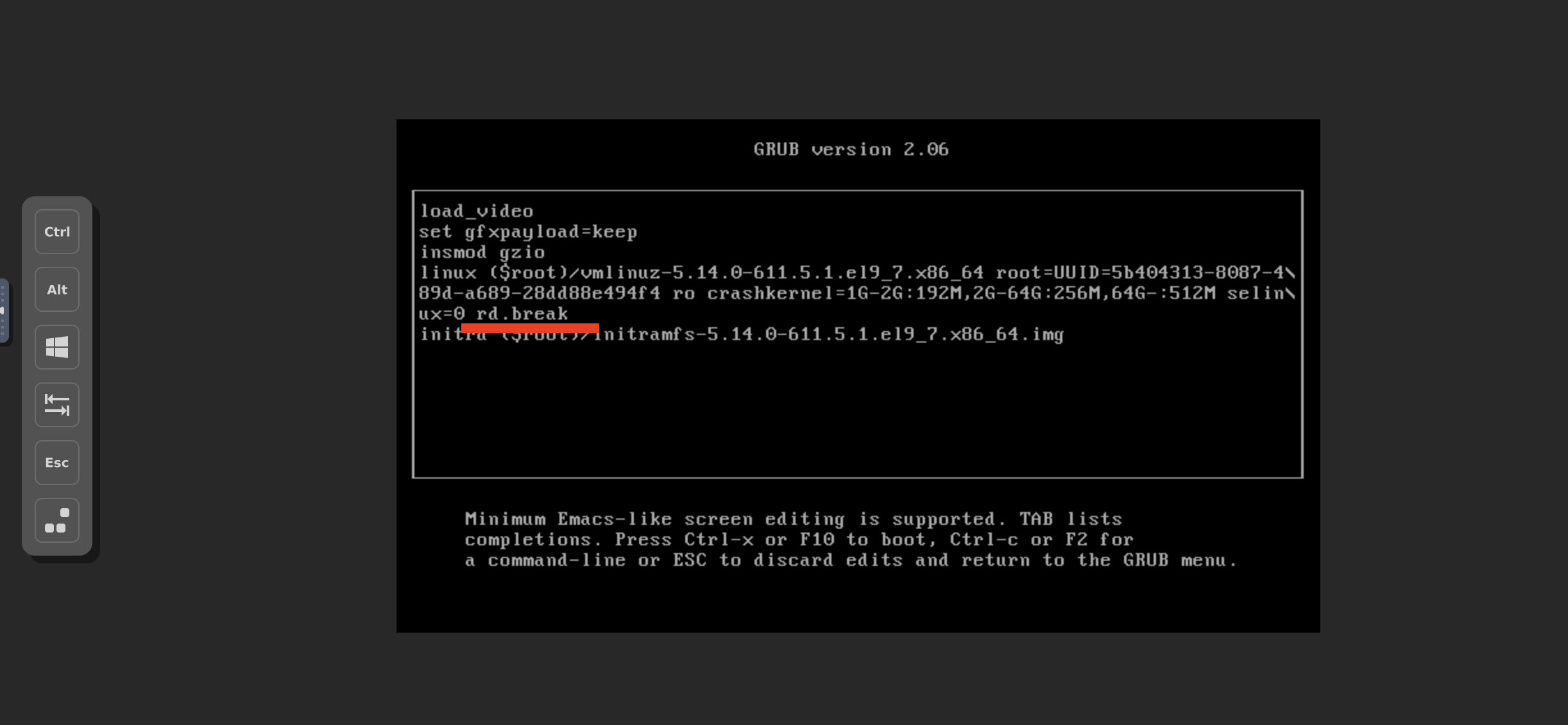
- Press Ctrl + X (or F10) to boot with the modified parameters.
Step 4: Enter Emergency Mode Shell
After booting, the system will drop into an emergency shell with a prompt similar to:Step 5: Remount the System as Writable
Step 6: Chroot into the Installed System
Switch into the actual system environment:Step 7: Reset the Root Password
Run the password utility:- Enter a new password when prompted.
- Confirm the new password.