.jpg?fit=max&auto=format&n=E2LlsT5gBITvo732&q=85&s=ec11e1673894bdf46663a5d73602eb87)

Before you start
- You can log in to the registrar where the domain is currently registered.
- You have an active hosting.com hosting plan.
- If the domain is currently serving a live site elsewhere, you understand that
- If the domain is used for email, make sure you know where the mailboxes are
Steps
Add the domain to your hosting account first
Do this before you change anything at the registrar. The domain must be added to your hosting account before its nameservers point to hosting.com.- Go to https://my.hosting.com and log in.
- In the left sidebar of the control panel, click Websites.
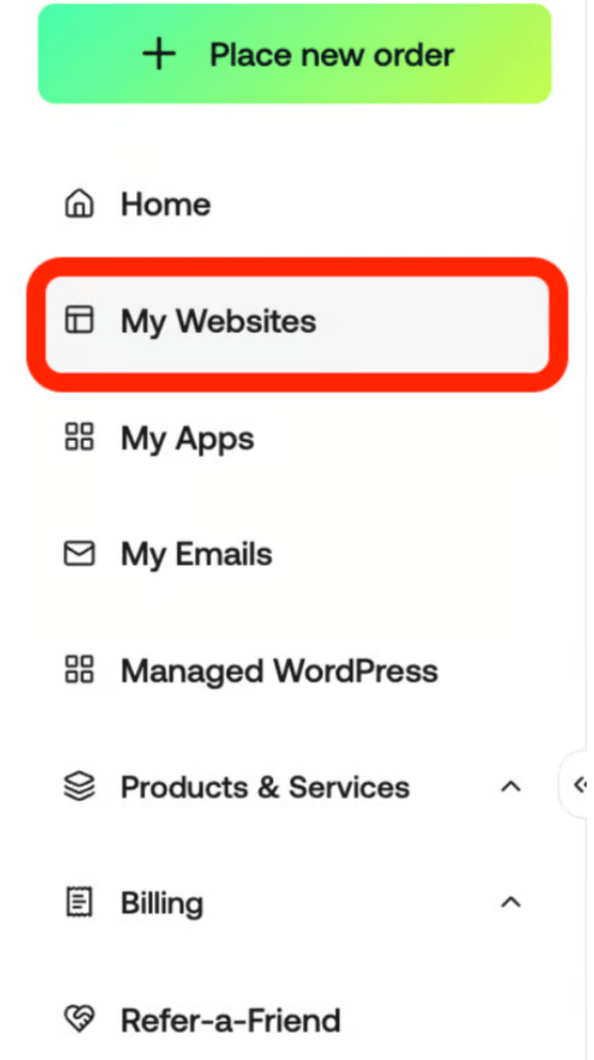
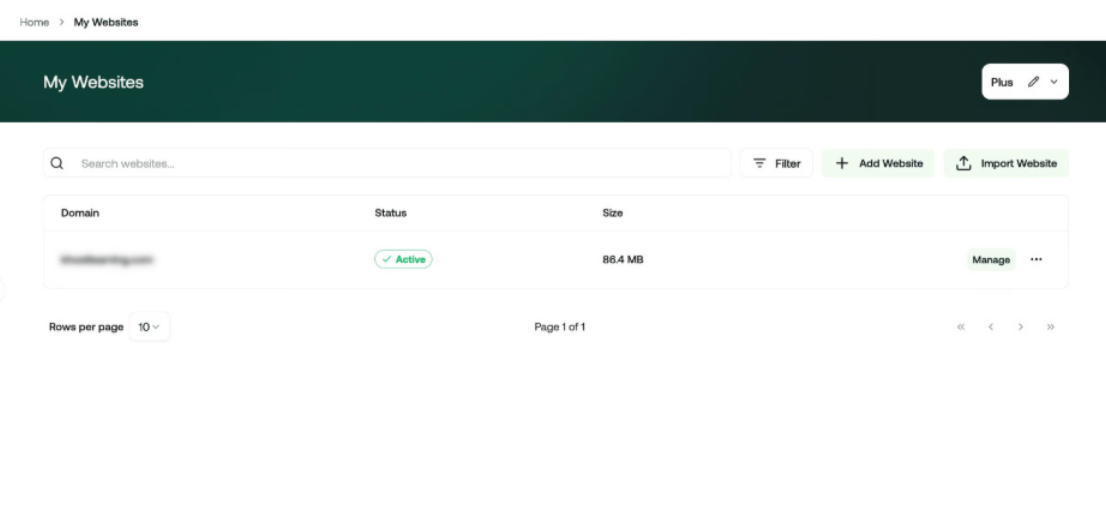
- On the Manage websites page, click Add website
- Select if you want to start from scratch or install a CMS
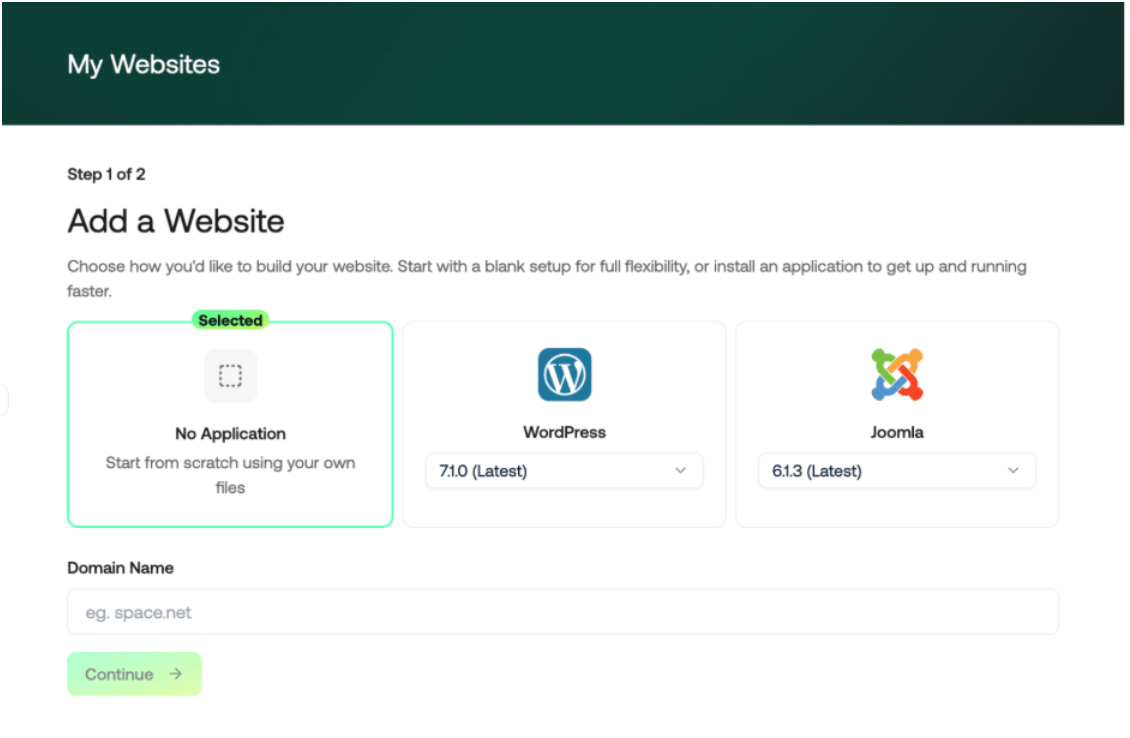
- In the Domain box, type your domain. Use
example.com— nohttp://and nowww. - Click Continue and review your website before you hit the Create website button
Find your nameservers
- In the Hosting Panel, go to Hosting & Servers.
- Find your hosting account and click Manage.
- In the General section, find Nameserver information and note the
nameservers shown for your account.
ns2.stableserver.net
ns3.stableserver.net
ns4.stableserver.net
Some older accounts use a different set, so always check.
Change the nameservers at your registrar
Log in to the registrar where you bought the domain and open the domain’snameserver settings. Depending on the registrar, this may be called
Nameservers, DNS, Manage DNS, or Domain settings. Replace the existing nameservers with the values shown in your hosting.com account. If your registrar provides four nameserver fields, enter all four values shown in your hosting account.
Wait for DNS to update
DNS changes can take up to 24 hours to reach everyone. During this time,some visitors may still reach the old site while others reach the new site. If the domain is used for email, changing the nameservers also changes where
its DNS records are managed. Make sure the required mail records exist in
the hosting.com control panel before or immediately after changing the
nameservers.