.jpg?fit=max&auto=format&n=E2LlsT5gBITvo732&q=85&s=ec11e1673894bdf46663a5d73602eb87)

Before you start
- You have bought a hosting plan and received the Welcome email, which contains your account details.
- You have a domain name. If you do not, register one first. See Register a domain.
- You have your website’s files ready on your computer, with a file called index.html or index.php at the top level. If you want WordPress instead of your own files, use Install WordPress instead.
Steps
Log in and open your control panel
- Go to https://my.hosting.com.
- Type the email address you signed up with in the Username box and your password in the Password box, then click Login.
- In the left sidebar, under Products & Services, click Hosting & Servers.
- Find your hosting account in the list and click Login to Control Panel. Your control panel opens in a new window.
Create the website
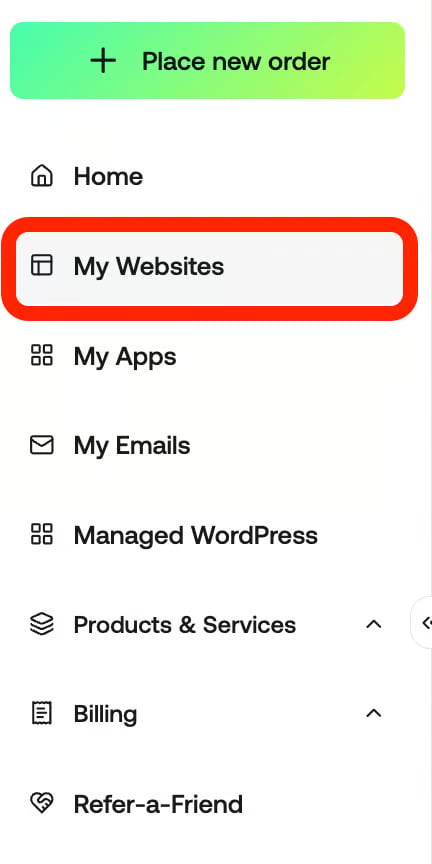
- In the left sidebar of the control panel, click Websites.
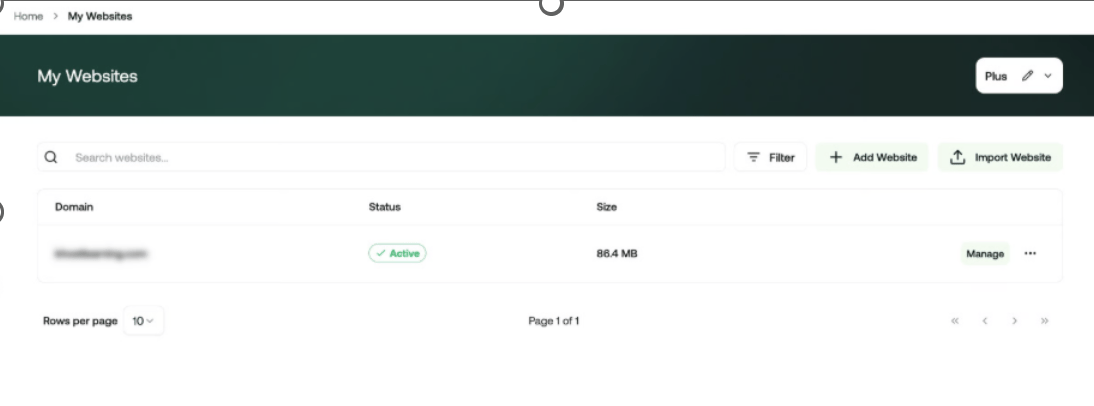
- On the Manage websites page, click Add website.
- Select whether you want to start from scratch or install a CMS
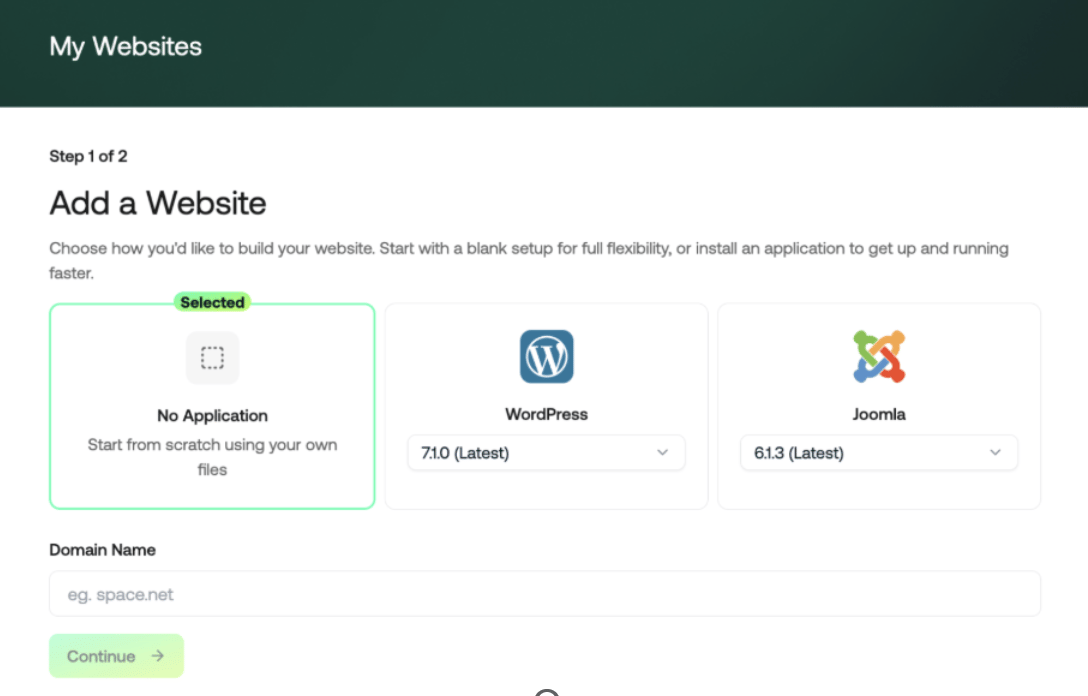
- In the Domain box, type your domain. Use
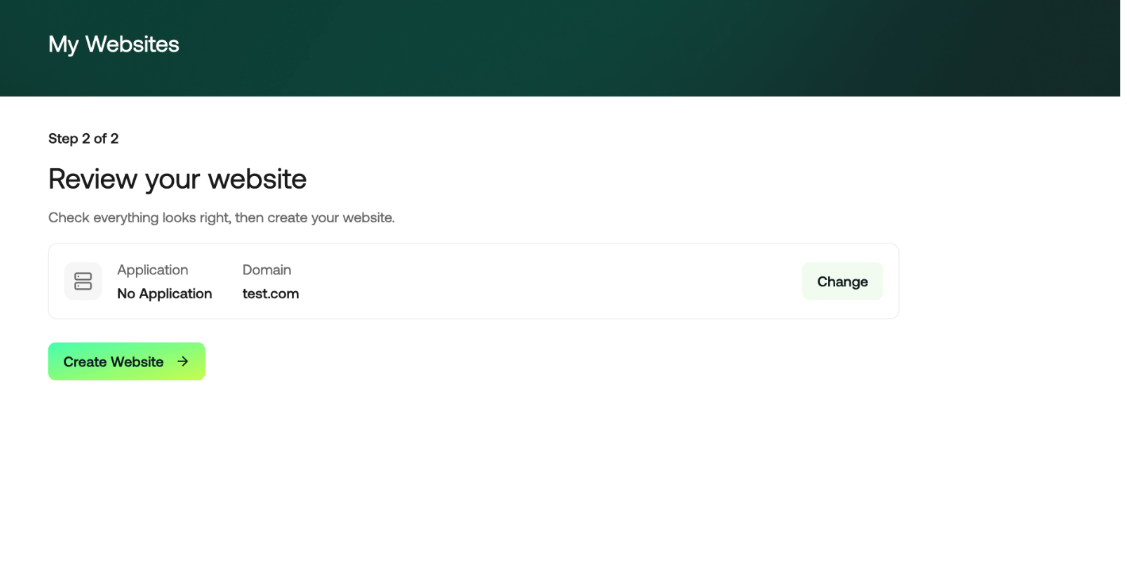
example.com— nohttp://and nowww. - Click Continue and review your website before you hit the Create website button
Point your domain at the site
If you registered your domain with hosting.com, no action is required because the nameservers are already set. If you registered your domain somewhere else, follow Connect a domain you bought somewhere else before continuing. DNS can take up to 24 hours to propagate.Create an FTP account
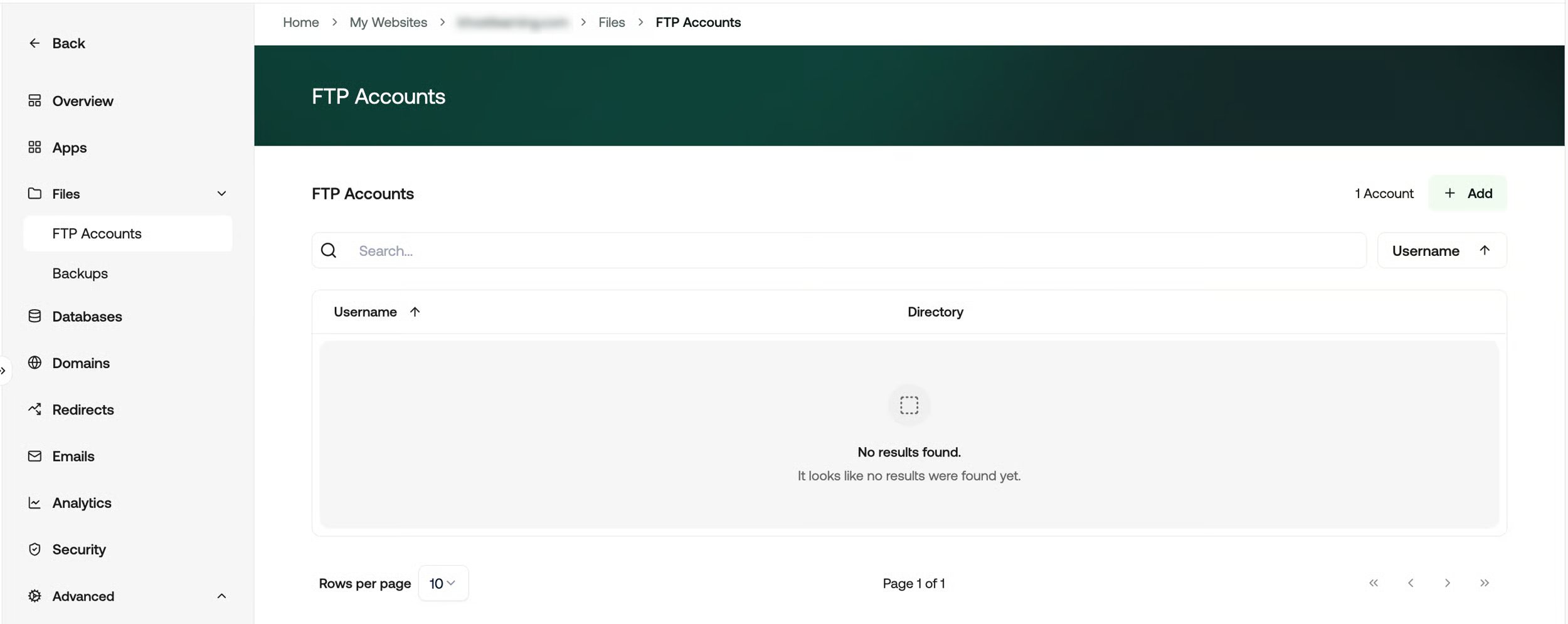
The Files area is where you create the FTP account you will connect with and where you find your backups.- On the Manage websites page, click your website.
- Click Files, then click FTP Accounts.
- Click Add.
Upload your files
- Open your FTP client and create a new connection using the FTP account details you just created.
- Enter the FTP username and password you saved in the previous steps.
- Enter the FTP server address and port. If you are not sure what yours are, see Managing FTP accounts in the Hosting Panel.
- Connect to the server.
- Open the public_html directory if it is not already open.
- Upload your website files to public_html.
- Confirm that index.html or index.php is directly inside public_html, not inside a subfolder such as public_html/mysite.
Check it worked
- Open a new browser tab and go to https://example.com.
- Confirm that your home page loads.
- Confirm that the address bar shows a padlock and the URL starts with https://.