.jpg?fit=max&auto=format&n=E2LlsT5gBITvo732&q=85&s=ec11e1673894bdf46663a5d73602eb87)

- Log in to the Hosting Panel at https://my.hosting.com.
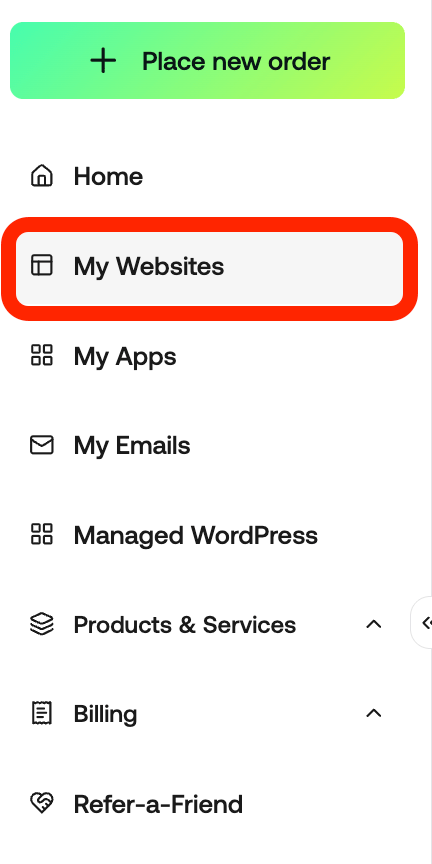
- In the left sidebar, click My Websites:
- The My Websites page appears, listing every website on your plan:
.jpg?fit=max&auto=format&n=Dg7foncwEHP4DkZh&q=85&s=d95713a6438cd24d1fca2947b0cbfdc8)
- Search websites: Type all or part of a domain name to filter the list. This is useful if you have a large number of sites.
- Filter: Narrow the list down to the websites you want to see.
- Add Website: Create a new website on your plan.
- Import Website: Bring an existing website onto your plan.
Switching between hosting plans
If you have more than one hosting plan, the My Websites page shows the websites for one plan at a time. The name of the plan you are currently viewing appears at the top right of the page. To switch to a different plan, follow these steps:- At the top right of the My Websites page, click the name of the current plan:

- A list of your hosting plans appears. A check mark shows which plan you are viewing.
- Click the plan you want to switch to. The website list updates to show the websites on that plan.
Managing a website
To manage a website, locate it in the list and then click Manage..jpg?fit=max&auto=format&n=Dg7foncwEHP4DkZh&q=85&s=baf36d09c97f467a4632c12d217f049d)
Plugins
The Plugins page is where you manage the plugins installed on your WordPress site, without needing to log in to the WordPress dashboard.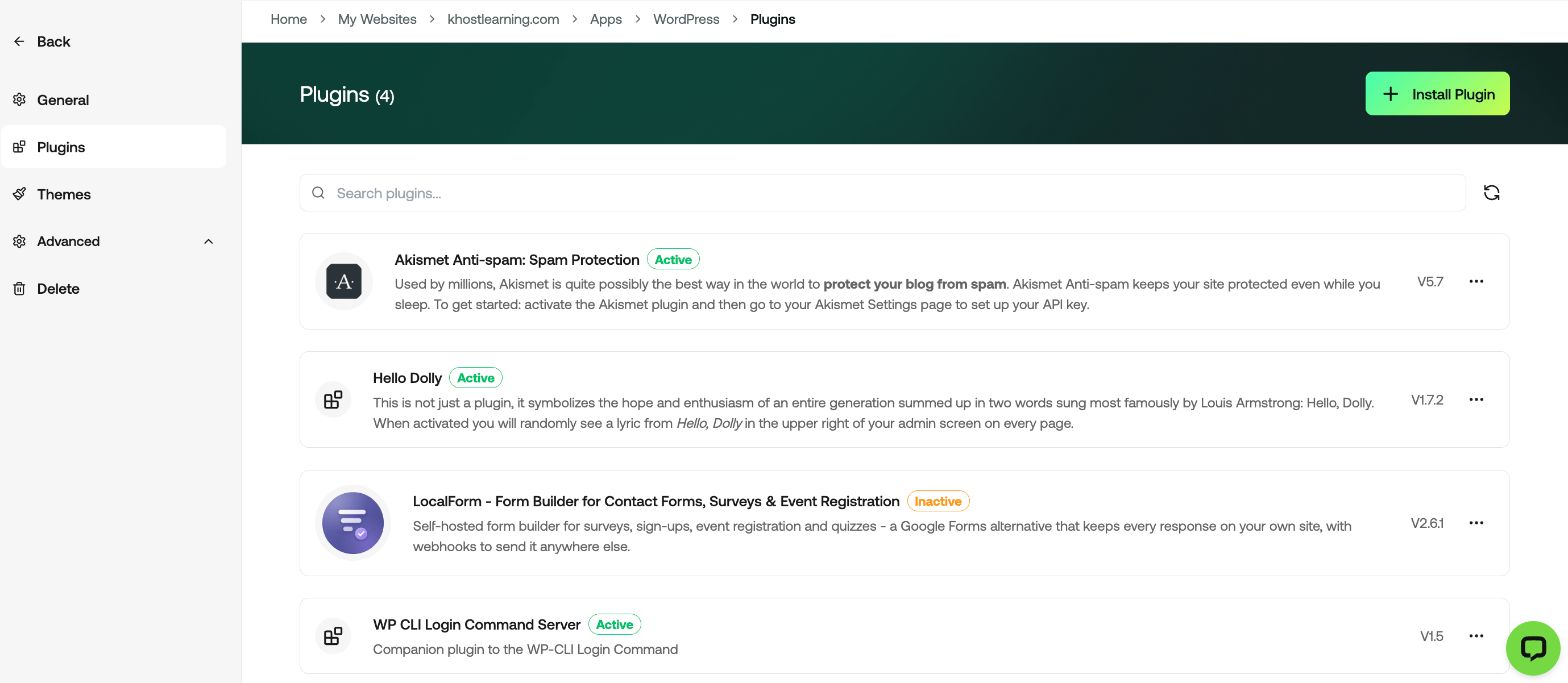
Themes
The Themes page is where you manage the themes installed on your WordPress site.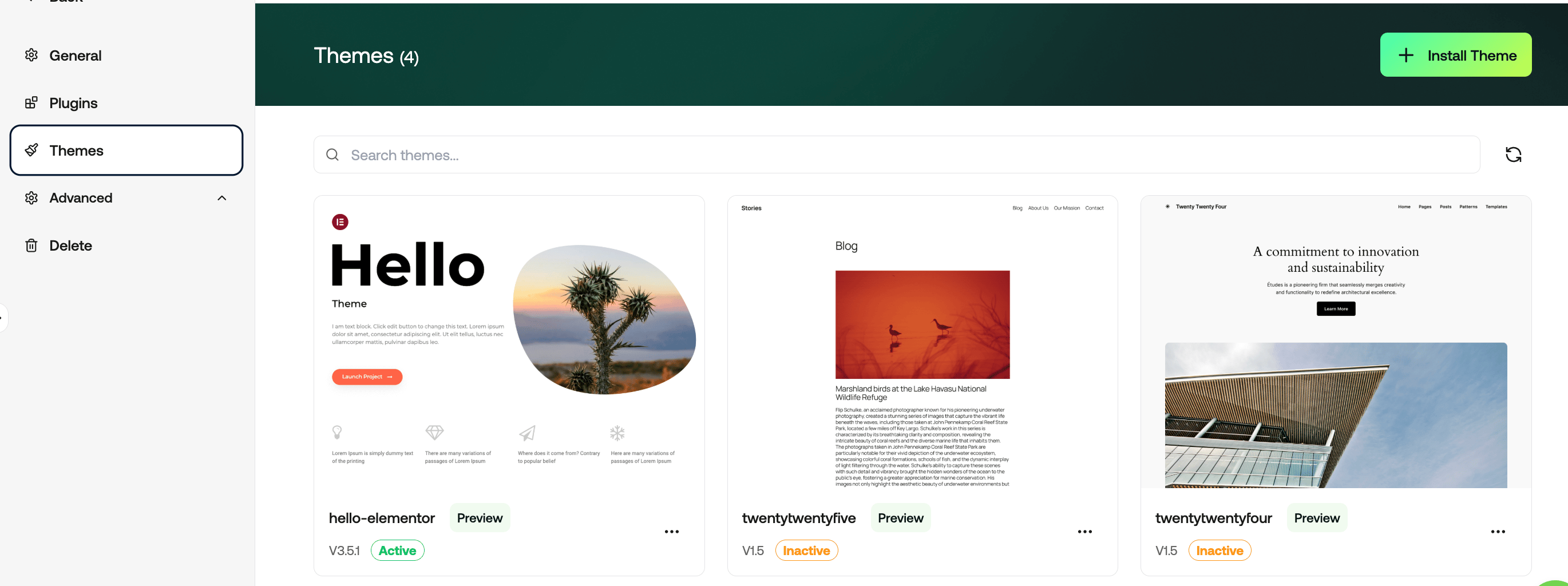
Advanced
Advanced contains four further pages:- Security: You can restrict admin access to your WordPress site for a user
- Users: You can create users for your WordPress site
- SSO: Single sign-on, which is what allows the Admin login button to sign you in to WordPress without a password.
- Debug: You can enable/disable the debug mode of your website