.jpg?fit=max&auto=format&n=E2LlsT5gBITvo732&q=85&s=ec11e1673894bdf46663a5d73602eb87)

- Log in to the Hosting Panel at https://my.hosting.com.
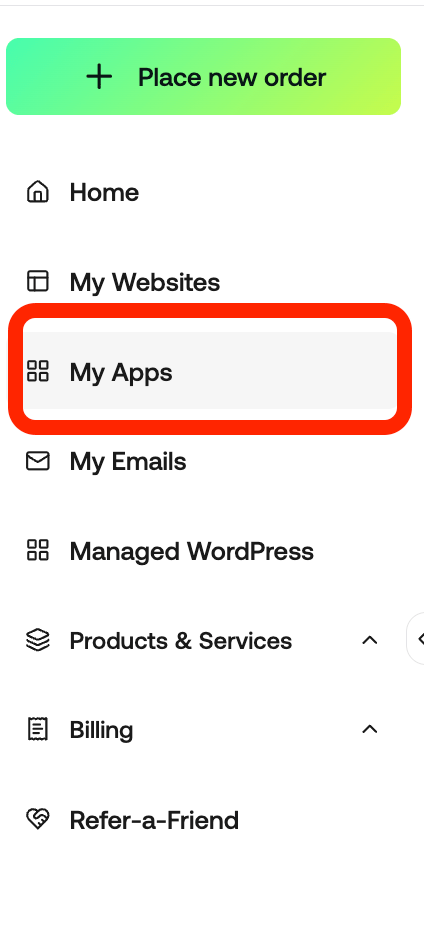
- In the left sidebar, click My Apps.
Files
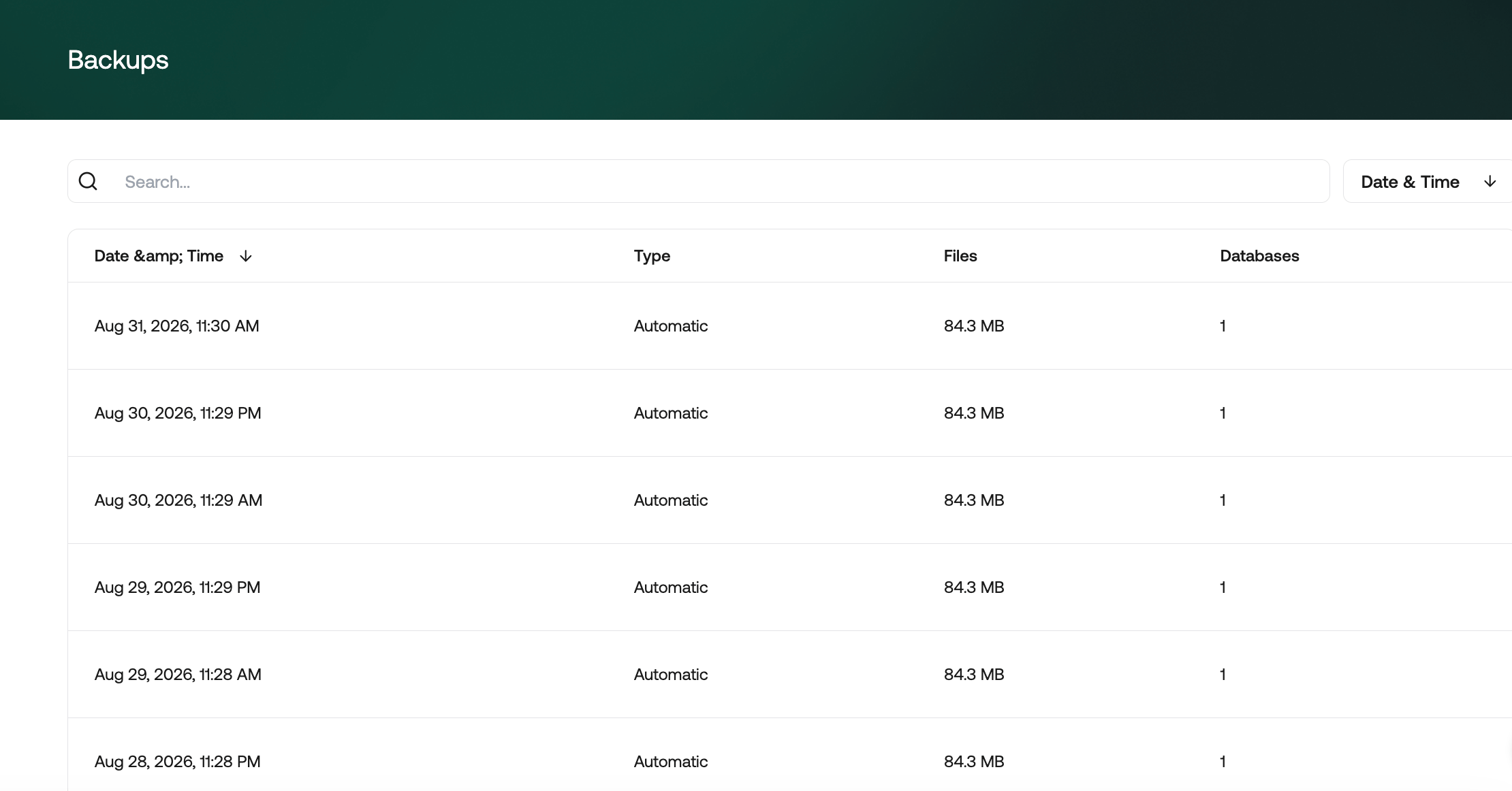
Files contains two pages, FTP Accounts and Backups.FTP Accounts
An FTP account lets you connect to your website with an FTP client so you can upload and download files.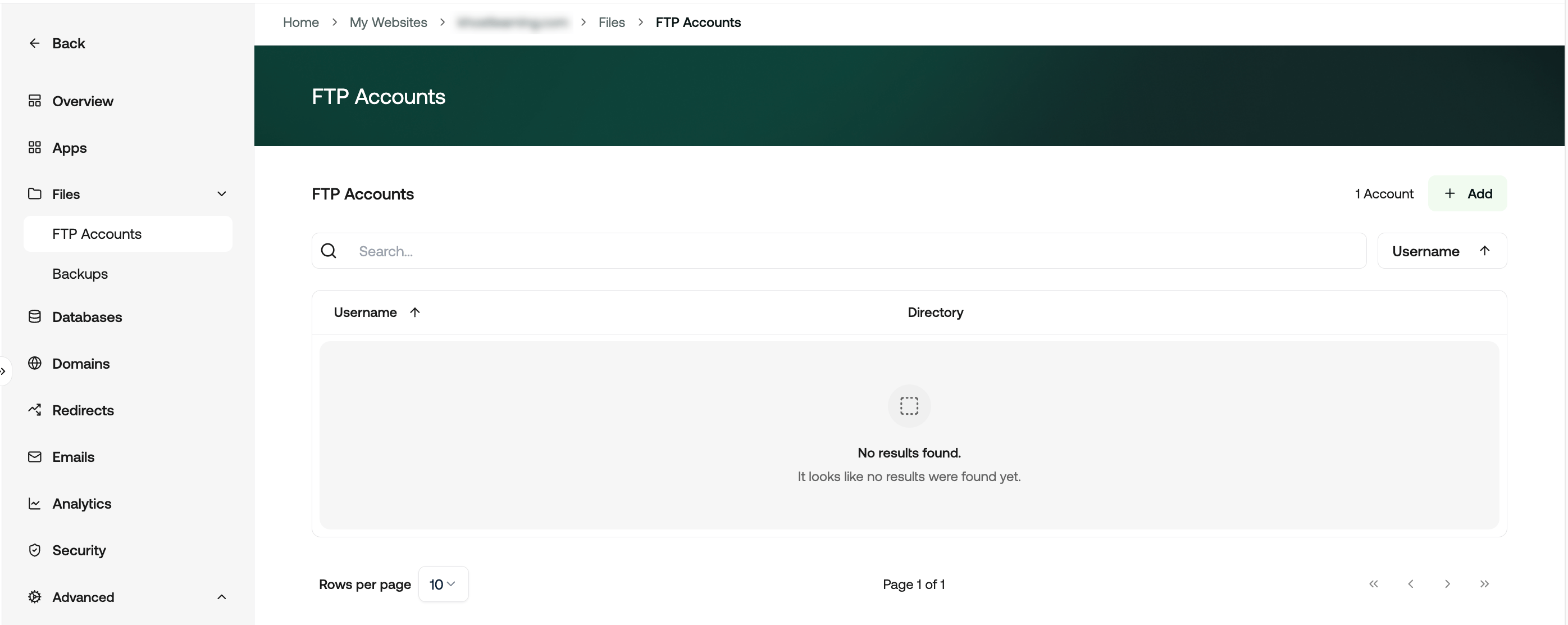
Databases
Databases is where you create and manage the MySQL databases your website uses. The page has two tabs, Databases and Users.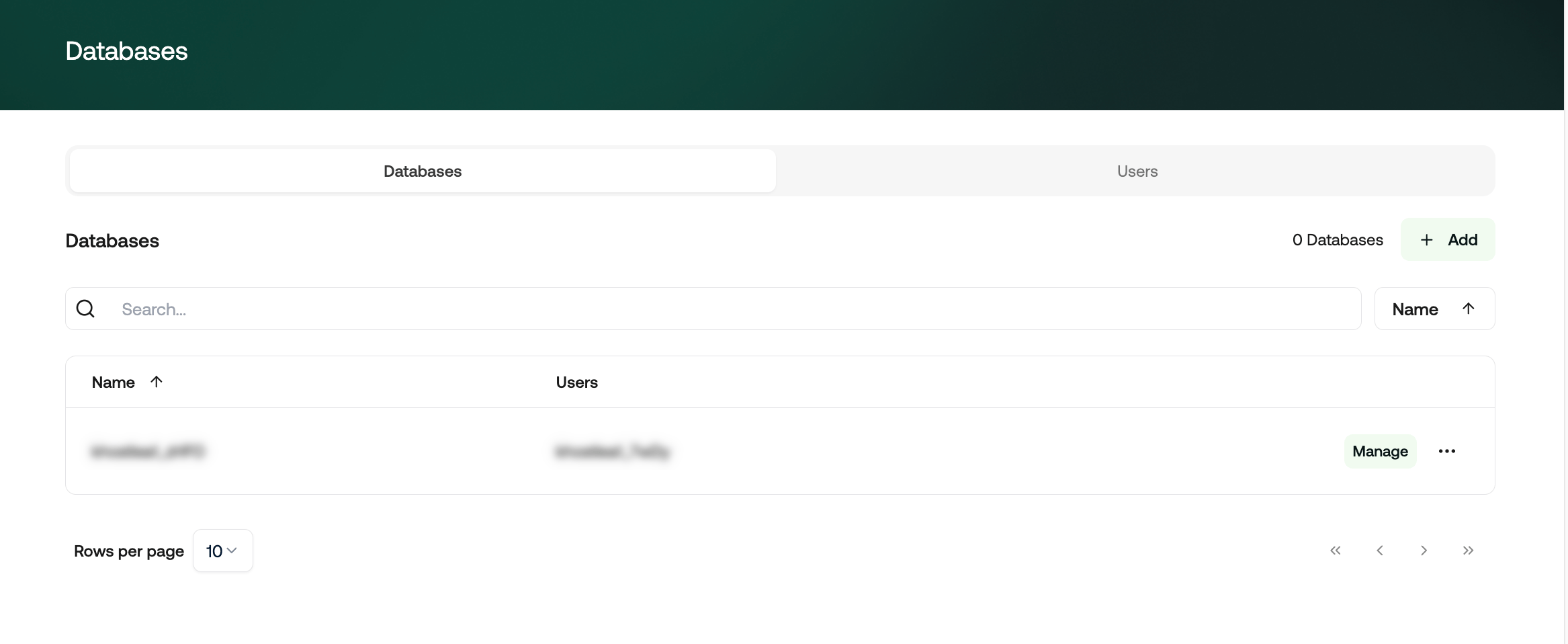
Viewing database connection details
To see the details an application needs in order to connect, click Manage next to a database: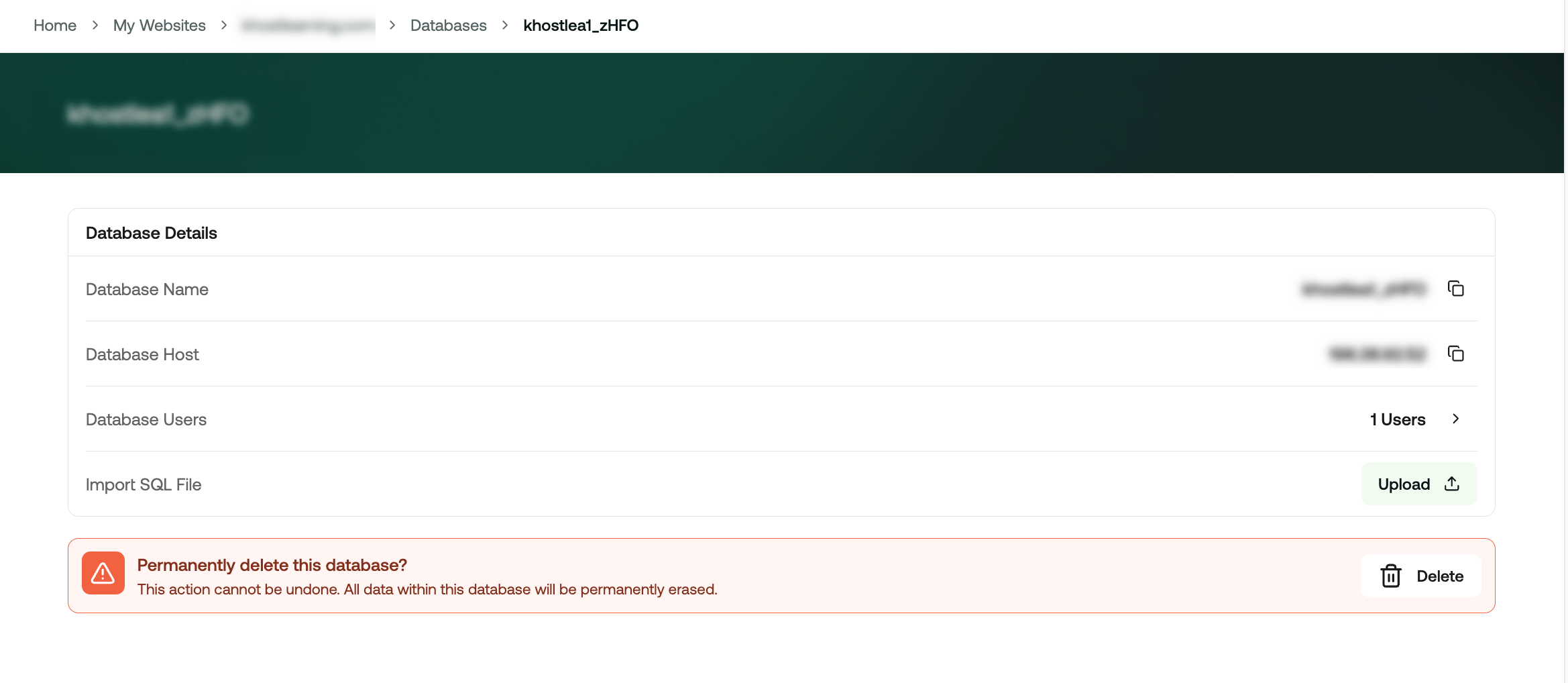
Click the copy icon next to a value to copy it. To connect an application to your database you need the database name, the host, and the username and password of a database user.
Domains
Domains lists every domain that points at this website.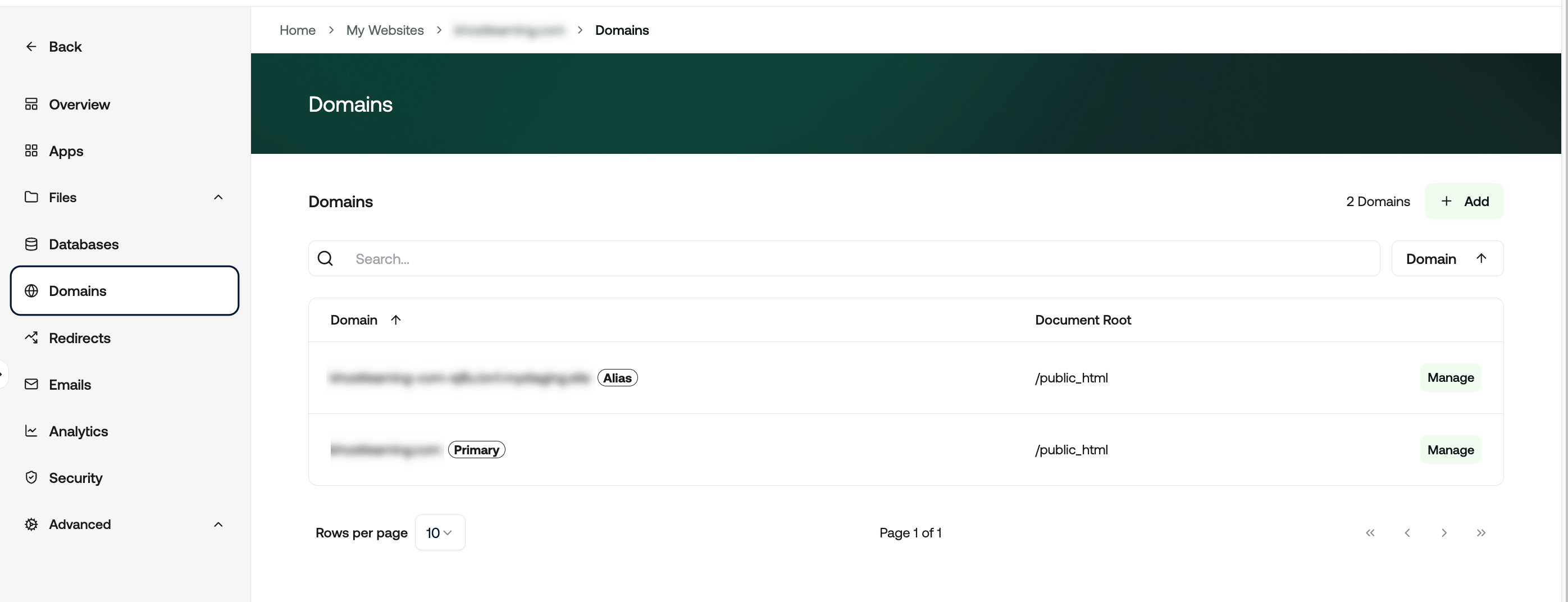
- Primary: The website’s main domain.
- Alias: An additional address that loads the same website.
Redirects
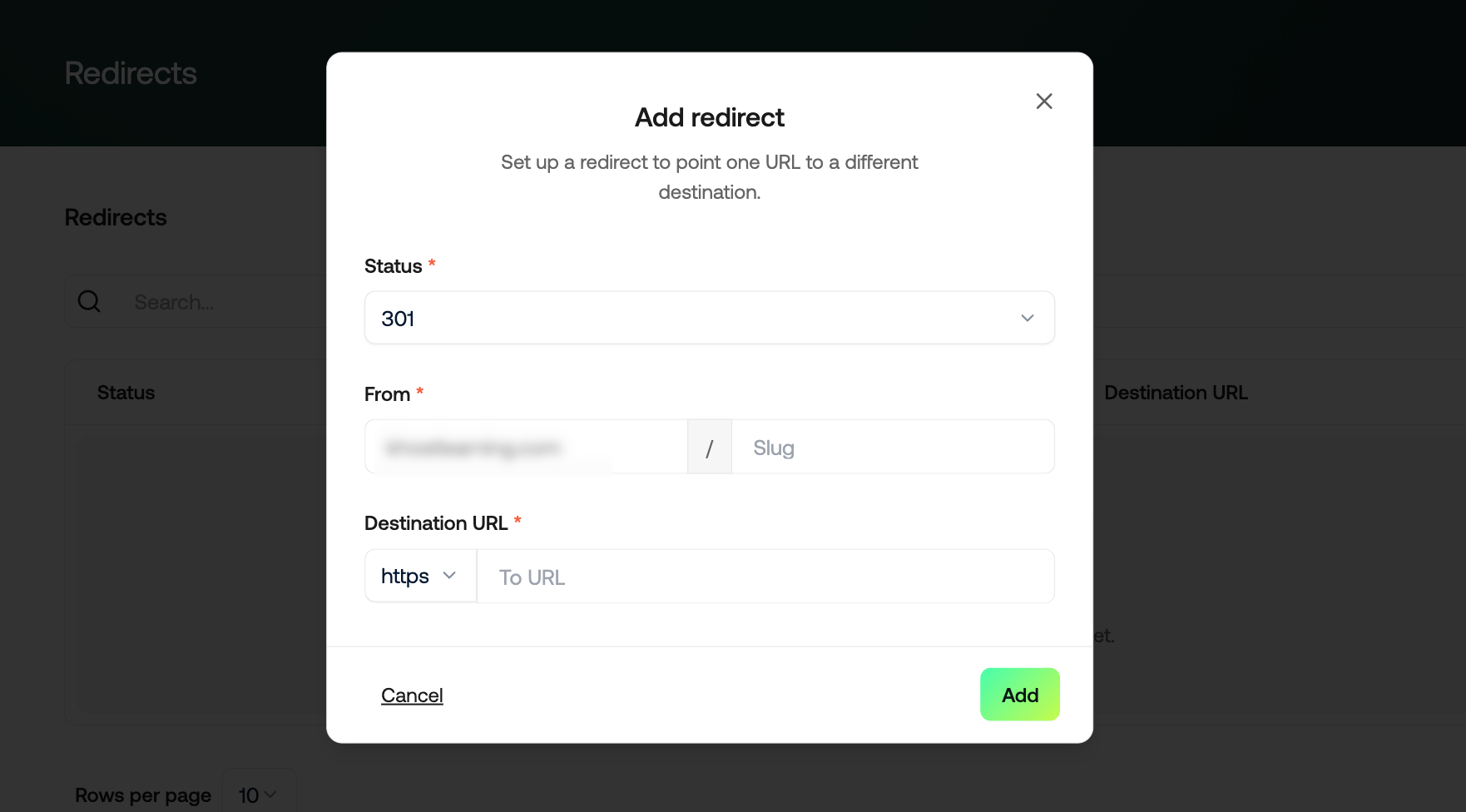
A redirect sends visitors who arrive at one address on to a different one. Redirects are useful when you move a page, or when you want several addresses to lead to the same place.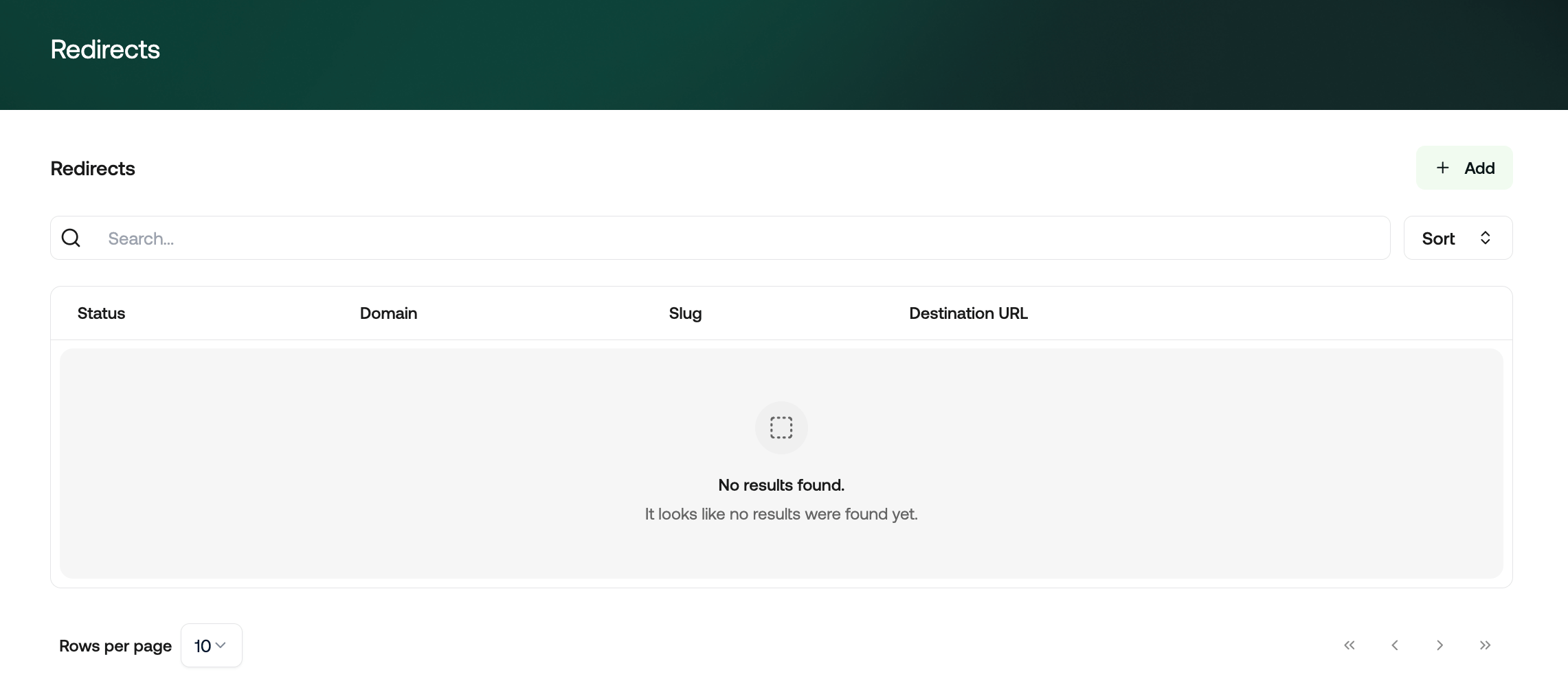
Emails
Emails is where you manage the mailboxes for this website’s domain.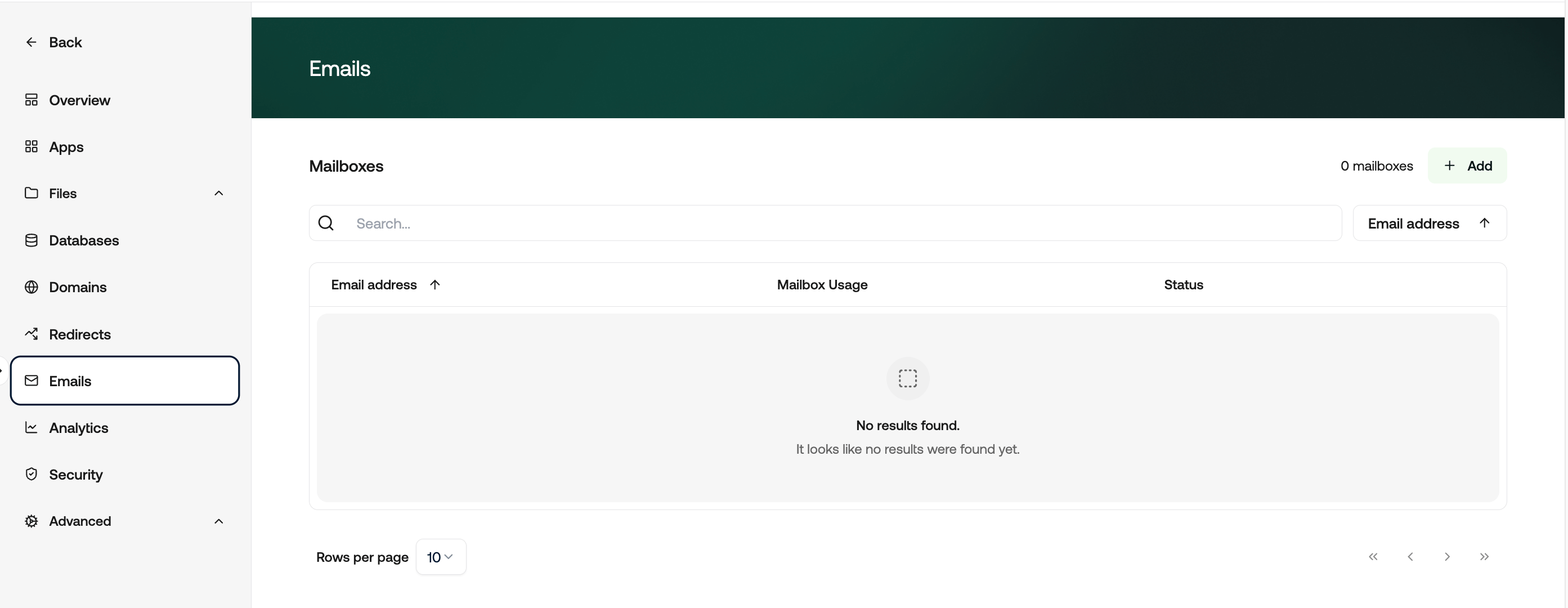
Creating a mailbox
To create a mailbox, follow these steps:- Click Add. The Add account window appears: Show Image
- In the Email address box, type the part of the address that goes before the at sign. Your domain is added for you.
- In the Mailbox size box, type a size and choose a unit from the list. The largest size you can set is shown below the box.
- In the Full name box, type the name you want recipients to see when you send a message. This is optional.
- In the Password box, type a password. Click the eye icon to check what you have typed.
- Click Add account.
The number of mailboxes included with your plan, and how many you have used, is shown at the top of the window.
Managing a mailbox
To change a mailbox’s settings, click Manage next to it: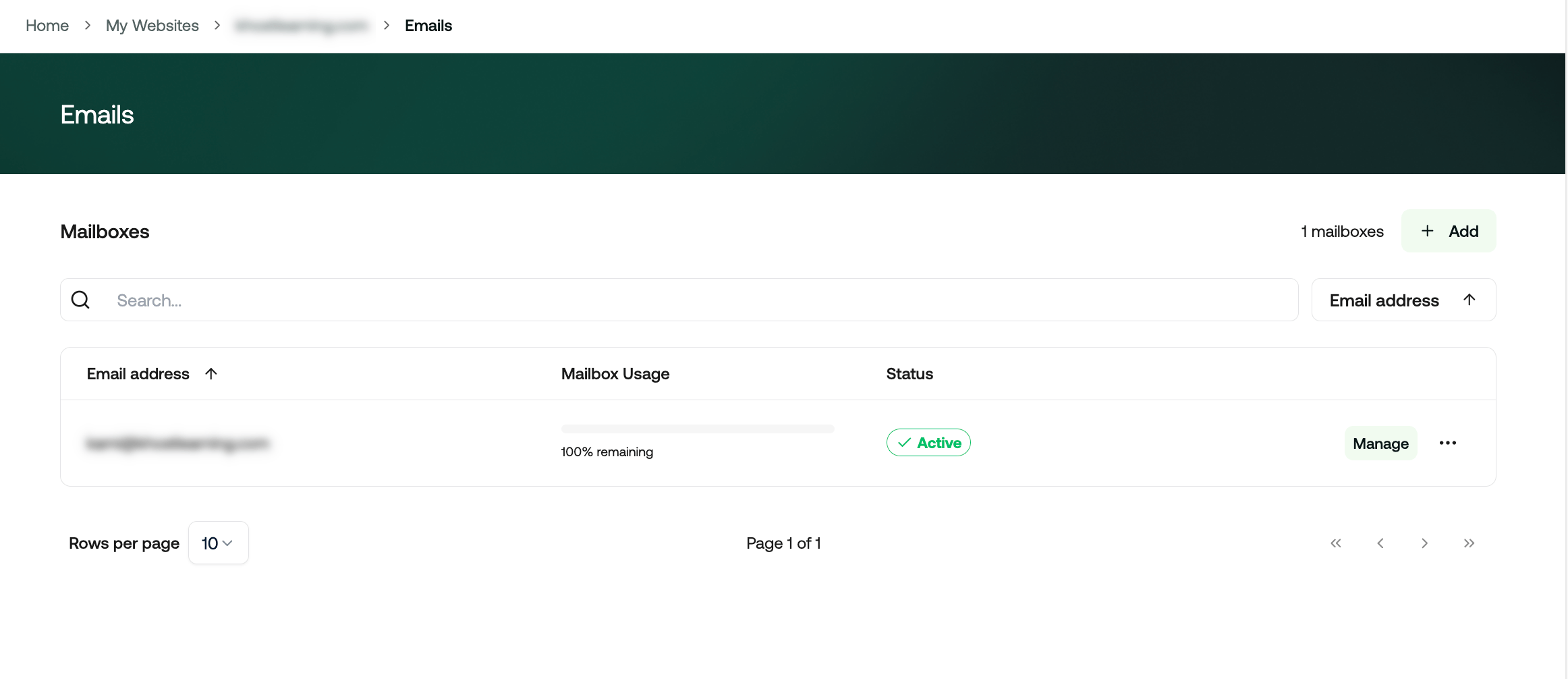
The three spam settings each use a numbered level, where a higher number filters more aggressively.
Analytics
Analytics shows how much traffic your website is receiving.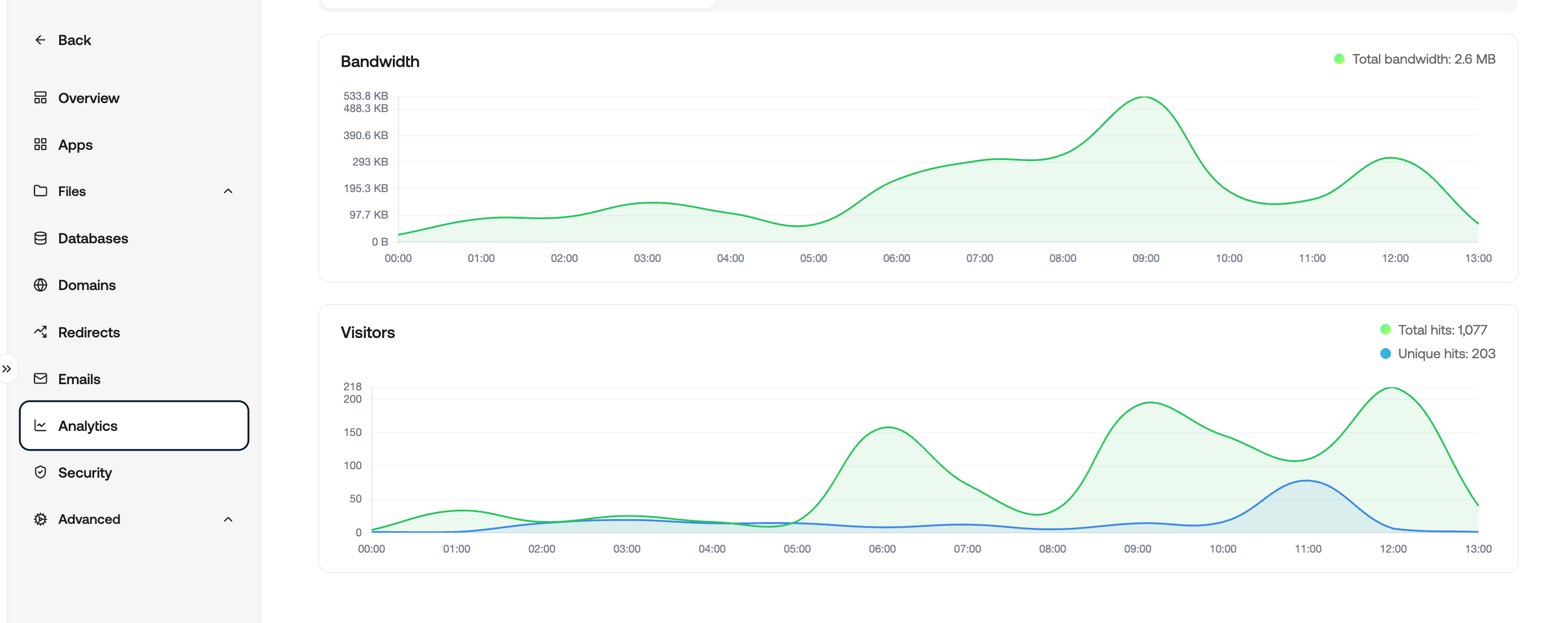
- Bandwidth: How much data your website has served. The total for the period is shown at the top right of the chart.
- Visitors: How many times your website has been requested. Total hits counts every request, and Unique hits counts individual visitors.
Security
Security is where you manage your website’s SSL certificate and control which visitors can reach it.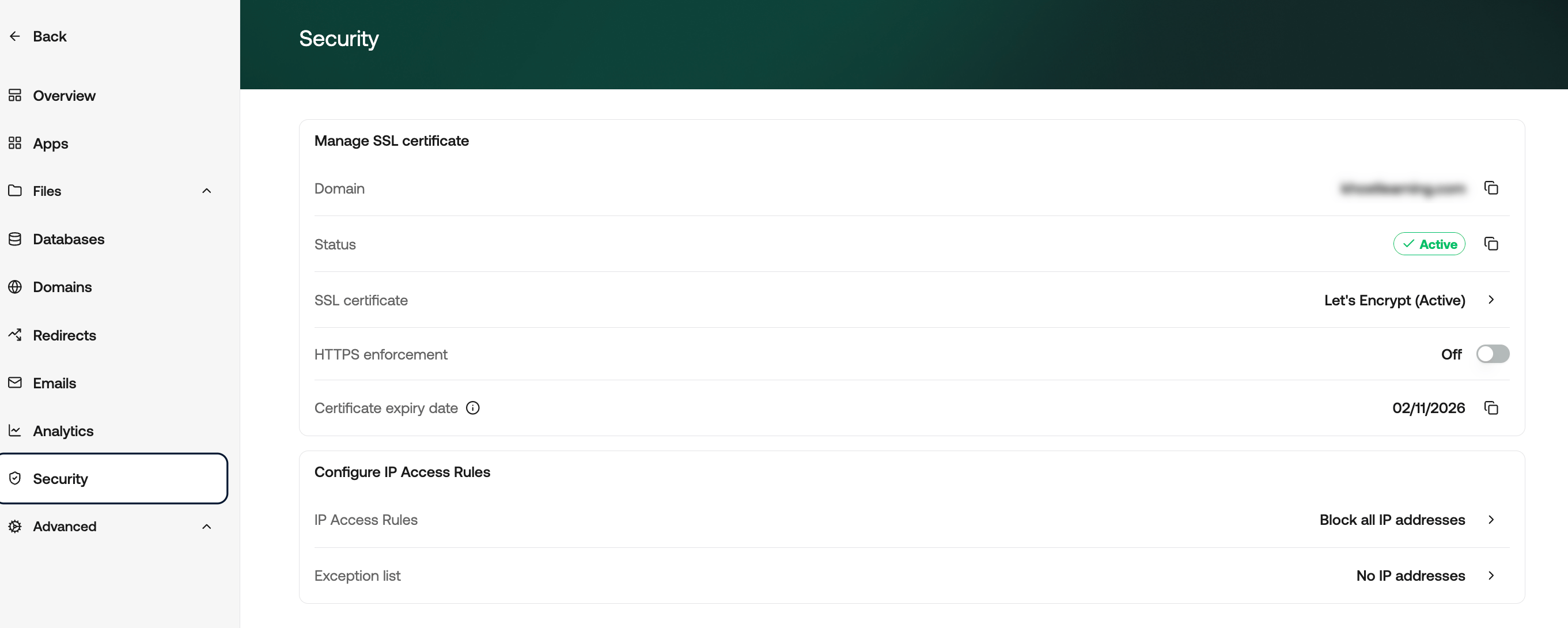
Manage SSL certificate
An SSL certificate encrypts traffic between your website and its visitors. It is what allows your site to load overhttps and show a padlock in the browser.
Configure IP Access Rules
IP access rules control which visitors are allowed to reach your website.- IP Access Rules: The rule applied to visitors.
- Exception list: The addresses treated differently from that rule.
Advanced
Advanced contains three pages.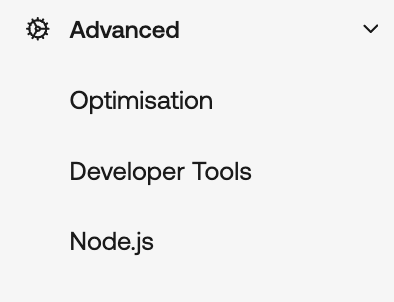
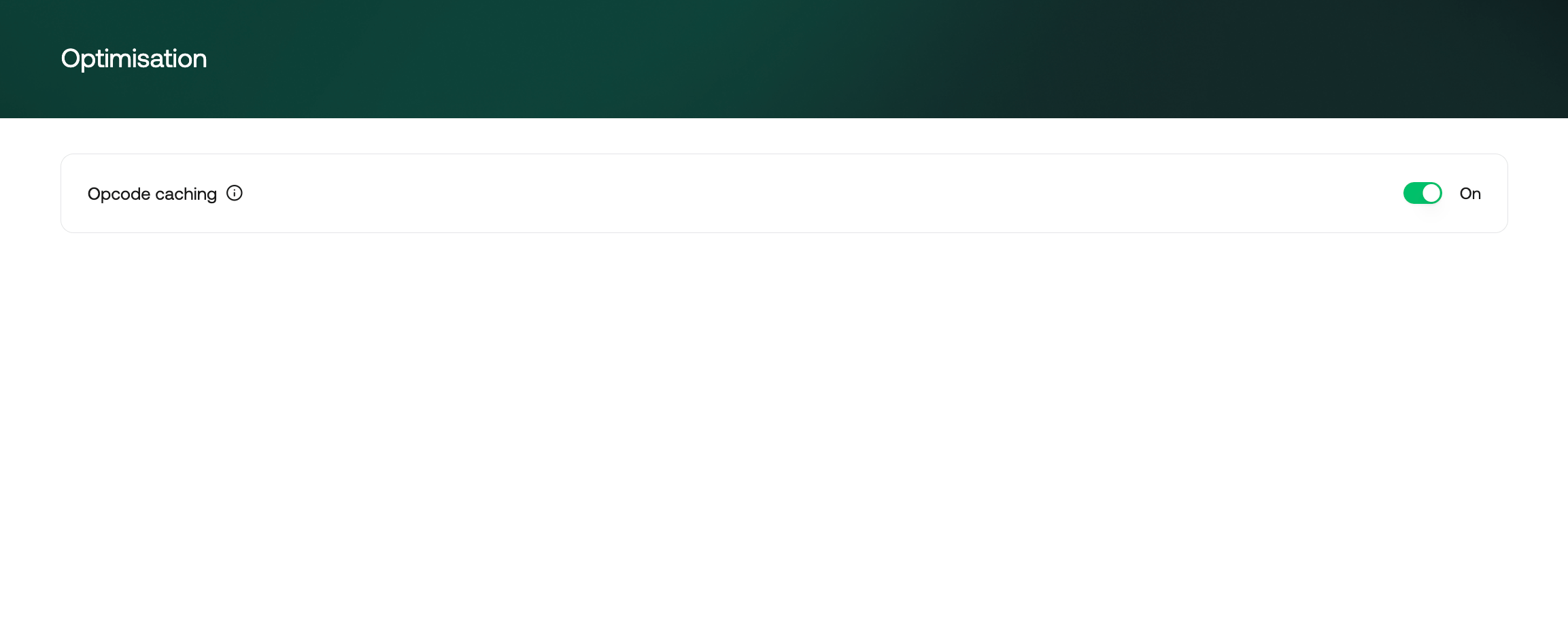
Optimisation
Developer Tools
Node.js
Node.js lets you run a Node application on your website. To deploy an application, follow these steps:- Click Deploy Node.js. The following window appears: Show Image
- Choose how your application runs:
- Automatic (production): Your application starts automatically, and restarts if it stops.
- Manual (development): Your application is proxied from the web server but is not started for you. You start it yourself over SSH.
- In the Node version list, select the version of Node you want to use.
- In the Startup command box, type the command that starts your application, for example
npm start. - In the Working directory box, type the folder to change to before the application starts. Leave it empty to use the default.
- Leave Proxy enabled turned on so the web server forwards traffic from your primary domain to your application.
- In the Path box, leave it empty to proxy your entire website, or type a sub-path such as
/apito proxy only part of it. - In the Port box, type the port your application listens on.