.jpg?fit=max&auto=format&n=E2LlsT5gBITvo732&q=85&s=ec11e1673894bdf46663a5d73602eb87)

Before you start
- Your domain is pointing to hosting.com. If you have just changed nameservers, wait until propagation is complete before testing mail delivery.
- Your website exists in the control panel. Mailboxes belong to a website.
- You have decided on the address you want to create. Common choices include hello@, info@, or your own name. You cannot use cpanel as a mailbox name.
Steps
- Go to https://my.hosting.com and log in.
- In the left sidebar, click Websites.
- On the Manage websites page, click the website for the domain you want to use.
- Click the Emails tab.
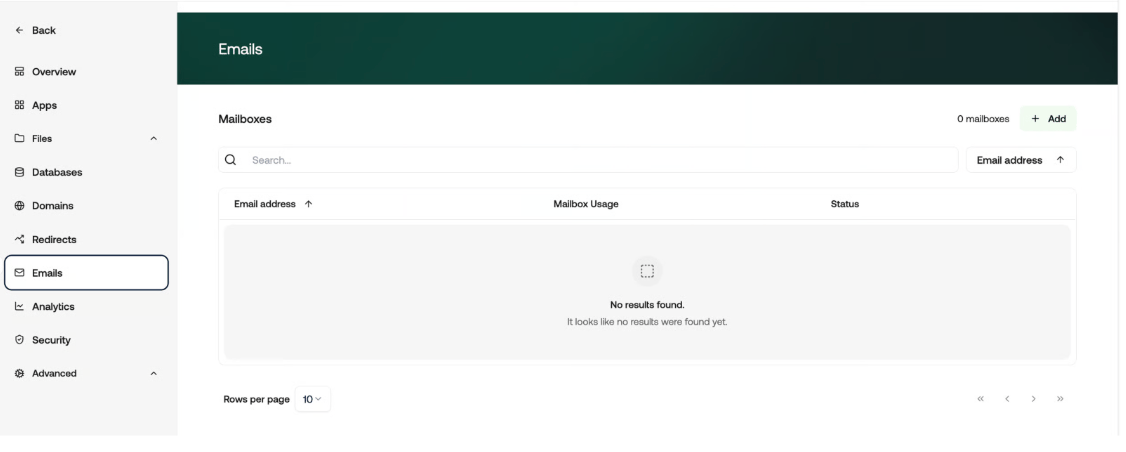
- Click Add account.
- Enter the mailbox name, password, and mailbox size.
- Click Add. The new mailbox appears in the list.
- Click the mailbox you created.
- In Display name, enter your name or business name. This is the name recipients see next to your email address.
- Check the mailbox size and make sure it is appropriate for your plan and the other mailboxes on the account.
Check it worked
Open webmail using the link provided for the mailbox in the control panel. Log in with the full email address, such as [email protected], and the password you set when you created the mailbox. Then test both directions:- Send a message from the new mailbox to a personal email address outside hosting.com.
- Reply to the message from that address.
- Confirm that the reply arrives in webmail.